
To ensure that playback is uninterrupted Pocket Casts needs to be granted unrestricted battery usage. Otherwise, the operating system will sometimes stop playback when the phone’s screen is off or the app is in the background. While battery optimization helps conserve battery power on your device, the feature can also cause problems with apps that need to function in the background, including Pocket Casts.
Due to the different customisations of manufacturers, we are unable to test with every device, so the steps and screenshots are provided as a guide and we encourage you to please try to find similar settings on your own phone.
- Samsung
- Huawei
- Additional information on the relevant settings for these and other devices can be found at https://dontkillmyapp.com/
Please also ensure that you are running the latest version of the app for improvement and stability.
If you are still having trouble, please get in touch with us at support@pocketcasts.com.
The instructions below have been tested on the S9, Note9, S10, and Note10 (and various variants of those). In most cases the first step Turn off Optimization for Pocket Casts is all you should need to do.
- Turn off Optimization for Pocket Casts
- If that doesn’t work, Check Power Mode
- If that doesn’t work, Check Additional Battery Settings
If your device is running Android 12 (One UI 4), please refer to these steps:
- Turn off Optimization for Pocket Casts
- If that doesn’t work, Turn off Put Unused Apps To Sleep
- Open the Settings app
- Tap Apps
- Find Pocket Casts in the list and tap on it (you may have to change the Filter at the top to ‘All’ to see it)
- Tap Battery
- Turn off Optimise battery usage
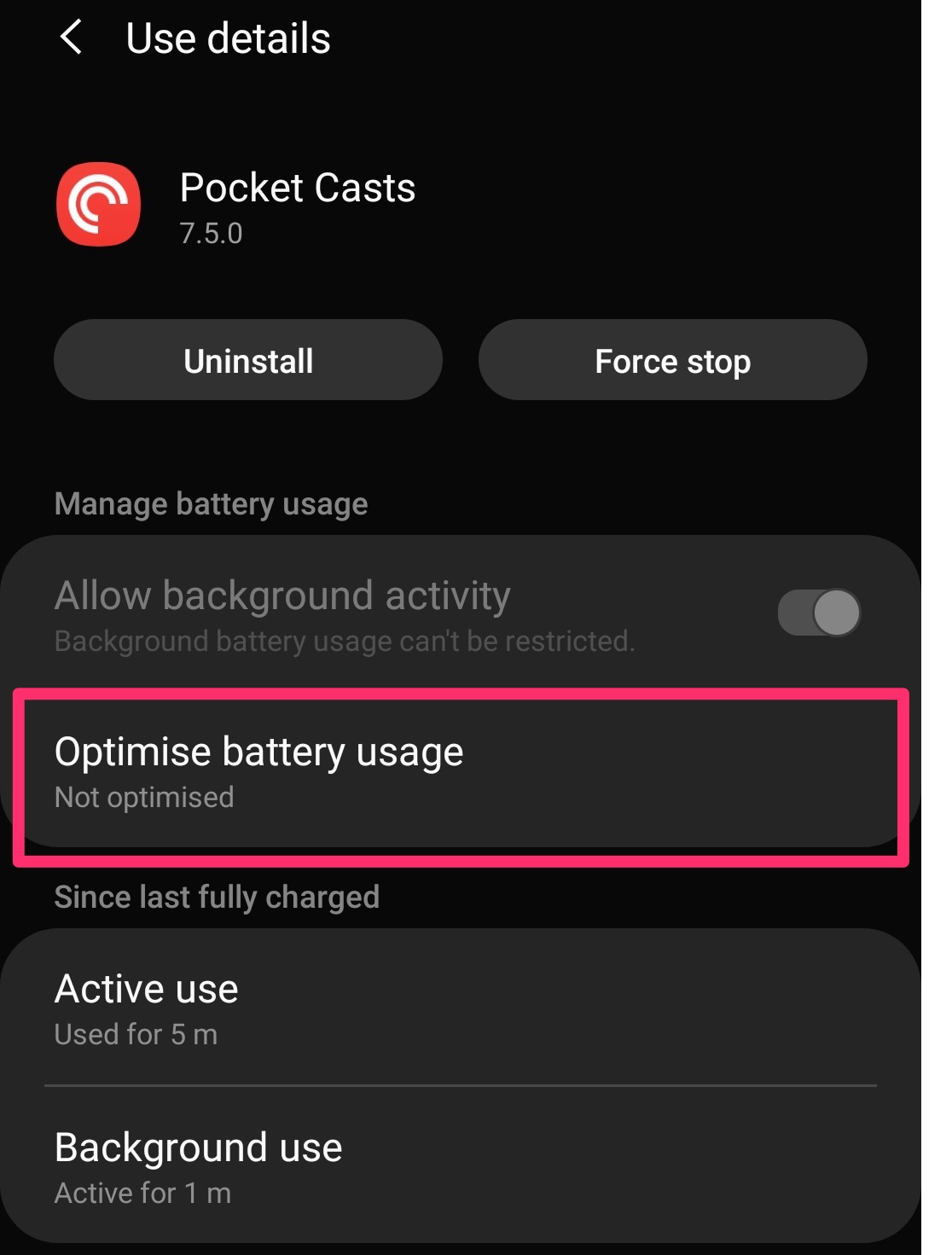
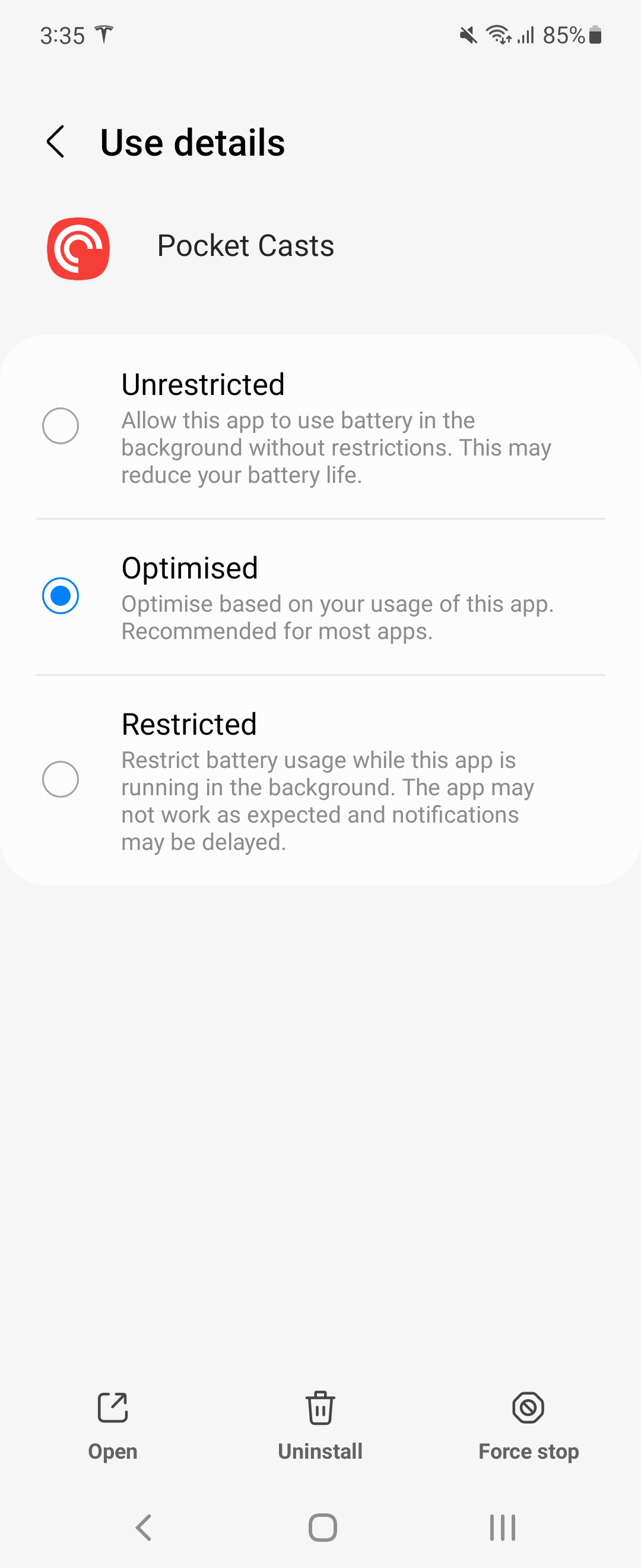
If your Samsung device is running on Android 12, select the Optimised option as shown in the following screenshot.
| Step 1. Tap Settings | 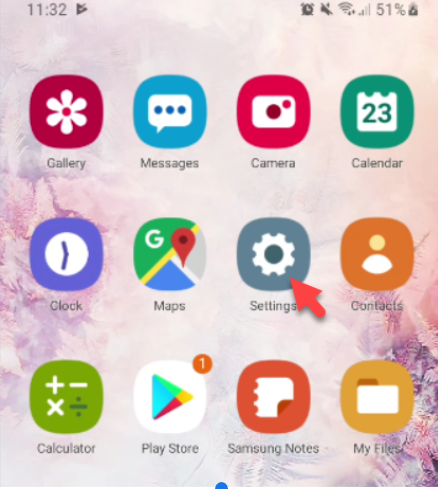 |
| Step 2. Tap Device Care | 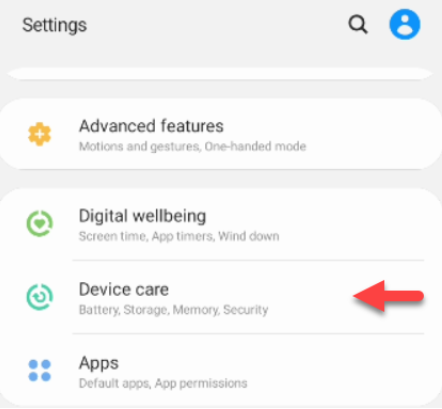 |
| Step 3. Tap Battery | 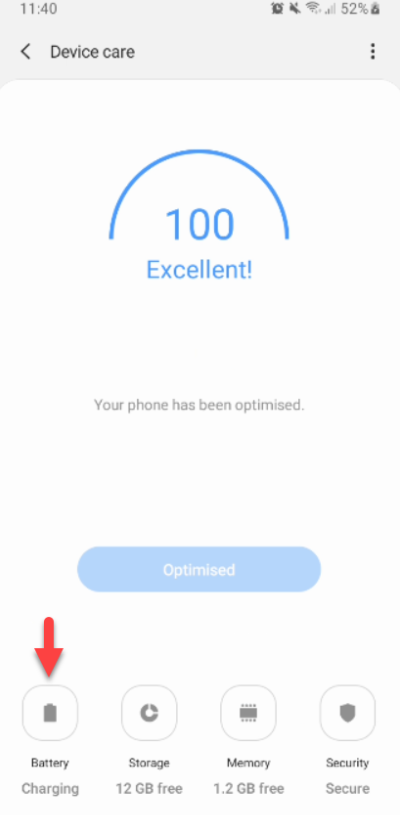 |
| Step 4. Tap Power Mode | 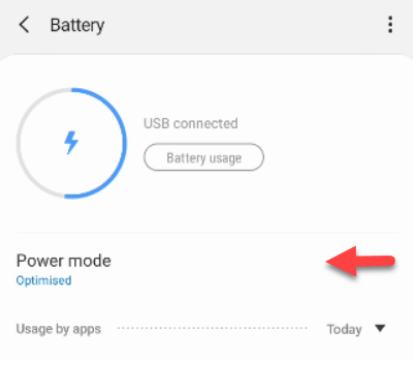 |
| Step 5. Turn off Power Mode settings from Optimised to High performance, or adjust according to preference. | |
| Step 1. Tap Settings | |
| Step 2. Tap Device Care | |
| Step 3. Tap Battery | |
| Step 4. Tap the three dots on the upper-right corner of your screen. | 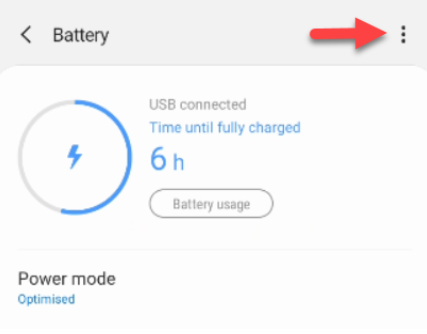 |
| Step 5. Switch off Adaptive Battery. | 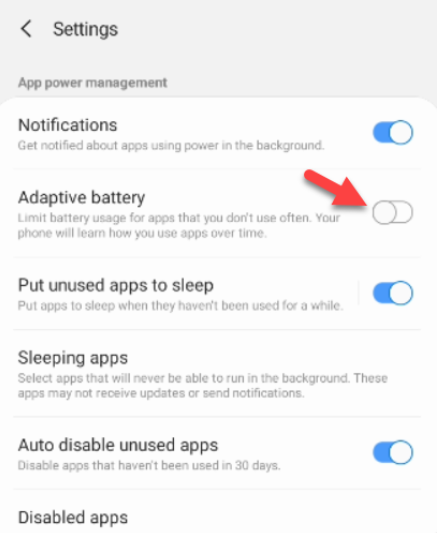 |
| Step 6. Switch off Put unused apps to sleep | 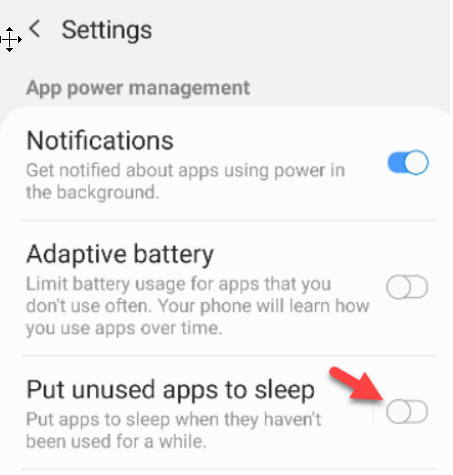 |
| Step 7. Check on the Sleeping apps menu if Pocket Casts is listed and remove. |  |
| Step 8. Check on the Disabled apps menu if Pocket Casts is listed and remove. |  |
| Step 1. Tap Settings | |
| Step 2. Tap Battery and device care | 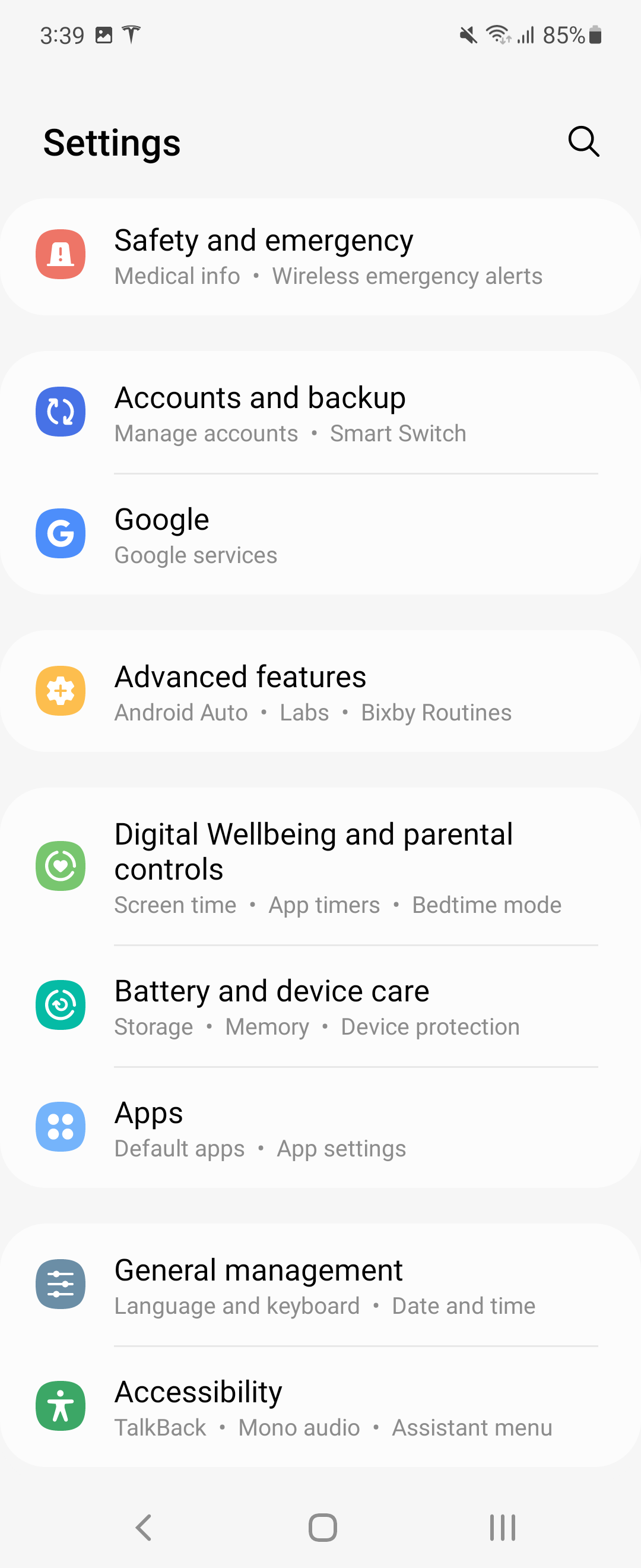 |
| Step 3. Tap Battery |  |
| Step 4. Tap Background usage limits | 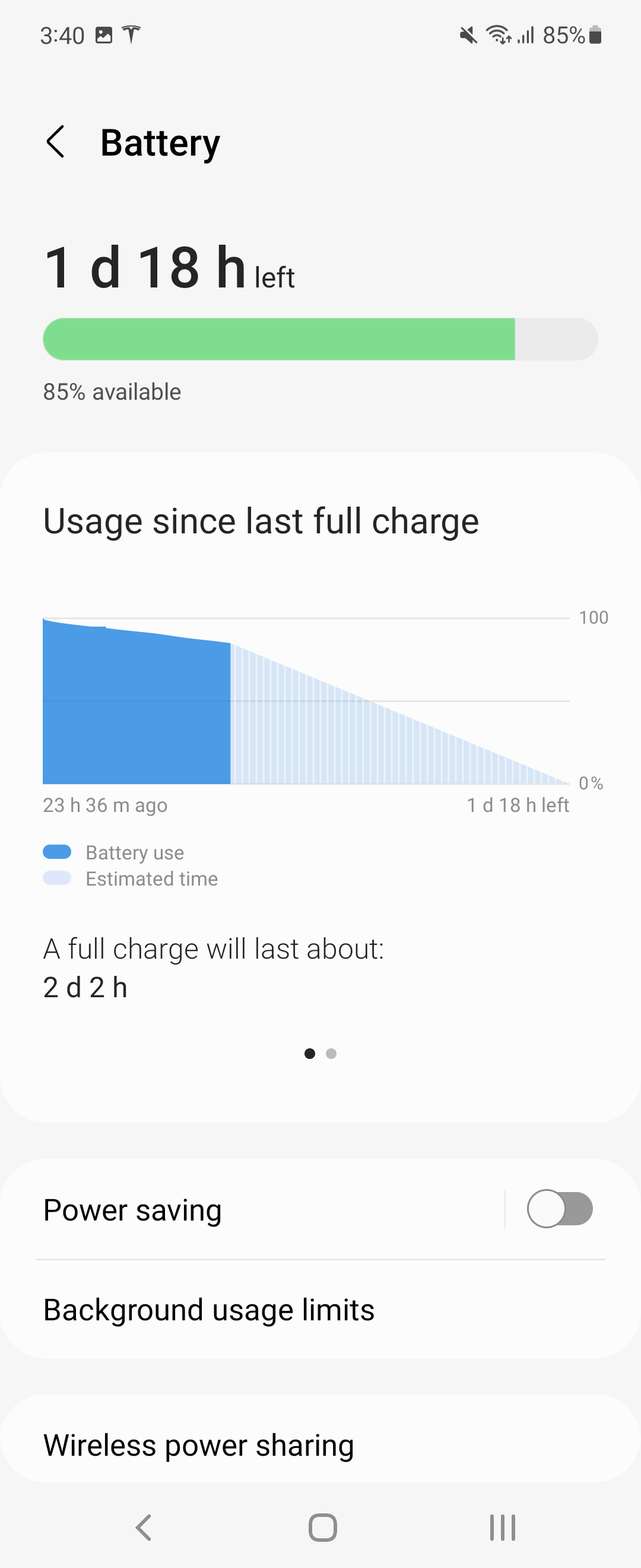 |
| Step 5. Tap the Never sleeping apps list |  |
| Step 6. Tap the + button | 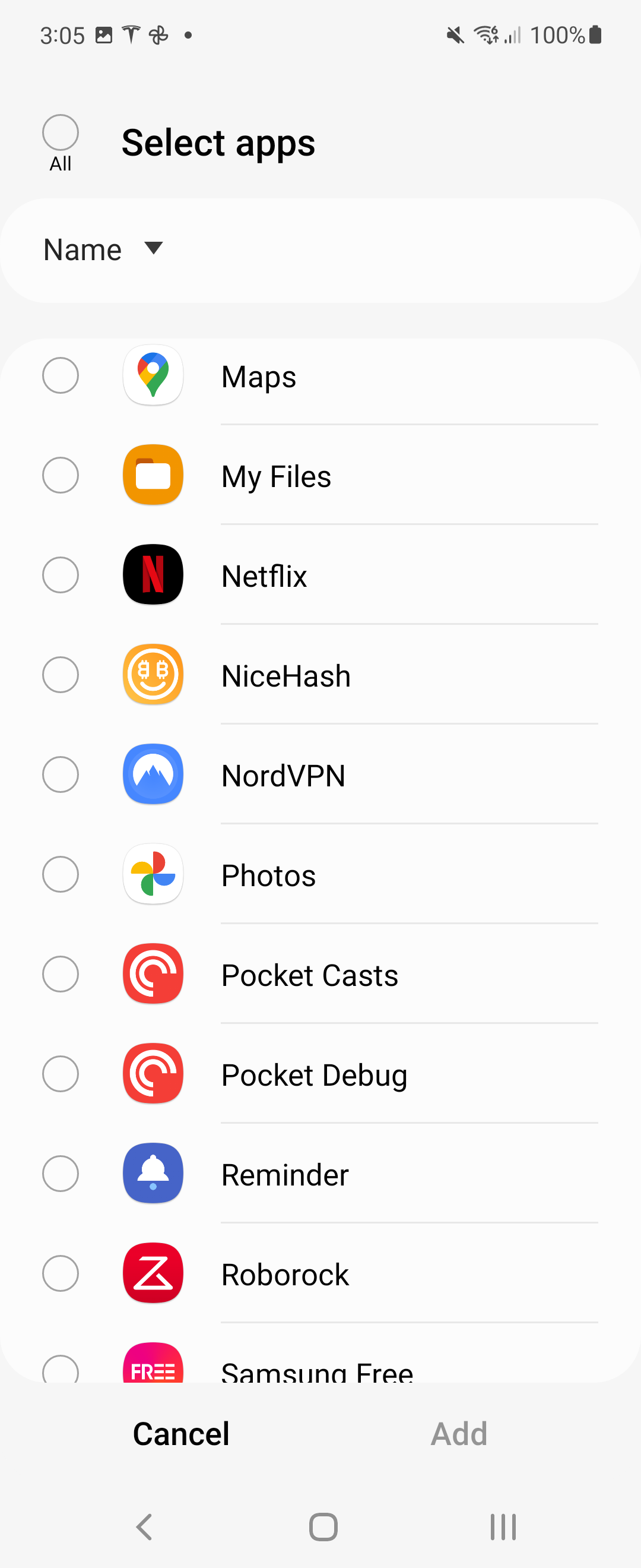 |
| Step 7. Select the Pocket Casts app and tap Add. | 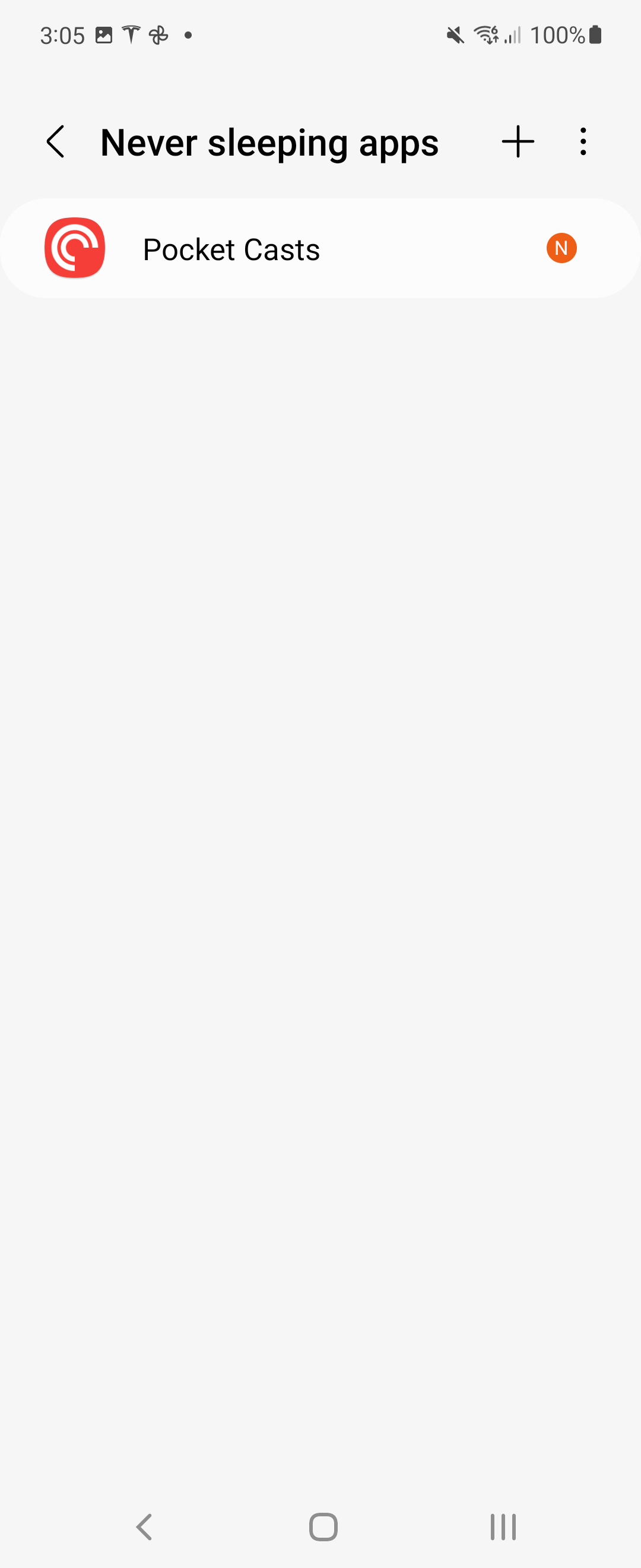 |
The instructions on this article are demonstrated on a Huawei Honor 8X with Android version 9.
| Step 1. Tap Settings | 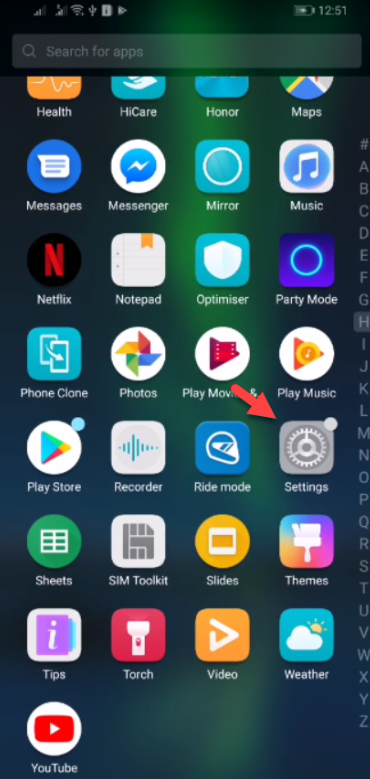 |
| Step 2. Tap Battery |  |
| Step 3. Tap App Launch | 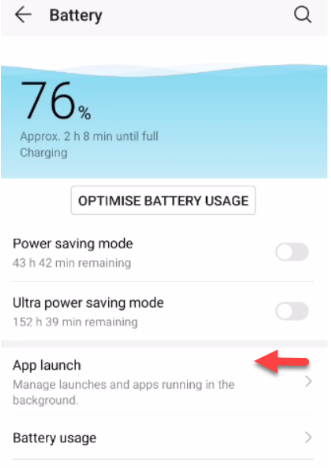 |
| Step 4. Search for Pocket Casts app. | |
| Step 5. Switch off Power consumption alert. | |
| Step 6. Ensure Stay connected when device sleeps is enabled. |
| Step 1. Tap Settings | |
| Step 2. Tap Apps | 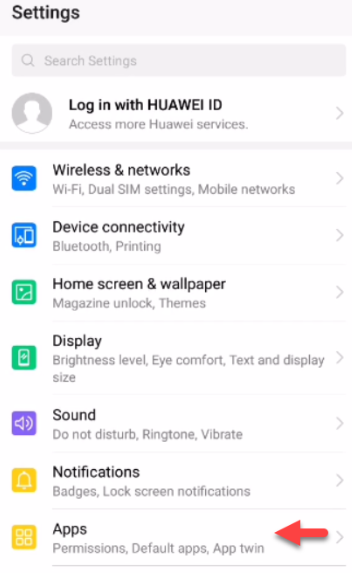 |
| Step 3. Tap Apps | 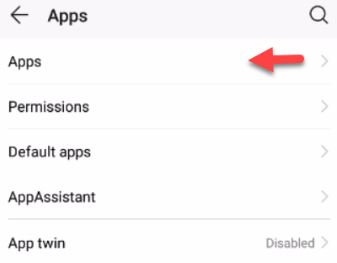 |
| Step 4. Tap the three dots on the upper-right corner of your screen. | 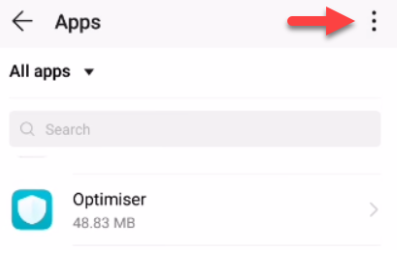 |
| Step 5. Tap Special Access | 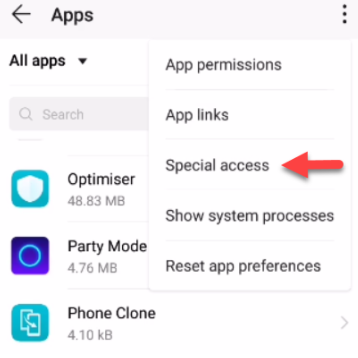 |
| Step 6. Tap Battery optimization | 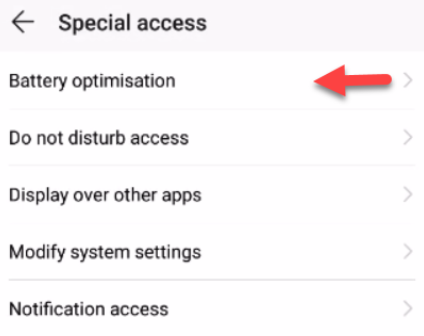 |
| Step 7. Tap All apps |  |
| Step 8. Search for Pocket Casts app | |
| Step 9. Tap the Pocket Casts app. | |
| Step 10. Choose Optimise | 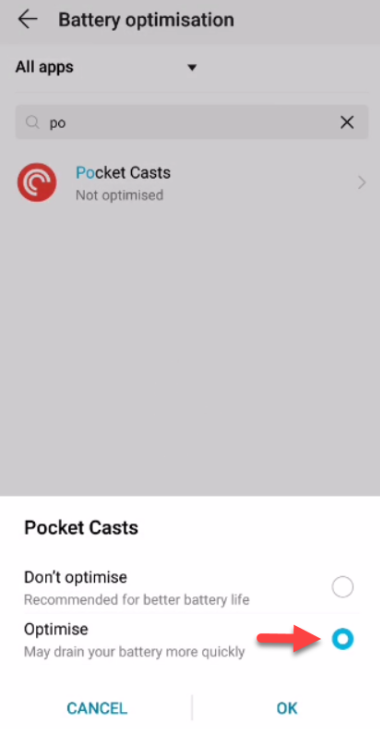 |
