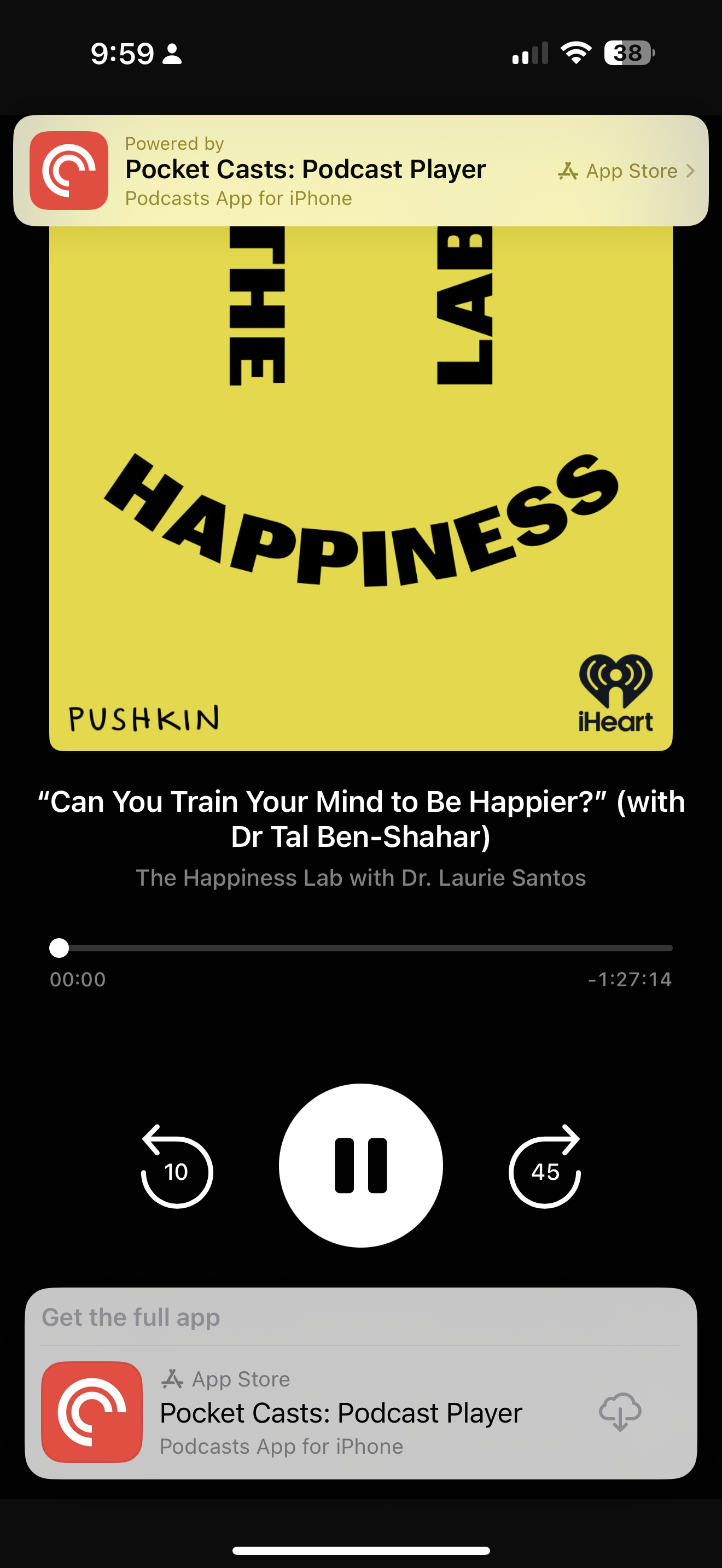
Pocket Casts makes it easy to share your favorite podcasts and episodes with your friends. Sharing podcasts and episodes can also be a helpful troubleshooting step for many app issues.
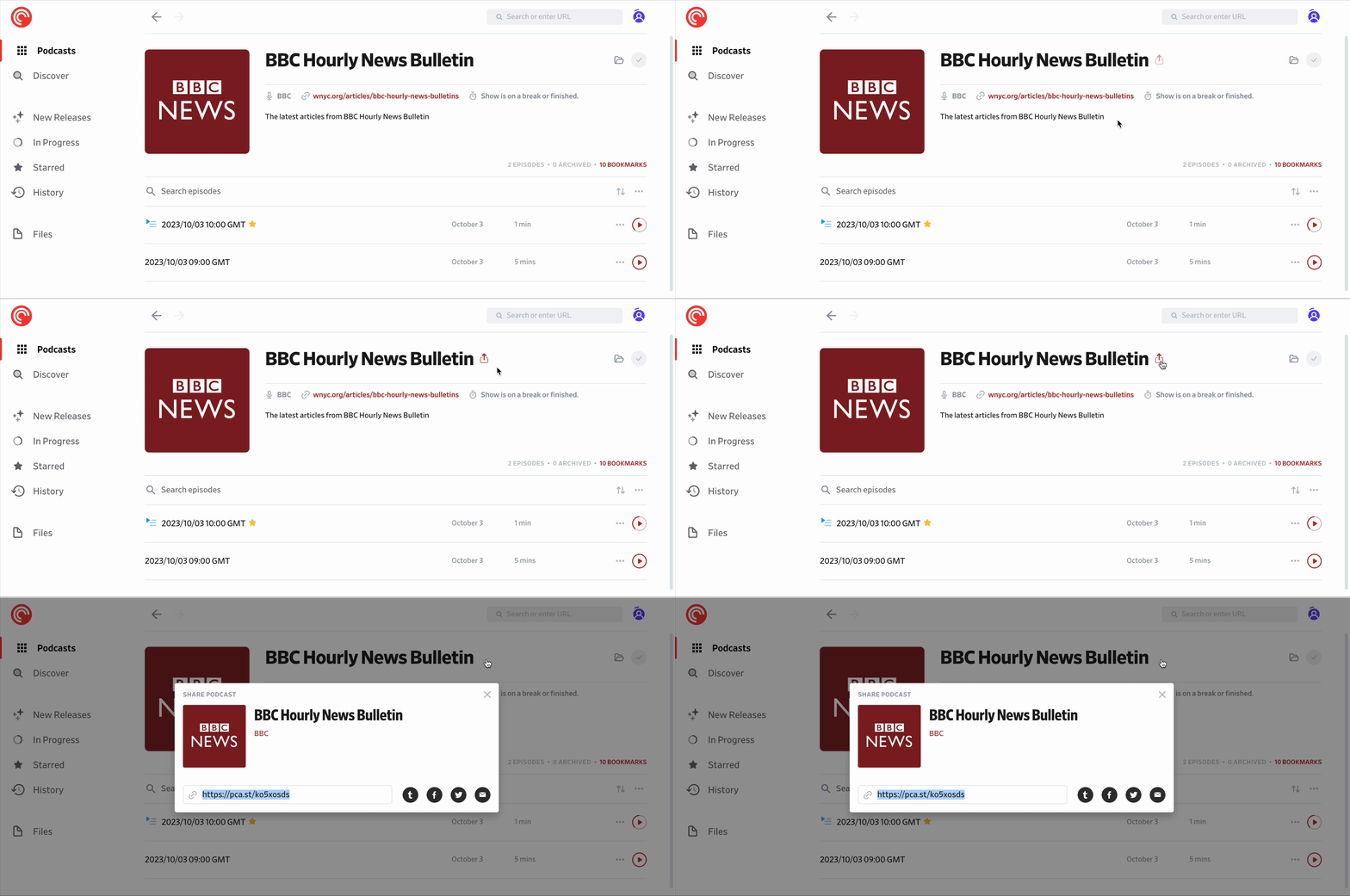
To share podcasts from the web and desktop apps, you can follow these steps:
- Go to the podcast’s page in the app.
- Click on the share icon.
 You may need to mouse over the podcast title to see the share icon as shown below:
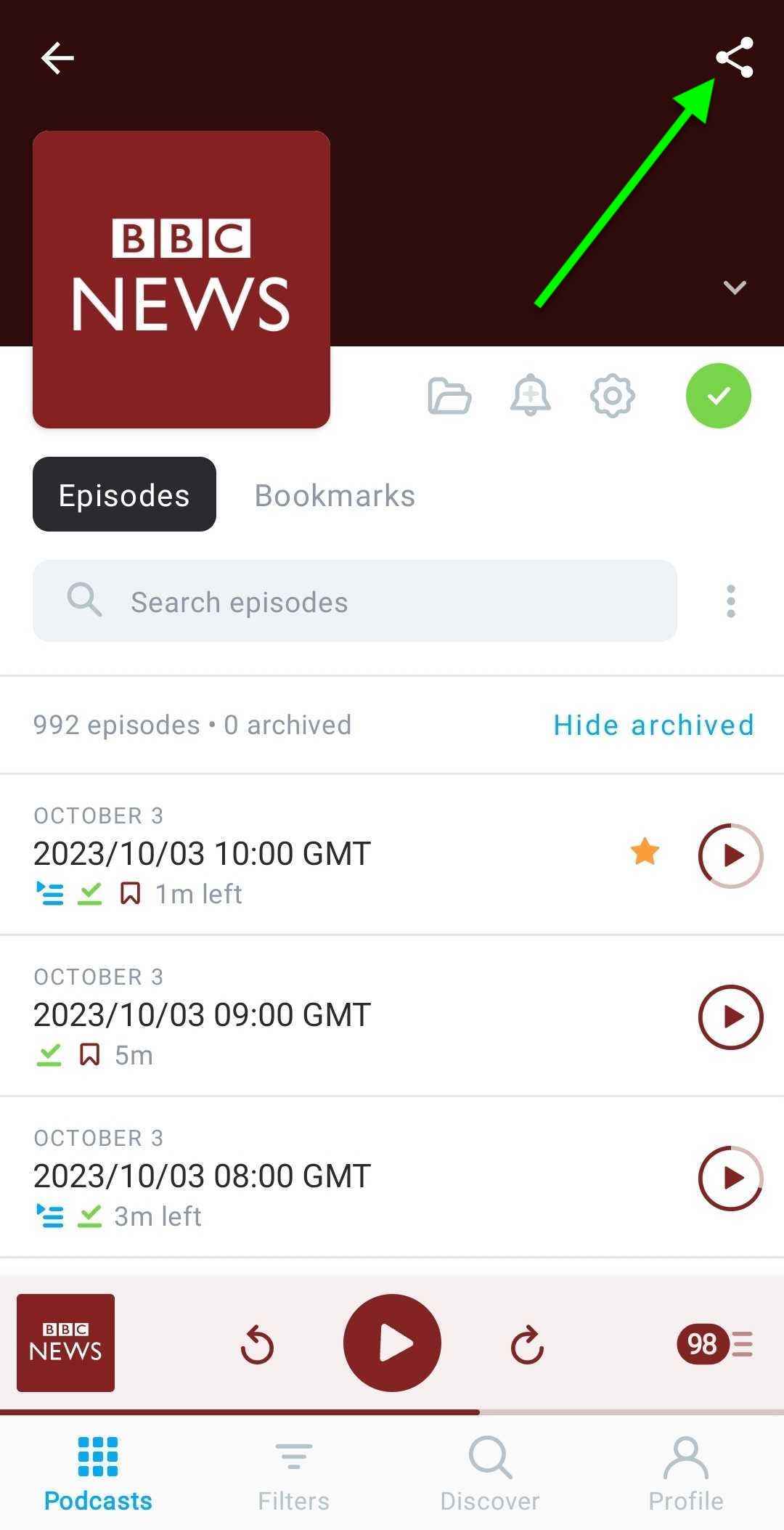
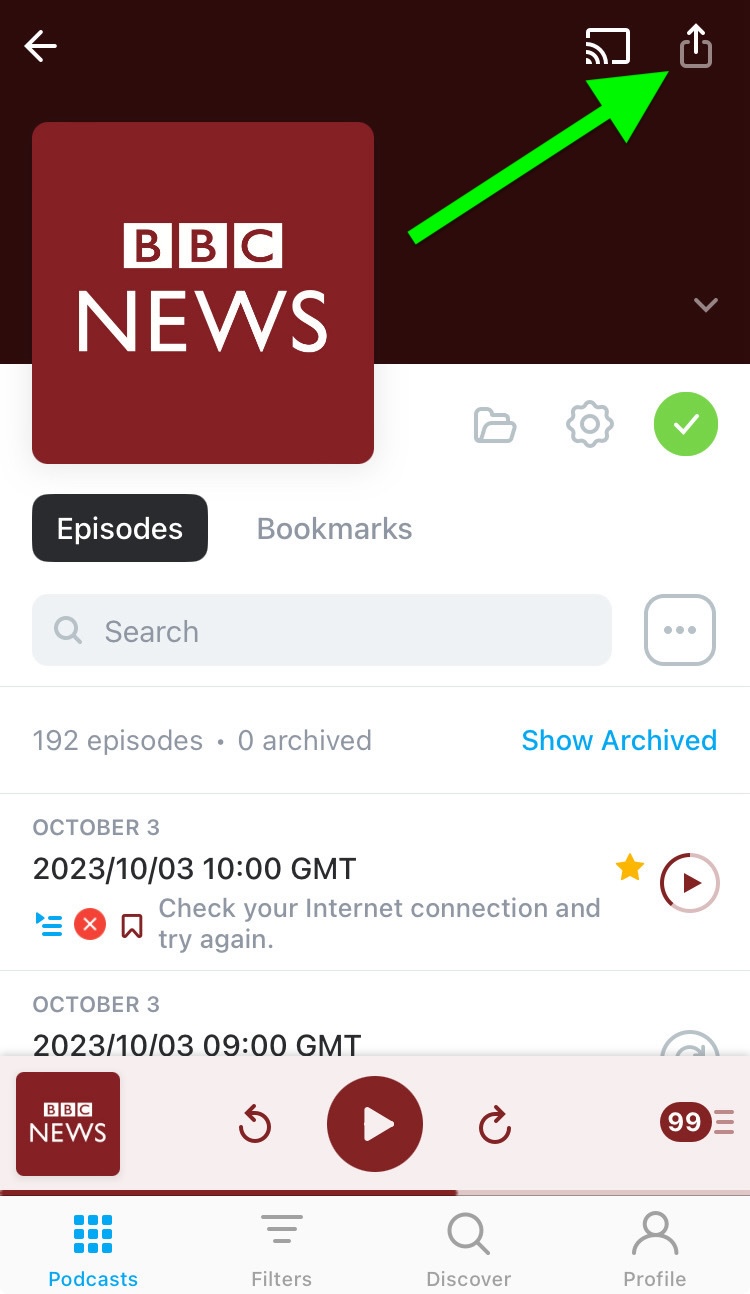
To share podcasts from the mobile apps, you can follow these steps:
- Go to the Podcasts tab and tap on the podcast to bring up its page.
- Click the share icon
 (Android) or (iOS) on the upper-right corner of the screen:
You can share a full episode or use Clip Sharing to share specific segments of a podcast episode with friends and family. Clip Sharing allows you to select and save your favorite segments for easy sharing.
To share an entire episode on the web and desktop apps, you can follow these steps:
- Go to a podcast’s page in the app.
- Click on the episode to expand its details.
- Click on the Share icon.
To share an episode at a specific timestamp, you can follow these steps:
- Go to a podcast’s page in the app.
- Click on the episode to expand its details.
- Play the episode, then Pause the episode at the desired time. Or manually move the player control to the desired time.
- Click on the Share icon.
- Toggle on “Share at”, which shows the episode time.
To share episode clips on the web and desktop apps using Clip Sharing, please follow these steps:
- With the episode loaded in the player, click the three-dot icon
 on the lower-right corner of the screen to access the “More Actions” menu.
 - Click “Share episode.”
- Within the sharing modal, click “Create clip.”
- Select the portion of the episode you would like to clip. You can edit your clip in the following ways:
- Drag the handles on the opposite ends of the clip
- Enter timestamps
- Use the up/down arrows next to the timestamp fields to adjust by second
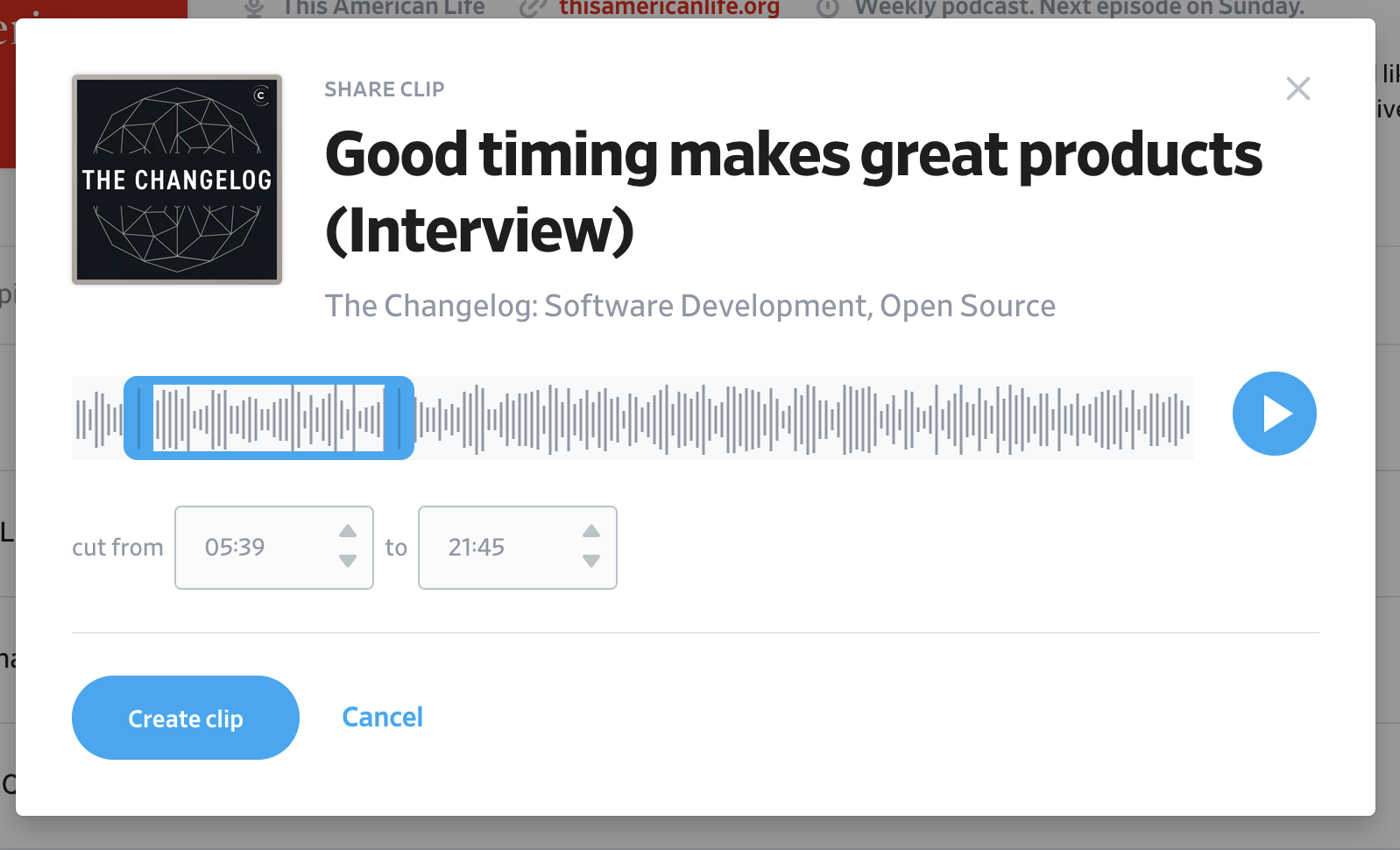
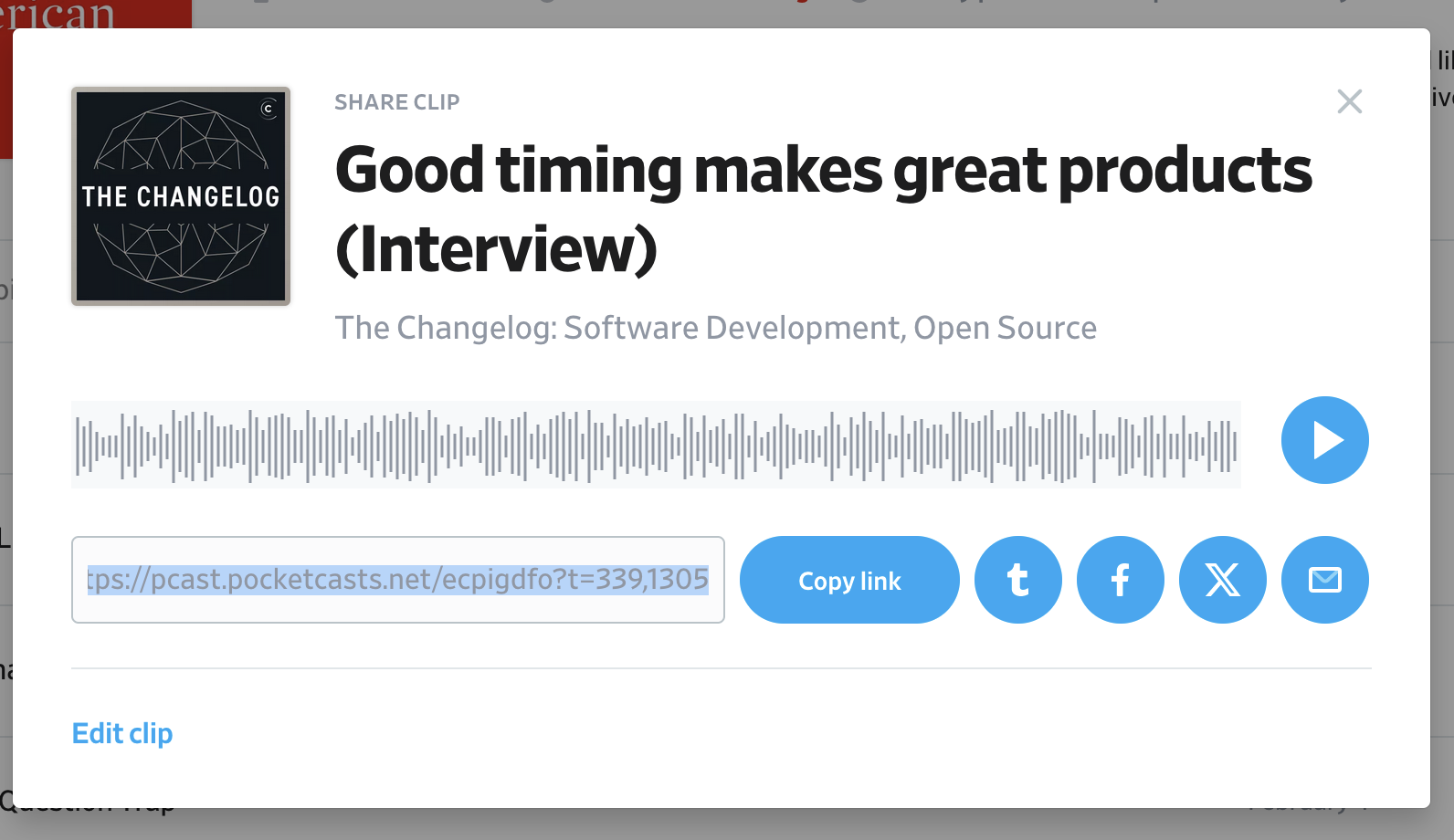
- Click “Create clip” once more.
To share an entire episode on the iOS and Android Mobile Apps, you can follow these steps:
- Go to a podcast’s page in the app.
- Tap on the episode to expand its details.
- Tap on the Share icon. (Android) or (iOS)
- Choose one of the following Share options:
To share an episode at a specific timestamp, you can follow these steps:
- Go to a podcast’s page in the app.
- Tap on the episode to expand its details.
- Move the player control to the desired time.
- Tap on the Share icon. (Android) or (iOS)
- Choose “Current Position” – A share link, which starts with
https://pca.st/and includes?t=, will be created for the currently playing position. You can then copy and paste the link with the timestamp wherever you wish to share the podcast. You can also click on any of the other app icons that come up to share the podcast directly on those apps.
Clip Sharing is available on the iOS and Android mobile apps from version 7.72. To share only part of an episode using Clip Sharing, please follow these steps:
- Go to a podcast’s page in the app.
- Tap on the episode to expand its details.
- Tap on the Share icon. (Android) or (iOS)
- Select “Clip.”
- Tap “Next.”
A shareable pca.st link is created for you when you wish to share an episode clip. When others visit the link, they can listen to the clip on the page or access the full episode on the web app if they have access to it.
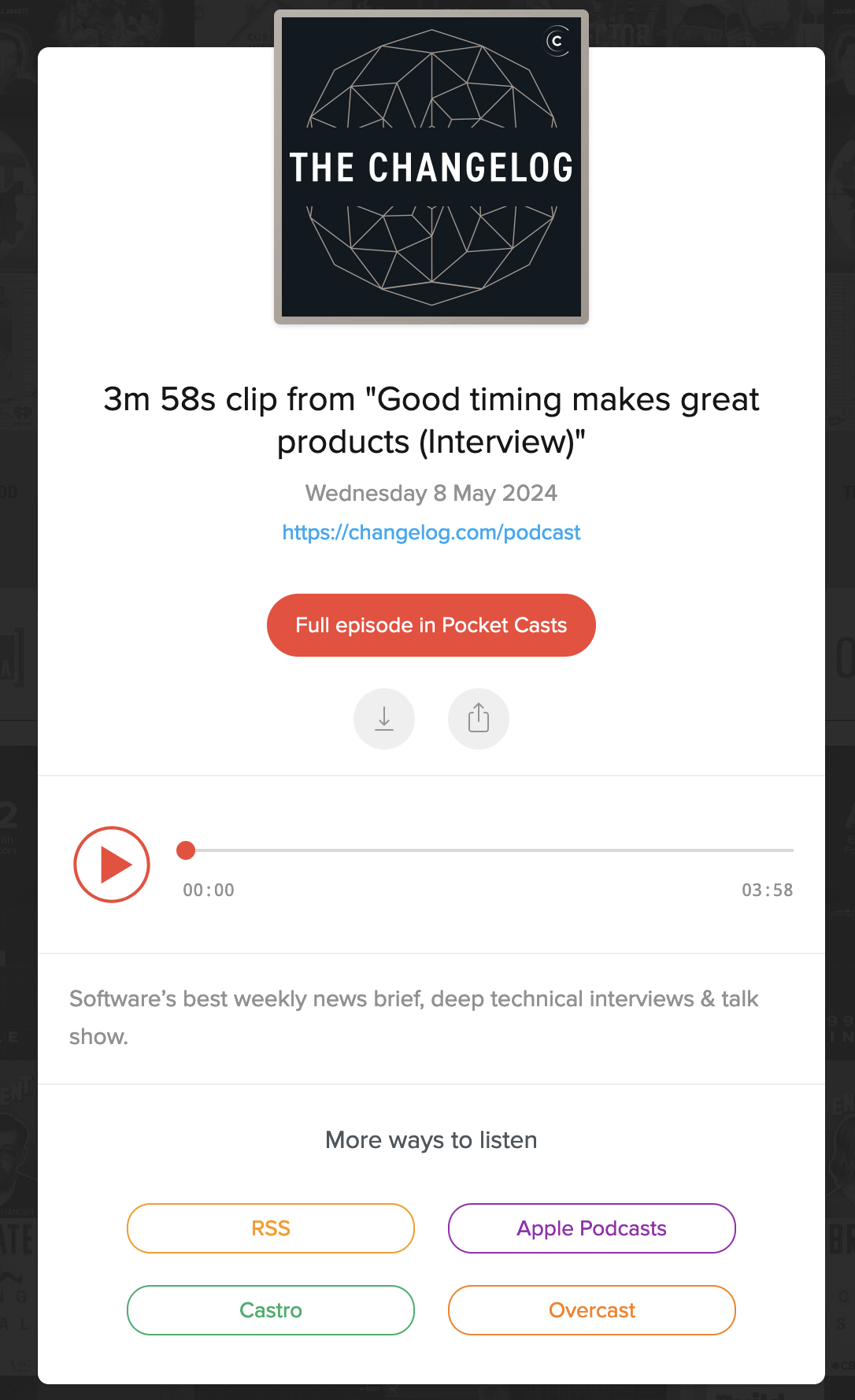
App Clips on iOS allow people who haven’t downloaded Pocket Casts yet to experience the podcast player. Think of it as a lightweight, mini version of the app. When you share a link to a podcast episode, recipients can simply tap the play button to listen – no app download required. They’ll also see a banner inviting them to install the full app if they haven’t already. Below is an example of an App Clip.