
The Pocket Casts Apple Watch app has two play sources: Phone and Watch . You can tell which Play Source you’re using by looking at the top of the watch app screen. It will either say “P” for the Phone play source or “W” for the Watch.
This support article focuses on the Phone Play Source, which is completely free to use.
The Phone play source allows you to use the Apple Watch app to control what is playing on your phone.
If you’d like to use the Apple Watch app without taking your phone with you, you can look into the standalone Watch play source instead, which is a Pocket Casts Plus feature.
In the Phone Play Source, you can control what is playing on your phone from the watch. You can also choose what to play on your phone from the main menu:
You can control the currently playing episode from the Now Playing screen which includes:
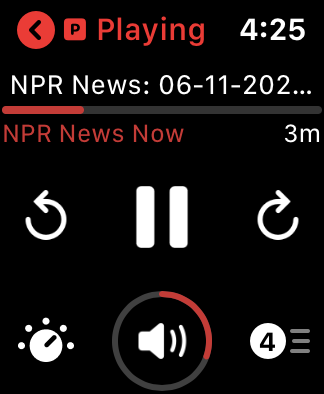
- Play / Pause button
- Skip Forward / Skip Back buttons
- These will match the Skip Forward / Skip Back settings you have set on your phone
- Playback Effects button
- Tap this icon to access Playback Speed, Trim Silence, and Volume Boost settings
- These settings match any global or podcast specific settings you have set on your phone
- Icon will be solid if any of these settings are on
- Volume icon
- Use the watch’s crown to change the volume when this screen is active
- Up Next button
- This will display the number of episodes in your Up Next queue up to 9; it will display “9+” if there are more than 9 episodes
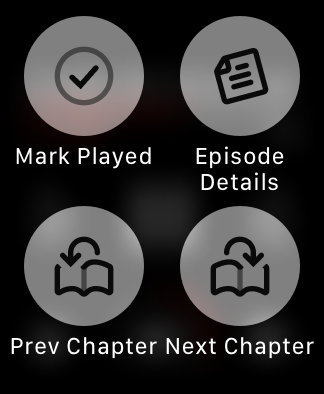
Swipe left from the Now Playing screen for options to view Episode Details for the current episode, or for the episode to be Mark Played. If there are chapters, Previous Chapter and Next Chapter buttons will also be listed.
This section will display the current episode in the player (Now Playing) and the list of episodes in your Up Next queue up to a maximum of 50 episodes. Tap on an episode to go to its Episode Details screen.

This section will display the playlists you have on your phone: New Release, In Progress, Starred, plus any custom playlists you’ve created. Tap on a playlist to see the list of episodes in that playlist up to a maximum of 50 episodes.
This section will display the list of episodes that are downloaded on your phone up to a maximum of 50 episodes.
To download an episode to your phone via the watch, tap an episode and tap Download on the Episode Details screen.
This section will display the list of Files that are in the Files section on your phone up to maximum of 50 episodes. Tap a File to go to its File Details screen.
If you experience issues with the Apple Watch app, please feel free to reach out to us with a few key bits of information:
- A clear description of your issue, which includes steps to replicate it and, if possible, a video that shows it
- The play source you’re using – Phone or Watch. It’s important to check which play source you’re using, as they work a bit differently. You can tell which Play Source you’re using by looking at the upper-left corner of the watch app screen. It will either say “P” for the Phone play source or “W” for the standalone Watch play source.
- Apple Watch app logs, which you can collect by following these steps:
- Open the iPhone app, and go to Profile > Help & Feedback.
- Before tapping “Get in touch”, open the Pocket Casts app on your Apple Watch.
- Tap “Get in touch,” then “Get Support.” The email that comes up should have two attachments. One will be the phone log and the other will be the watch log.
