The apps store data (like your podcasts, folders, playlists, bookmarks, history…) in local databases. In addition to Collecting App Logs, exporting the database used by your iOS or Android app can sometimes help for troubleshooting technical issues. This guide will walk you through the process of exporting your app’s database to share with our support engineers.
This database export is only useful to help support troubleshoot technical issues; it is not expected to be of any use to end-users directly. This is not to be confused with exporting your followed podcasts as an OPML file.
The only case where you might need to export the apps’ database is if one of our support engineers asks you for this data to help troubleshoot a technical issue.
To export the database from the Android or iOS app, follow these steps:
- Tap Profile (rightmost icon in the tab bar).
- Scroll to the bottom and Tap “Help & Feedback”.
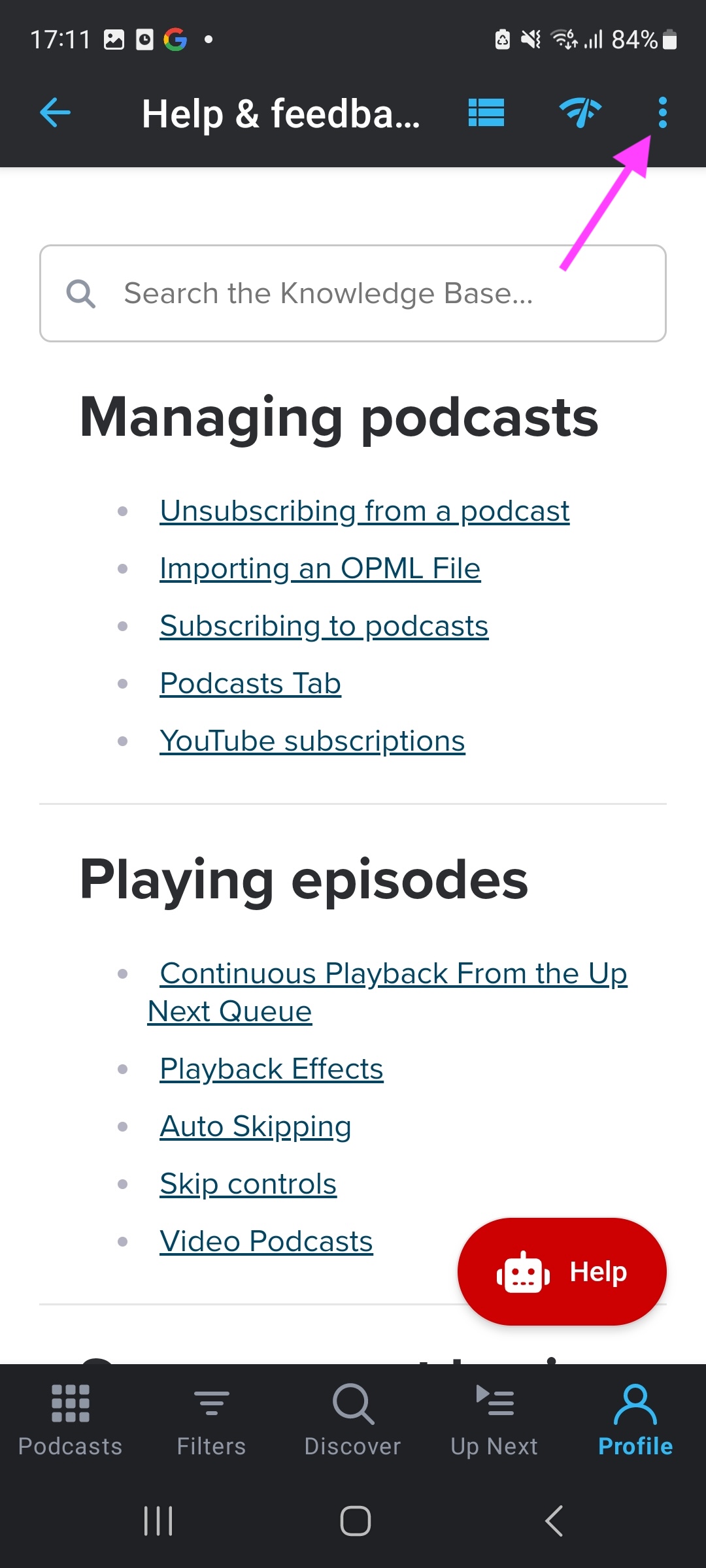
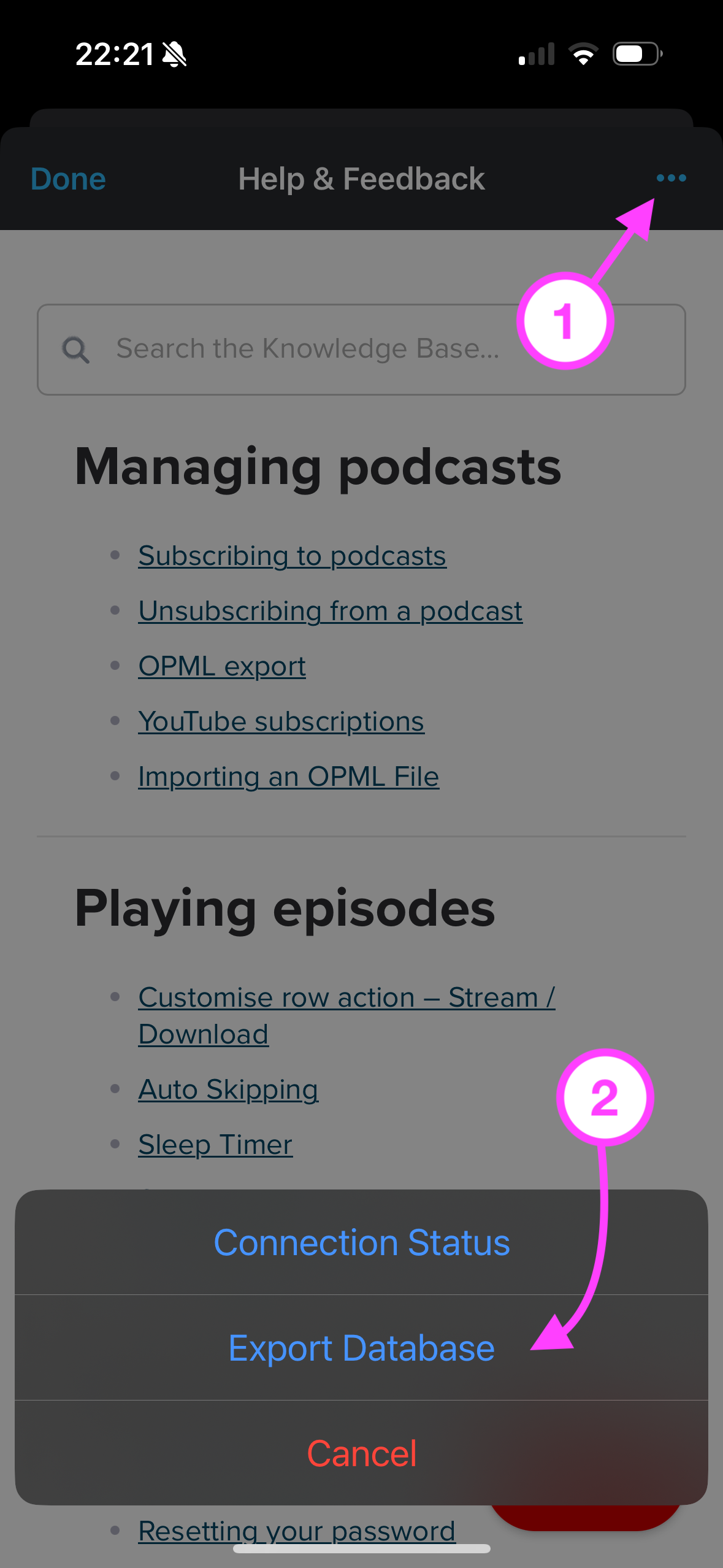
- On the top right corner of the popup that appears, click the
 three-dots icon.
 - Choose “Export database”.
- In the share sheet that appears, choose where to save/send the exported ZIP file.
- Attach the ZIP file to the support ticket where you were asked to provide this database export.