
The Folders feature requires a Pocket Casts Plus/Patron subscription.
To start using Folders, navigate to the app’s Podcasts area and hit the newly added folder icon in the top bar. You’ll be offered the option to create Smart Folders for your podcasts, which will organize them automatically, or you can choose to create a custom folder.
To create a custom folder:
- Select the podcasts you want to place in the folder you just created.
- Next, name the folder — for instance, “Video Podcasts.”
- Finally, pick a color for your folder to make it stand out a bit.
- Then click “Save Folder.” To create another folder, simply repeat the steps described above.
You will see them listed on the ‘Podcasts’ page, the place where you would normally all of your followed podcasts listed.
You can select the folder, select  (ellipsis at the top right), then press ‘Add or Remove Podcasts’.
You will need to open the folder, press (ellipsis at the top right), and then choose ‘Edit Folder’ (1). You can then click on ‘Delete Folder’ (2).
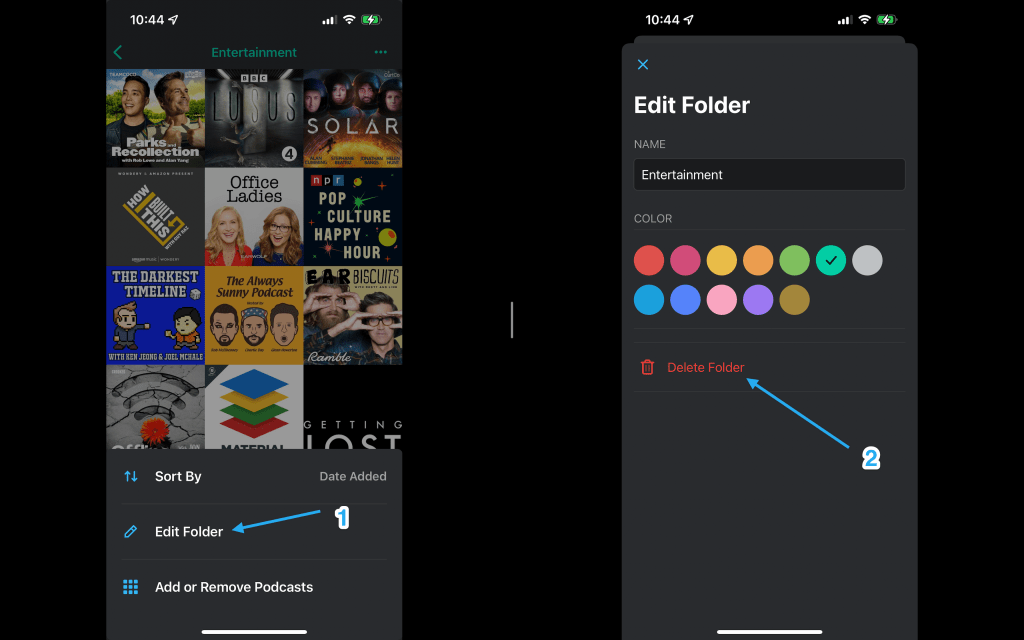
Nope, they will be unaffected and moved to the podcasts page. Just the folder gets deleted, not the contents within it.
Currently, organizing uploaded files into folders is not a feature available in Pocket Casts.
Using folders as a setting or criterion for Smart Playlists is currently not possible.
If you’re suddenly missing your folders, please first make sure that you are logged in to your Pocket Casts account. Please also make sure that you still have Plus/Patron status active on the account, since the Folders feature requires Plus/Patron. For more information, please check Sync Troubleshooting.
Yes! To organize your podcasts in folders automatically, you can use the feature called Smart Folders. This feature is available with the Pocket Casts Plus and Patron subscriptions.
Smart Folders takes all your followed podcasts and groups them into folders based on their content. Podcasts are automatically grouped by content and the folder is labeled by topic. For example, podcasts related to news will be grouped in a folder labeled News.
After the Smart Folders are created, you can edit them and continue to customize the podcast view.
You need to follow at least 8 podcasts for our system to start suggesting folders. To check if our system has already identified folders for you:
- Go to the Podcasts tab.
- Tap to create a folder.
- If we’ve identified folders for you, the Smart Folders screen will appear.
If you’d like to create a custom folder, simply use the Create Custom Folders button, and it will redirect you to the manual folder creation screen.
If you are on the free Pocket Casts plan you will be prompted to sign up for a paid subscription. You can learn more about our plans here.
The prompt to create Smart Folders will appear after you unfollow a podcast or follow a new podcast. This way our system will register the changes and offer the option to use the automated feature again.
