
Pocket Casts features three types of optional audio effects: Playback speed, Trim silence, and Volume boost. You can apply these effects to all podcasts or just to specific ones.
Currently, the Android and iOS mobile apps support all playback effects. The web and desktop apps only support changing the playback speed.
Changing Audio Effects
If you wish to apply Playback Effects, first determine whether you want the effect(s) to apply to all your podcasts or just to certain ones. Then, follow the steps below based on what you need.
Changing Audio Effects for All Podcasts
To change Playback Effects like playback speed, trim silence, and volume boost globally in the app, follow these steps:
- While playing an episode, tap on the mini-player at the bottom of the screen so it expands to the full-screen player.
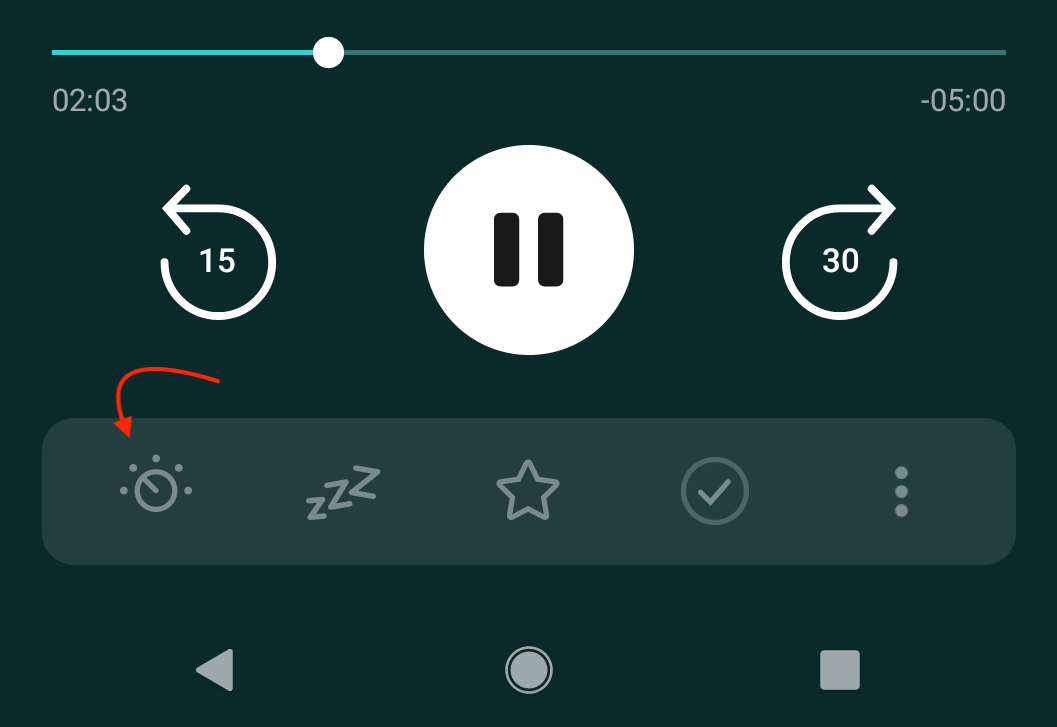
- On the “Now Playing” screen, select the Playback Effects icon in the player toolbar options. The Playback Effects icon looks like a dial—a circle with a line inside of it and dots on the outside. If you do not immediately see the Playback Effects icon on the full-screen player, click on the three-dot icon at the lower-right corner of the player toolbar options. The icon will be under “More actions.” You can also click the pencil icon on Android or “Edit” on iOS to reorder the actions.
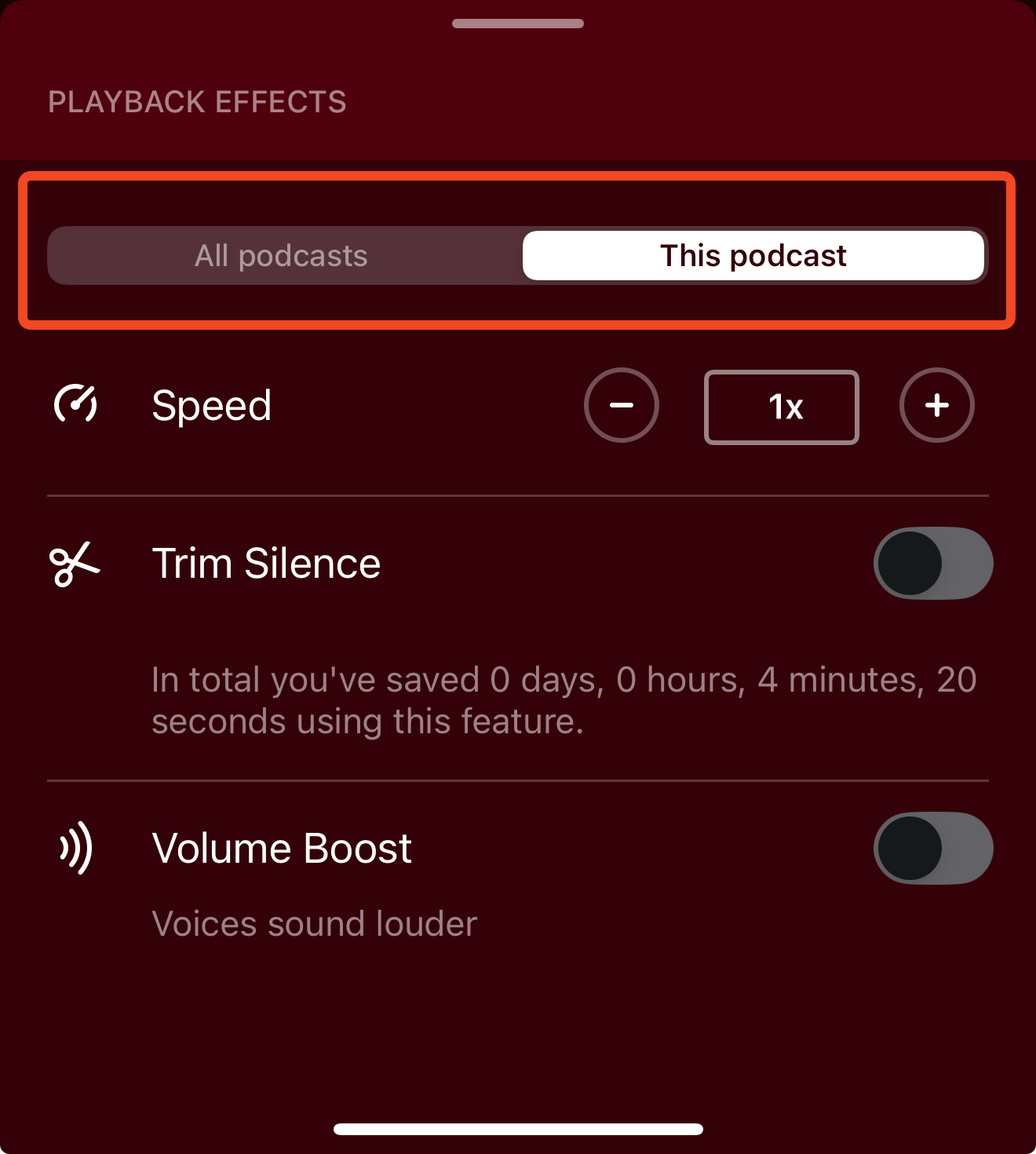
- A menu will appear with various playback effects options – these options are set to “All podcasts” by default:
- Speed
- Trim Silence
- Volume Boost
Changing Audio Effects for One Podcast
To set playback effects for the podcast currently in the player, tap the Playback Effects icon. Then, select “This podcast”. Any settings will then be applied to all episodes from that podcast.
You can also set podcast-specific playback effects for a podcast by taking the following steps:
- Make sure you are following the podcast.
- Go to the “Podcasts” tab.
- Tap the podcast you want to set specific playback effects for.
- Tap Settings (gear icon) to access the podcast’s settings.
- Tap “Playback Effects”.
- Tap “This podcast”.
- A menu will appear with various playback effects options:
- Speed
- Trim Silence
- Volume Boost
Playback Effects Options
Playback Speed
Slow down or speed up podcasts from anywhere between 0.5x to 3x. For example, playing at 2x speed reduces a 60-minute episode to 30 minutes.
To change Playback Speed, follow these steps:
- Access either the global or podcast-specific Playback Effect settings, as you need.
- Tap the plus “+” icon to increase speed to up to 3x or tap the minus “-” icon to decrease speed all the way down to 0.5x.
To change Playback Speed for a specific podcast in the Web app and Desktop apps, follow these steps:
- Go to the podcast’s page.
- Click the ellipsis (three-dot menu) to the right of “Search episodes”.
- Click “Podcast Settings”.
- Go to Playback Effects > Playback Speed.
- Tap the plus “+” icon to increase speed to up to 5x or tap the minus “-” icon to decrease speed all the way down to 0.5x. Tap the number in between the plus and minus icons to reset it to 1x.
Or
- Play an episode.
- In the player at the bottom of the screen hover over the number 1x, next to the volume control.
- Tap the plus “+” icon to increase speed to up to 5x or tap the minus “-” icon to decrease speed all the way down to 0.5x. Tap the number in between the plus and minus icons to reset it to 1x.
Trim Silence
Trim silences from audio without altering the cadence of the host (sometimes called “smart silence” or “silence removal”). Trim Silence works with both online and local files. There is no slider or percentage — instead, you choose from three levels: Mild, Medium, or Mad Max.
To set Trim Silence settings, follow these steps:
- Access either the global or podcast-specific Playback Effect settings, as you need.
- Tap the toggle to enable or disable Trim Silence.
- While Trim Silence is activated, you can choose how aggressive you want your silence trimming to be:
- Mild – default when Trim Silence is on
- Medium
- Mad Max

Trim Silence Not Working?
If Trim Silence (smart silence) has stopped working or doesn’t seem to have any effect, try these steps:
- Open the Playback Effects menu and toggle Trim Silence off, then back on.
- Try a different level (e.g., switch from Mild to Medium or Mad Max).
- Close and reopen the app.
- Make sure you are running the latest version of Pocket Casts.
If the issue persists, please contact our support team with the name of the podcast or episode you are experiencing this with, along with your app logs.
Volume Boost
Increases the volume of playback without changing your device volume.
To activate Volume Boost, follow these steps:
- Access either the global or podcast-specific Playback Effect settings, as you need.
- Tap the toggle to enable or disable Volume Boost.
How Playback Effects Affect Your Listening Stats
To see how much time audio effects have saved you, you can go to Profile > Stats.
You can find more information about playback effects in this blog post.
