
Tapping on a podcast you’ve searched for, or one that’s caught your eye in the Discover tab, will take you to that podcast’s page. There you can view information about the podcast including its list of available episodes.
You can stream and download episodes from a podcast’s page without following it, but adding the podcast to your follows will give you access to extra settings to customize your app experience. You can find a list of your follows in the Podcasts tab.
Tap the Follow button to add the podcast to your follows. Tap the  green followed tick to unfollow the podcast.
Tap the ∨ or the podcast’s artwork to see the podcast’s description and details. Tap the ∧ or the podcast’s artwork again to hide this info.
You can connect to a  Chromecast device and
  Share a link to the podcast from this page.
The search bar lets you search the episode titles and show notes within this podcast.
When followed, tap the bell icon to turn new episode notifications ON  /OFF
/OFF 
When followed, tap the settings cog to access per podcast settings:

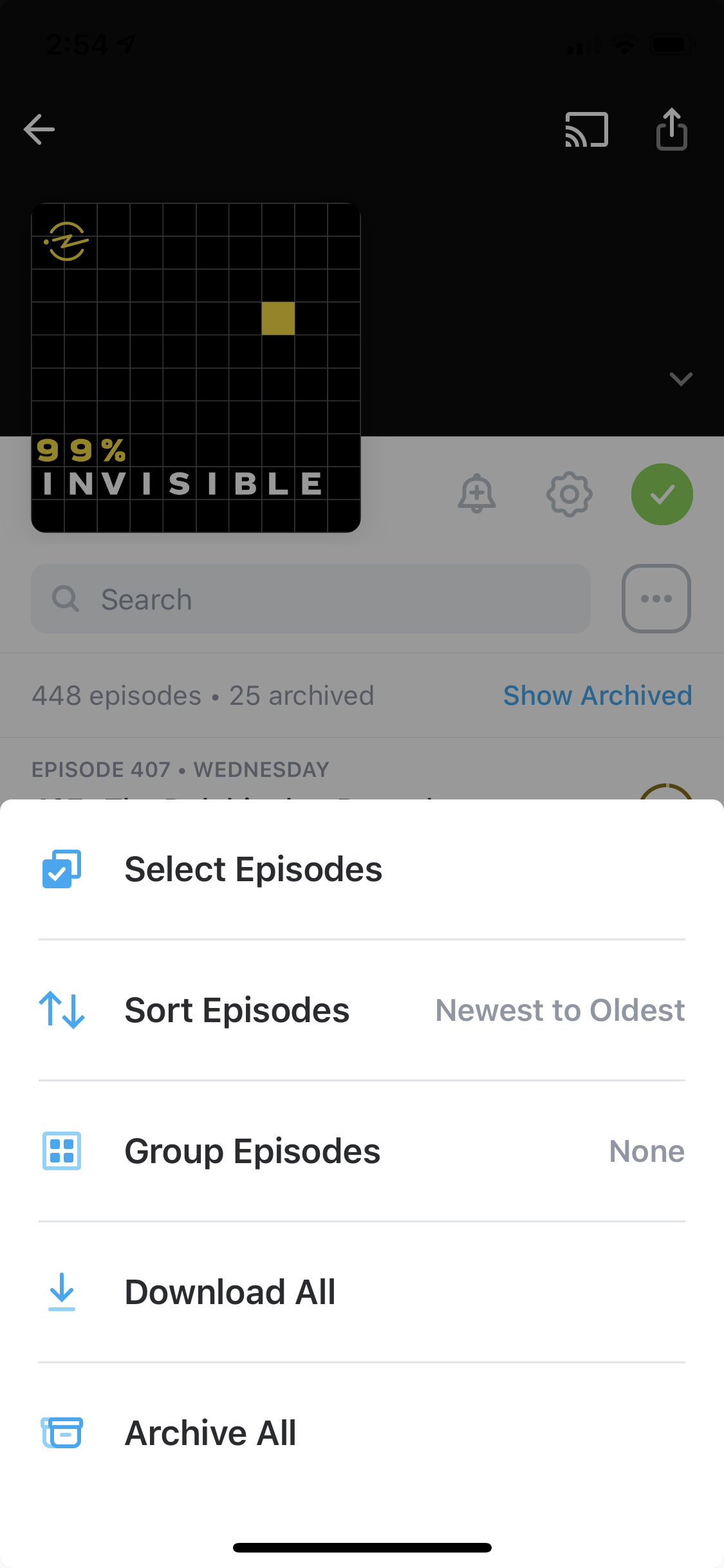
The three dot menu  gives options for arranging episodes and other actions you can take, whether you’re following the podcast or not: Select Episodes (multi-select mode), Sort Episodes, Group Episodes, Download All, Archive All
Show Archived / Hide Archived lets you quickly see and hide archived episodes for this podcast. This option is also available as a global setting: Profile > General > Archived Episodes.
An episode row has episode’s title, the podcast’s artwork, and a quick way to stream or download the episode. Tap on the episode row to open its episode card for further actions you can take, and to view its show notes.
☆ Star
Share
 Download /
  Delete download /
  Stop downloading
 Add to Up Next /
  Remove from Up Next
 Play
Play
 Mark Played /
  Mark Unplayed
 Archive /
  Unarchive
On a podcast’s page or in a playlist or in downloads page , you can long press on any episode row to enter multi-select mode and then:
- Select episodes and tap an action in the multi-select action bar.
- Or, long press the episode row again and choose from Select all above or Select all below, then tap an action in the multi-select action bar.
- Or, tap Select all at the top-left of the screen, then tap an action in the multi-select action bar
You can also enter multi-select mode by tapping the three dot menu  > Select Episodes.
When in multi-select mode, you can customize the action bar with your 2 most used actions, and the rest are then only a tap away. Long press on any episode in a list to enter multi-select mode > tap the three dot menu in the multi-select action bar > select Edit and hold the ≡ handle to drag and drop the actions to the preferred location > tap Done to save the changes.
The actions include:
- Play Next
- Play Last
- Download
- Mark as Played
- Archive
- Star Episodes
