
Both the Android and iOS Pocket Casts apps come with widgets that you can use on your mobile device’s home screen. Widgets give you quick access to the app’s features without needing to open the full app.
Widgets are available in the following platforms:
- Android
- iOS
Widgets are not available in the following:
- Wear OS
- Android Auto
- Android Automotive
This section covers how to add a widget to either an Android device or an iOS one.
To add a Pocket Casts widget to your Android device, please follow these steps:
- Long-press either the Pocket Casts icon or a blank space on your device’s home screen.
- Tap “Widgets.”
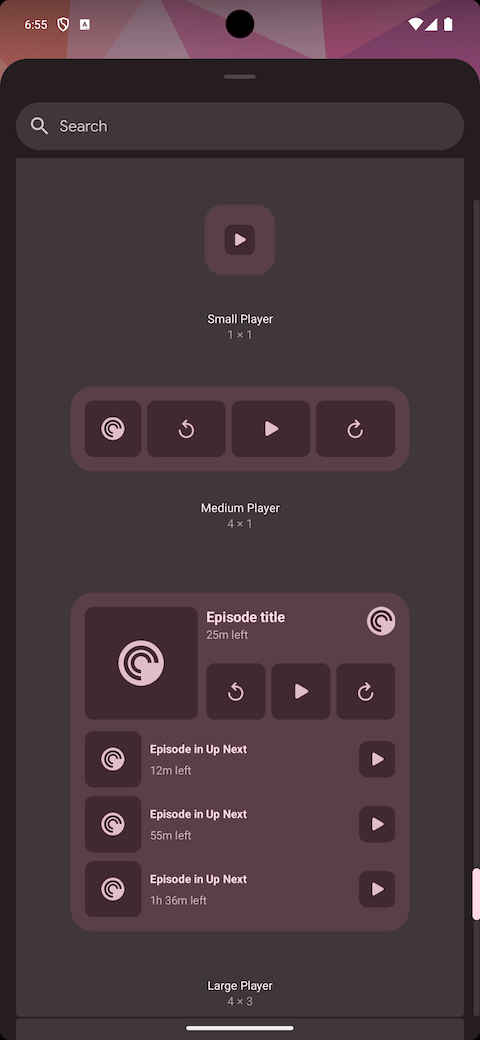
- Select the widget you wish to add to the home screen. You can choose from one of the following:
- Small Player – a simple square button that allows you to resume and pause playback.
- Medium Player – a horizontally resizable widget that allows you to pause and resume playback, as well as skip it back and forward.
- Large Player – a widget that can be resized both vertically and horizontally; the widget allows you to pause and resume playback, as well as skip it back and forward; it also displays up to nine elements from your Up Next queue.
To add a Pocket Casts widget to your iOS device, please follow these steps:
- Long-press a blank space on your device’s home screen.
- Tap the
 plus icon on the upper-right corner of the screen.
 - Tap “Pocket Casts.”
- Select the widget you wish to add to the home screen. You can choose from one of the following:
- Now Playing — quickly access your currently playing episode. This is available in the small and medium widget sizes, both with light/dark and red color variants.
- Up Next – see what you’re currently playing and what’s next in your Up Next queue. This is available in the medium and large widget sizes, both with light/dark and red color variants.
- Tap “Add Widget.”
This section looks at how you can modify a widget’s appearance on Android or iOS.
On Android, widgets support light and dark mode.
To make widgets use dynamic theming and adapt their colors to your wallpaper’s palette on Android 12 and above, please follow these steps:
- Tap “Profile” in the app.
- On the upper-right corner of the screen, tap the “Settings” icon
 , which looks like a gear.
 - Tap “Appearance.”
- Scroll down to find the “Widget” section.
- Toggle “Use dynamic colors for widget” to enable it. You’ll know if the setting is enabled if the toggle is blue:

On iOS, widgets follow the system setting for light and dark mode.
Sometimes, you might find that a widget is no longer working as expected. For example, it might not be showing the currently playing episode. In cases like these, please follow these basic troubleshooting steps for widgets:
- Try removing the widget and re-adding it.
- If re-adding the widget doesn’t make a difference, try restarting your device.
If the troubleshooting steps above don’t work for you, check if the problem you are experiencing is one of the known issues listed in this section.
This is a limitation of the OS. After adding a widget and switching dark to light mode or vice versa, the widget text might look invisible.
Updating the widget state by playing an episode or adding something to the queue will refresh the widget and fix the text’s font color.
Sometimes, artwork might not display on the widget, and the fallback Pocket Cast logo is shown instead. Resuming playback will eventually fetch the correct artwork, usually after a couple of seconds.
Some Android launchers do not handle widget sizing correctly. For example, when large widgets are resized, they might look like they have been cropped.
Typically, an action like locking and unlocking the screen, or opening any app and coming back to the home screen resolves this issue.
