
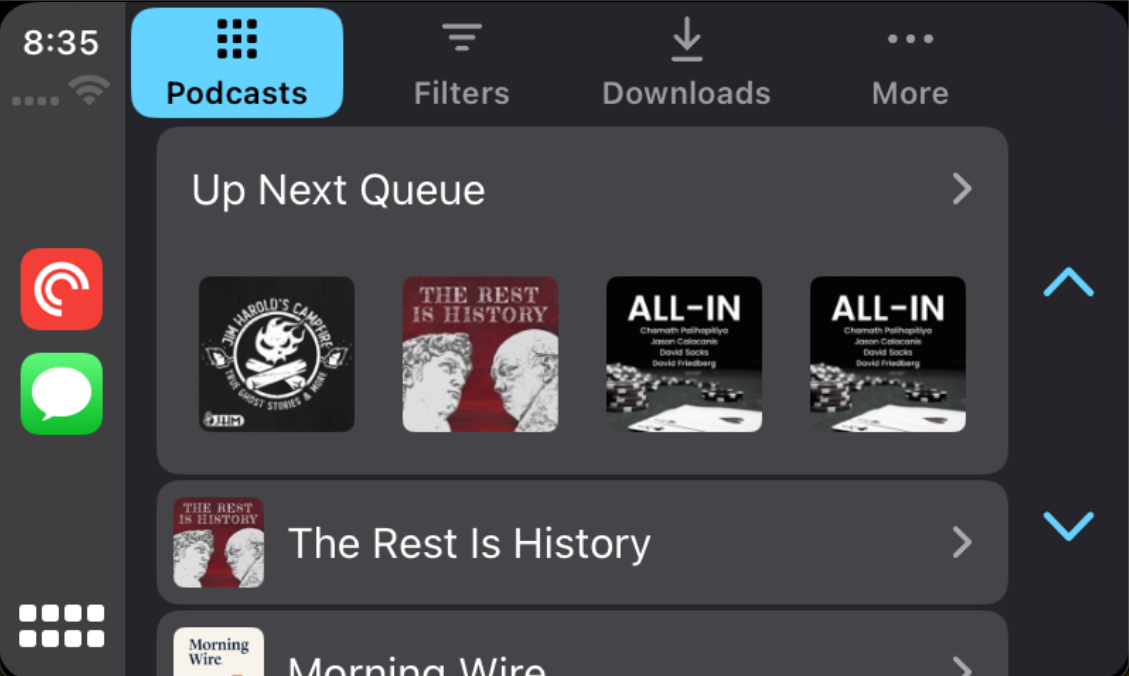
CarPlay, Apple’s revolutionary in-car infotainment system, seamlessly integrates your iPhone with your car’s infotainment console, offering a smarter and safer way to use your phone while driving. With Pocket Casts on CarPlay, you can enjoy your favorite podcasts directly from your car’s dashboard!
Pocket Casts on CarPlay features an easy-to-navigate interface with tabs that mirror your phone’s organization, ensuring a familiar and hassle-free experience. Here’s what you can expect:
- Podcasts Tab: Access your followed podcasts, sorted just as they are on your phone. Dive into individual podcasts to find episodes ready for playback. CarPlay honors your “show/hide archived” settings, displaying episodes accordingly. When you have episodes in Up Next, the Up Next Queue row at the top of this tab shows the first eight. In Pocket Casts 8.24 and later, each episode’s title appears under its artwork, so you can tell apart episodes from the same podcast (on iOS 26 and later, the podcast name appears too). Tap an episode to play it, or tap Up Next Queue to see your full queue. On iOS 17.0 to 17.3, the row shows artwork only.
- Playlists Tab: Quickly find episodes in your manual playlists and/or Smart Playlists.
- Downloads Tab: Listen to downloaded episodes conveniently organized with the newest downloads at the top.
- More Tab: Explore your listening history and access custom files for a personalized experience.
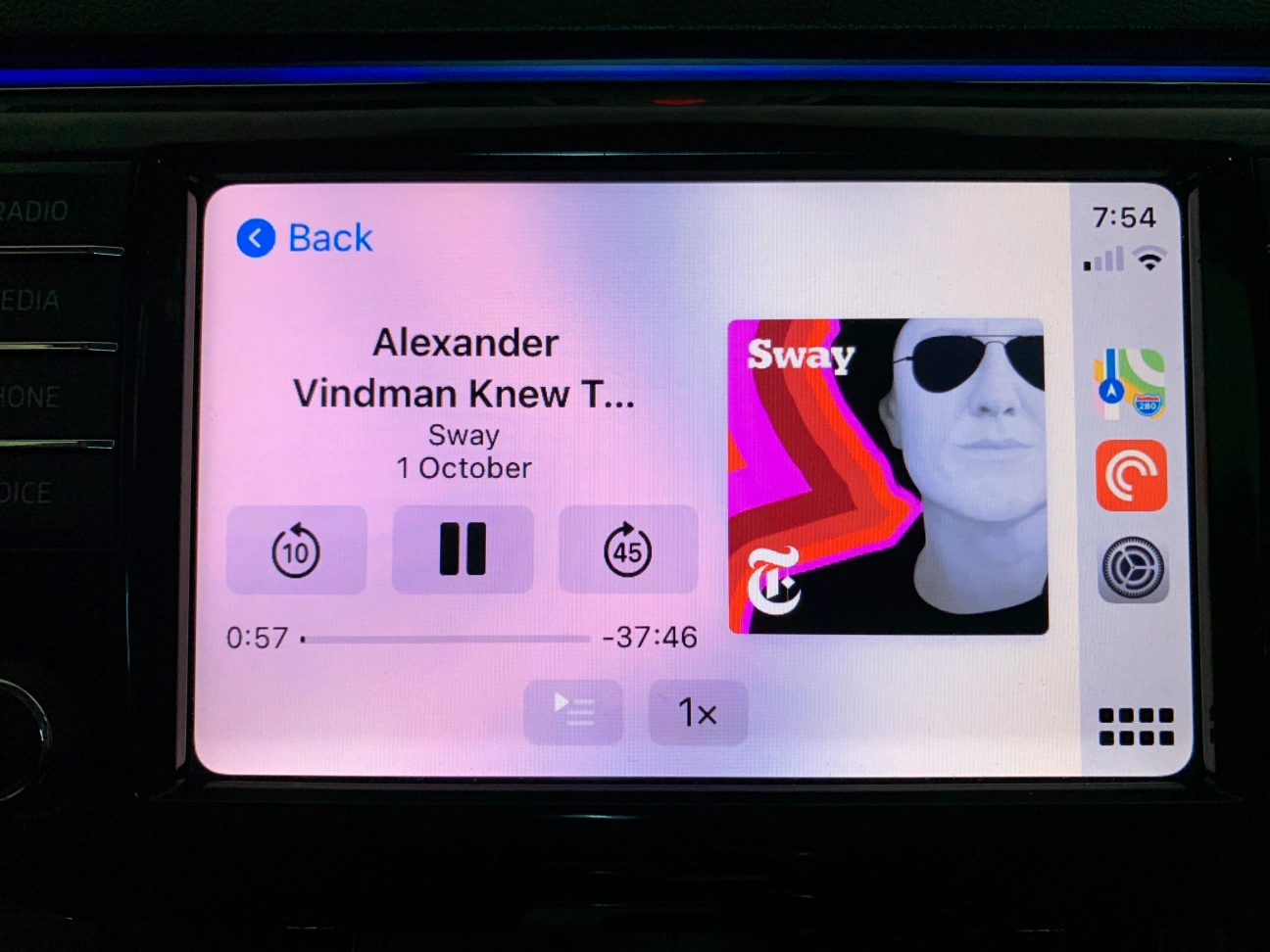
- Now Playing Screen: In Pocket Casts 8.24 and later, if an episode is playing when you connect to CarPlay, Pocket Casts opens straight to the Now Playing screen with playback controls. Tap Back to reach the Podcasts, Playlists, Downloads and More tabs. If nothing is playing when you connect (including a paused episode), Pocket Casts opens on the Podcasts tab.
When using Pocket Casts on CarPlay, it’s important to note:
- Apple-Designed UI: All visual elements are drawn by Apple, ensuring a consistent CarPlay experience. Any visual bugs are part of CarPlay’s design, beyond our control.

- Item Limit: For optimal performance, CarPlay displays a maximum of 100 items in any list.
- Regional Restrictions: In certain regions, CarPlay may limit interactions (e.g., scrolling) for legal reasons, a restriction managed by Apple or the car manufacturer.
- Tab Order: While we can customize the order of the tabs, the Now Playing screen cannot be added as a tab and will appear automatically during playback.
Directly adding episodes to the Up Next queue via CarPlay isn’t supported. However, there’s a workaround:
- Play the episode you wish to add. It will join the Up Next queue and push existing episodes down.
- Resume playing your original selection.
Changing the Pocket Casts icon on your iOS device? Reflect this change on CarPlay by simply disconnecting and reconnecting your device.
