
Some podcast episodes support chapters, which can include links, text, and images associated with a particular time in an episode.
Different Pocket Casts apps support different kinds of chapters.
The Android mobile app supports MP3 chapters, as well as chapters sourced directly from the Podcast Index and Podlove. It doesn’t support the proprietary Apple M4A chapters format.
The iOS Pocket Casts app supports AAC and MP3 chapters, as well as chapters sourced directly from the Podcast Index and Podlove.
The web and desktop apps support chapters with limitations. For example, chapters for a given episode can be available on the Android and/or iOS apps, but not on the web and desktop apps.
The available chapters for a specific episode can be found in various ways from different sources, including Podcast Index and Podlove. Currently, we are limited in which of those sources we can use due to restrictions and security measures both on the Web platform and web browsers. We hope to overcome this limitation in the future, however.
Chapters are supported in the following Pocket Casts integrations:
- Apple Watch app – chapters can be viewed if the Play Source is set to “Phone”
- CarPlay
Chapters are not supported in the following integrations:
- Wear OS
- Android Auto
- Android Automotive
When supported for a given episode, you can view chapters on the Android and iOS mobile apps in the following ways:
- On the full-screen player, tap the arrows directly below the artwork to skip through chapters.

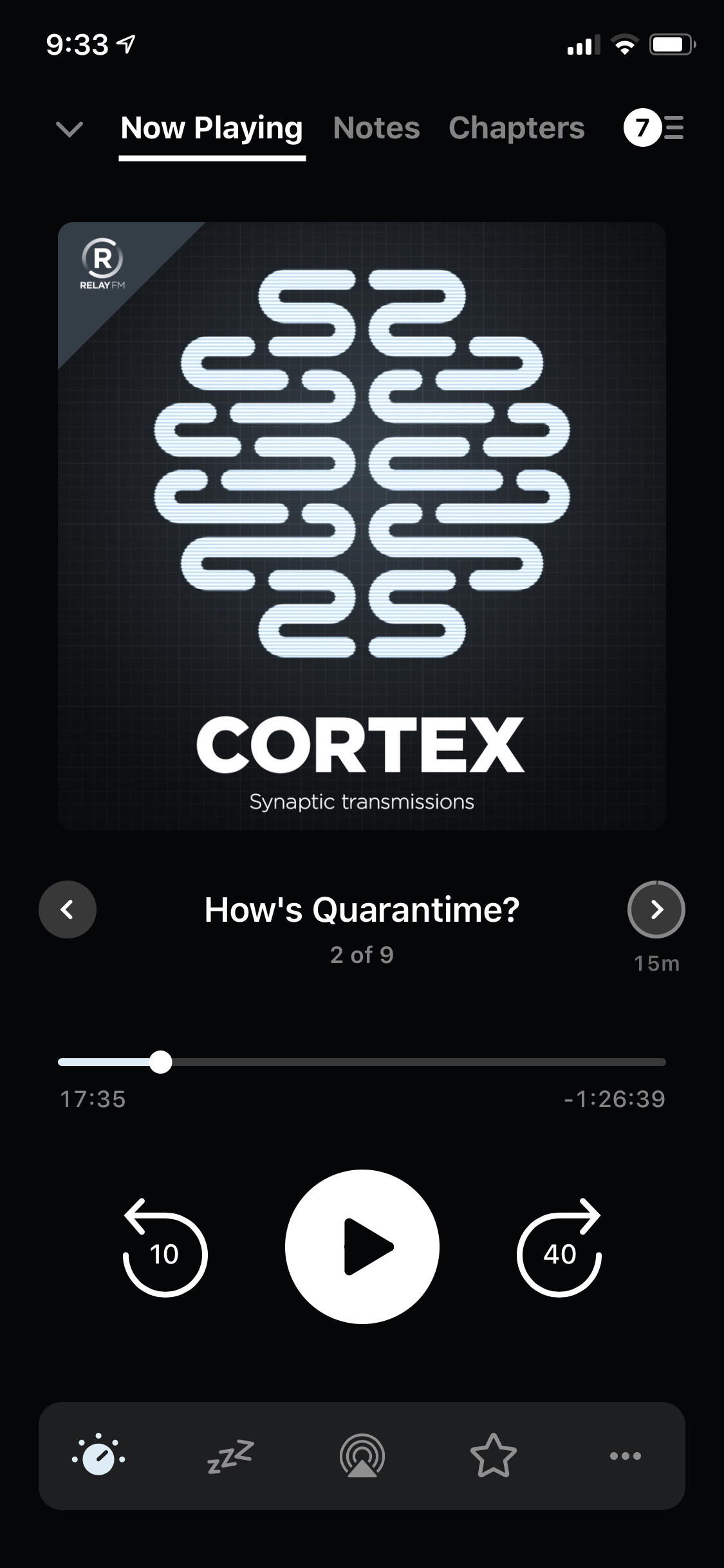
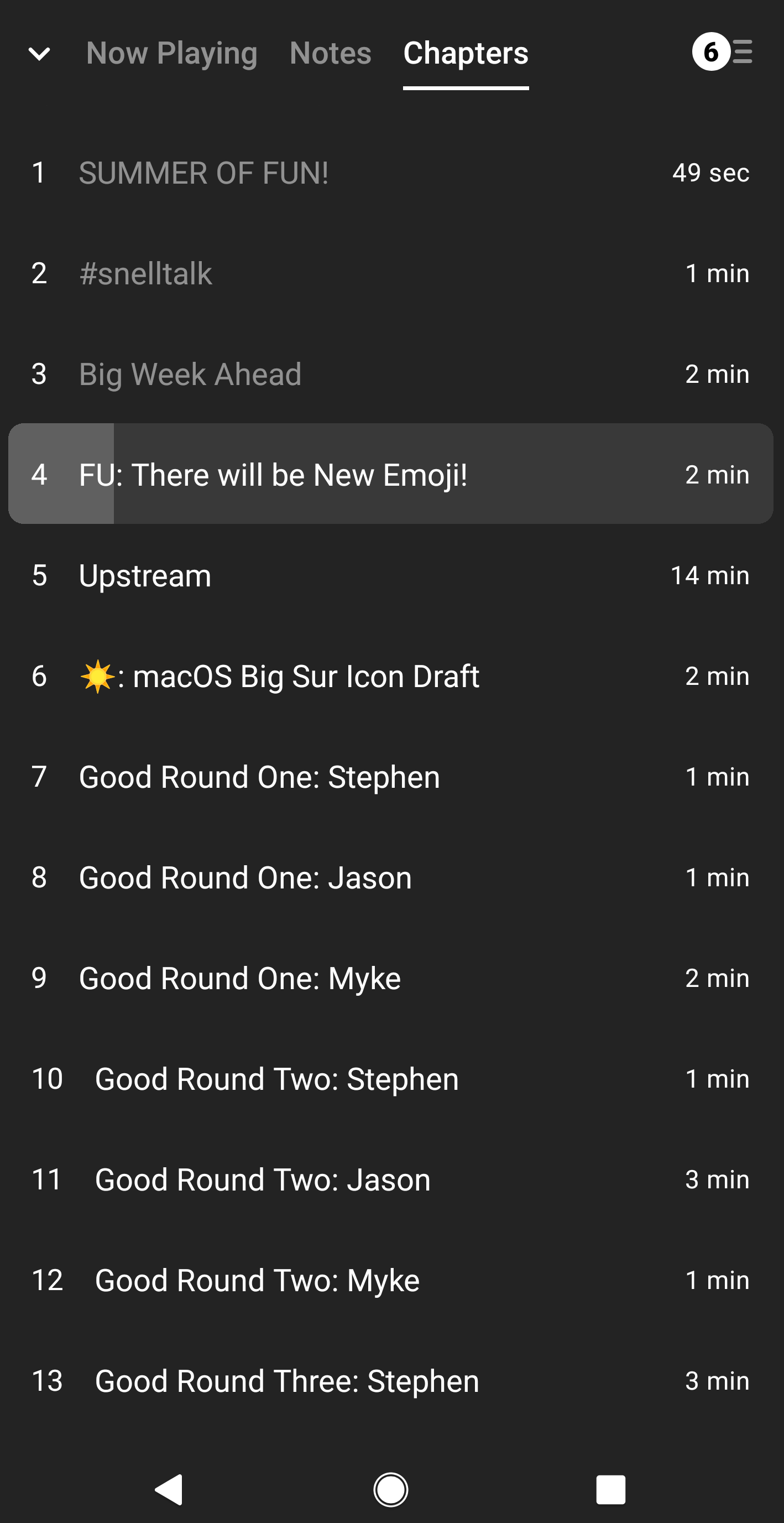
- On the full-screen player, you can tap the “Chapters” tab, which shows all the chapters for an episode. You can then tap on a chapter row to jump to that part of the podcast episode.

When supported for a given episode, you can view chapters on the web and desktop apps in the following ways:
- On the player, you can tap the arrows on the opposite ends of a chapter’s title to skip through chapters.
- On the player, you can click the “Chapters” icon—which looks like an open book and is located towards the lower-right corner of the screen—to see all the chapters for an episode. You can then click on a chapter row to jump to that part of the podcast episode.
- On the player, you’ll also see dots on top of the progress bar/scrubber. These dots indicate chapter start points. Mousing over these dots will display a chapter’s title. You can also click on a dot to jump to a chapter.
If you have a Plus or Patron account, you can choose which chapters to play and skip others. For more details on chapter selection, please visit Preselect Chapters.
At this point in time, we do not support showing chapter artwork on CarPlay. We have a feature request open for this, however, so our developers can consider it in the future.
You may need to start playing an episode before its chapters are loaded by the app.
If chapters are still not showing up even after you start playing an episode, please check if the episode might be affected by the platform-specific limitations.
