
Some podcast episodes support chapters, which can include links, text, and images associated with a particular time in an episode.
Pocket Casts can also add chapters automatically to episodes that don’t already include them, using AI-generated episode metadata. These AI-generated chapters appear in the same Chapters view as regular chapters—see the AI-Generated Chapters section below.
Platform-Specific Support for Chapters
Different Pocket Casts apps support different kinds of chapters.
Android
The Android mobile app supports MP3 chapters, as well as chapters sourced directly from the Podcast Index and Podlove. It doesn’t support the proprietary Apple M4A chapters format.
iOS
The iOS Pocket Casts app supports AAC and MP3 chapters, as well as chapters sourced directly from the Podcast Index and Podlove.
Web and Desktop
The web and desktop apps support chapters with limitations. For example, chapters for a given episode can be available on the Android and/or iOS apps, but not on the web and desktop apps.
The available chapters for a specific episode can be found in various ways from different sources, including Podcast Index and Podlove. Currently, we are limited in which of those sources we can use due to restrictions and security measures both on the Web platform and web browsers. We hope to overcome this limitation in the future, however.
Pocket Casts Integrations
Chapters are supported in the following Pocket Casts integrations:
- Apple Watch app – chapters can be viewed if the Play Source is set to “Phone”
- CarPlay
Chapters are not supported in the following integrations:
- Wear OS
- Android Auto
- Android Automotive
Viewing Chapters
Android and iOS
When supported for a given episode, you can view chapters on the Android and iOS mobile apps in the following ways:
- On the full-screen player, tap the arrows directly below the artwork to skip through chapters.

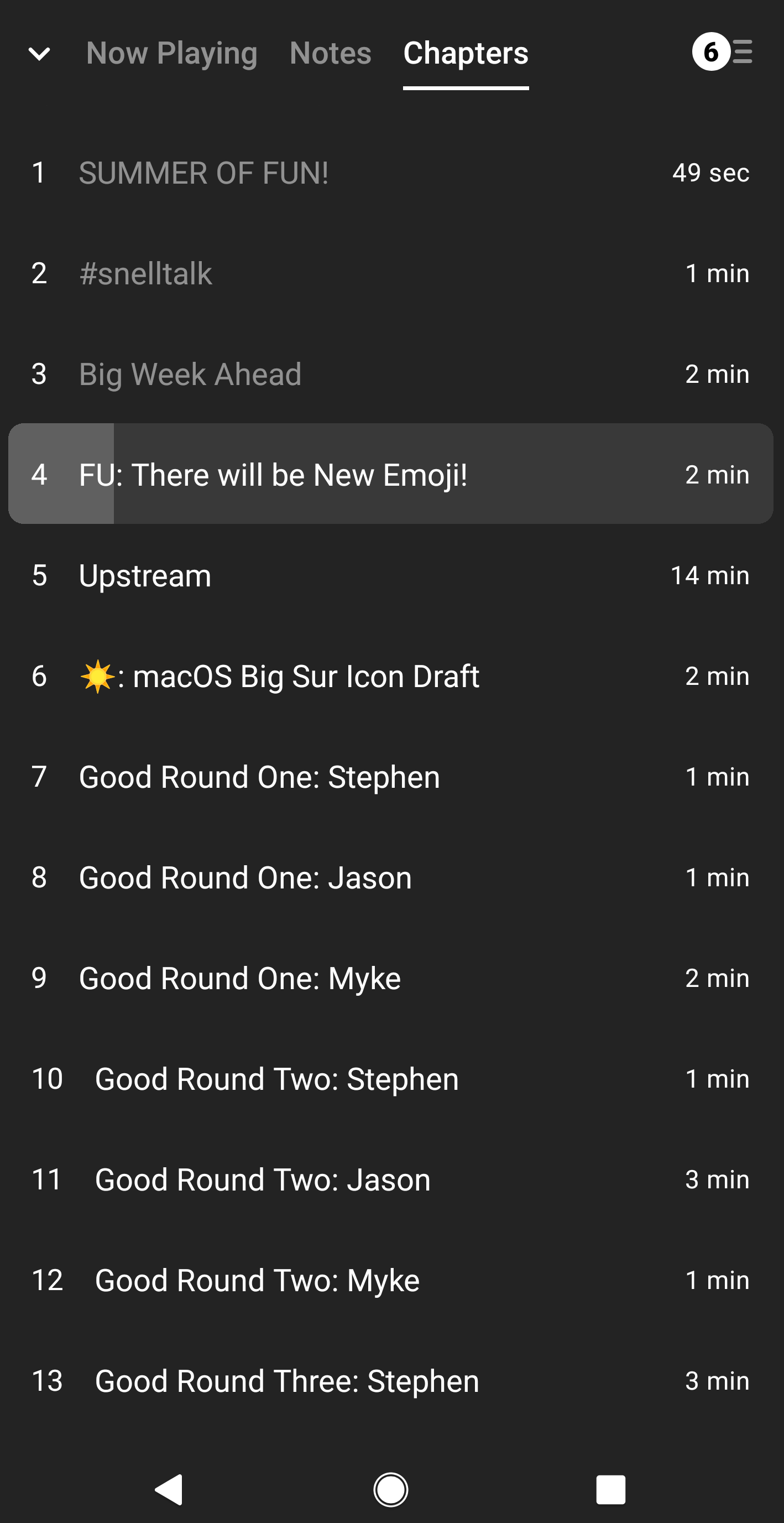
- On the full-screen player, you can tap the “Chapters” tab, which shows all the chapters for an episode. You can then tap on a chapter row to jump to that part of the podcast episode.
Web and Desktop
When supported for a given episode, you can view chapters on the web and desktop apps in the following ways:
- On the player, you can tap the arrows on the opposite ends of a chapter’s title to skip through chapters.
- On the player, you can click the “Chapters” icon—which looks like an open book and is located towards the lower-right corner of the screen—to see all the chapters for an episode. You can then click on a chapter row to jump to that part of the podcast episode.
- On the player, you’ll also see dots on top of the progress bar/scrubber. These dots indicate chapter start points. Mousing over these dots will display a chapter’s title. You can also click on a dot to jump to a chapter.
AI-Generated Chapters
For episodes that don’t already include chapters, Pocket Casts can add AI-generated chapters automatically. These are created from Pocket Casts’ AI-generated episode metadata and appear in the normal Chapters view, where you can interact with them just like regular chapters—for example, tapping a chapter to jump to that point in the episode.
AI-generated chapters are available with the Plus or Patron plan on Android, iOS, and the web and desktop apps. When an eligible episode has generated chapters, they appear automatically.
When chapters are AI-generated, the app shows this disclaimer so you know they may not be perfect:
These chapters are automatically generated and may not be perfectly accurate.
When do AI-generated chapters appear?
AI-generated chapters are a fallback, so they only appear when all of the following are true:
- The episode doesn’t already have chapters from another source (creator-provided, Podcast Index, show notes, or embedded media).
- Pocket Casts has generated episode metadata for that episode.
- That generated metadata includes valid chapter data.
Chapters that come from the creator or another existing source always take priority; AI-generated chapters are only used when none of those are available. If a creator later adds their own chapters, those replace the generated ones.
Preselecting Chapters
If you have a Plus or Patron account, you can choose which chapters to play and skip others. For more details on chapter selection, please visit Preselect Chapters.
FAQs
Can I hide chapters on the Now Playing screen?
No. There’s currently no way to hide chapters or chapter titles from the Now Playing screen (the full-screen player). When an episode includes chapters—including AI-generated chapters—the chapter title and navigation arrows appear below the artwork automatically, and this can’t be turned off or removed.
Can I edit, regenerate, or turn off AI-generated chapters?
No. You can’t edit generated chapter titles or timestamps, ask Pocket Casts to regenerate them, or turn them off. You can still use the normal chapter controls on your platform, such as tapping a chapter to jump to that part of the episode. As noted above, chapters—including AI-generated ones—can’t be hidden from the Now Playing screen.
Why are some AI-generated chapters missing or inaccurate?
Because they’re created automatically, AI-generated chapters may occasionally be missing or imperfect. Common reasons include:
- The episode doesn’t have generated metadata, or the metadata doesn’t include chapters.
- The generated chapter data was invalid and filtered out.
- The episode has dynamic content or ads that make chapter timing feel slightly off.
- The generated titles or timestamps weren’t accurate enough.
If AI-generated chapters for a specific episode are missing, clearly wrong, or poor quality, you can share the podcast name, episode name, your platform and app version, and a rough timestamp with our support team so we can look into it.
Do AI-generated chapters work offline or with files I’ve added myself?
You’ll need to be online the first time the app fetches generated chapters for an episode; after that, they behave like regular chapters where they’ve already loaded. The web and desktop apps don’t work offline, so generated chapters aren’t available there while offline. AI-generated chapters also aren’t available for custom files you’ve uploaded yourself, since those don’t have Pocket Casts-generated metadata.
Can I view chapter artwork on Apple CarPlay?
At this point in time, we do not support showing chapter artwork on CarPlay. We have a feature request open for this, however, so our developers can consider it in the future.
A certain episode has chapters. Why am I not seeing the chapters?
You may need to start playing an episode before its chapters are loaded by the app.
If chapters are still not showing up even after you start playing an episode, please check if the episode might be affected by the platform-specific limitations.
