
Pocket Casts features a sleep timer that will automatically pause playback after the selected time period. The sleep timer is only available on the iOS and Android mobile apps. It is not available on the web player or desktop apps (Windows and macOS).
You can find this action in the player toolbar options which can be customized to include your four most used actions with the rest just a tap away.
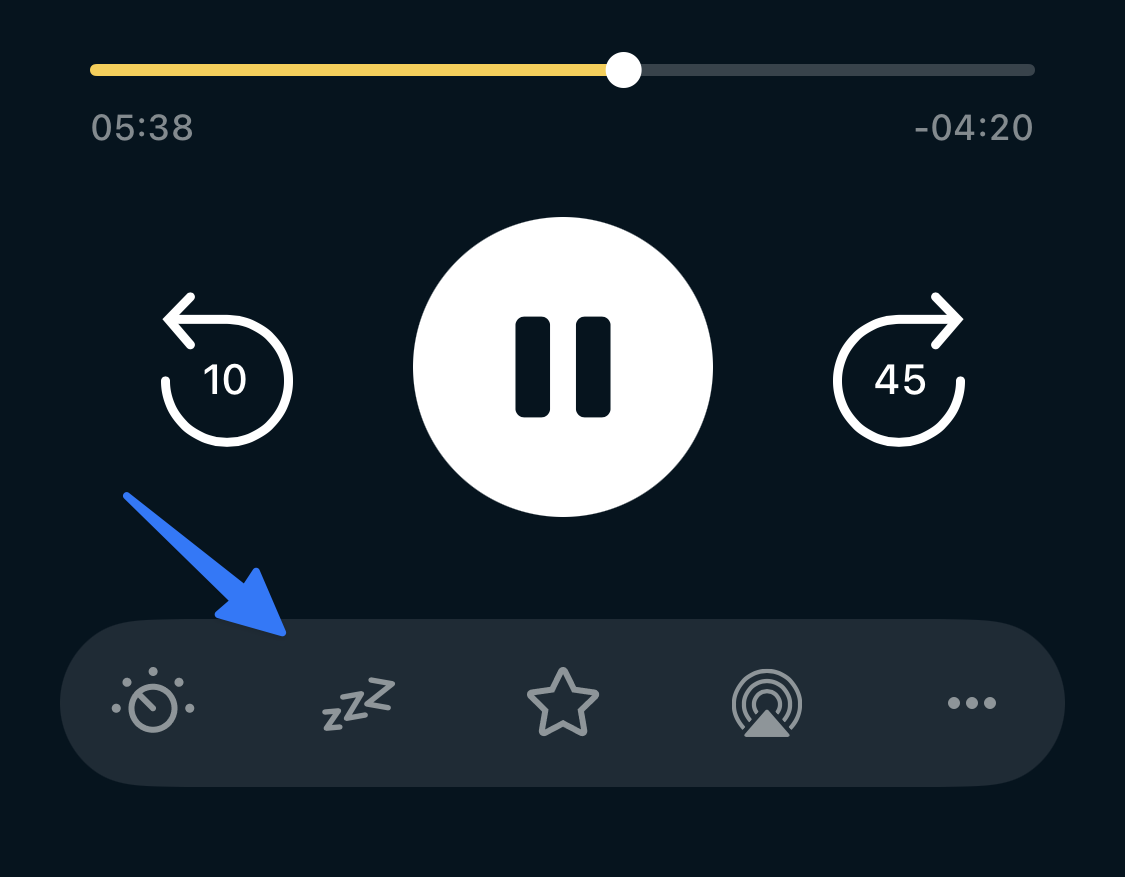
- Start playback of an episode
- Tap the mini player
- Select the sleep icon
- Choose from 15 minutes, 30 minutes, 1 hour, End Of Episode, or a custom duration. The iOS app also has a 5 minutes option.
You can tap on the End of Episode text to set the timer to end when the currently playing episode finishes or you can use the + and – buttons to the right to select how many podcast episodes you’d like to listen to before the timer pauses playback.
Similarly, the other Sleep Timer option with + and – buttons on the right can be adjusted to your preferred duration — the default duration is 5 minutes. You can tap on the text to start the timer. When you set a custom sleep timer duration with this method, that custom duration will be saved for future use.
On Android, we also offer sleep timer options based on a number of chapters. You can tap on the In 1 chapter text to set the timer to end when the currently playing chapter finishes. Or you can use the + and – buttons to the right to select how many chapters you’d like to listen to before the timer pauses playback.
- Tap on the sleep icon in the player toolbar
- Tap on the option to add 1 Minute (exclusive to Android, currently), add 5 minutes, or change to End Of Episode.
On iPhone, a sleep timer that’s running shows up as a Live Activity on your Lock Screen and in the Dynamic Island, so you can check how much time is left without opening Pocket Casts. This is only available in the iOS app.
The countdown appears on the Lock Screen and, on iPhones that have a Dynamic Island, at the top of the screen while you use other apps. Tap + 5 Minutes on the Lock Screen to add five minutes without opening the app. In the Dynamic Island, touch and hold the countdown to see the + 5 Minutes button. Tap the countdown itself to open the player.
The countdown stops while playback is paused and picks up again when you press play. It disappears when the timer ends or when you end the timer.
The Live Activity only appears for timers set to a length of time (5 minutes, 15 minutes, 30 minutes, 1 hour, or a custom duration). It doesn’t appear when the sleep timer is set to End of Episode or to a number of episodes.
- Check that the sleep timer is set to a length of time, not End of Episode or a number of episodes
- Open the iPhone Settings app, tap Pocket Casts (on newer versions of iOS, tap Apps first, then Pocket Casts), and turn on Live Activities. Then set the sleep timer again. A timer that was already running won’t appear.
- Make sure you’re using the latest version of Pocket Casts from the App Store
- Tap on the sleep icon in the player toolbar
- Select Cancel Timer
Auto Restart Sleep Timer is on by default. It restarts the Sleep Timer automatically after the timer has ended. You can turn it off or on in the following location:
- Tap Profile
- Tap Settings
- Tap on General from the list
- Scroll down to find the “Auto Restart Sleep Timer” option
If on, the Sleep Timer will restart automatically if you play an episode within 5 minutes after the last pause.
For example, if you set a sleep timer for 10 minutes while listening to an episode, playback will stop after 10 minutes. If you start playing the episode again within 5 minutes, the sleep timer will reset, and the episode will play for another 10 minutes before stopping again.
If this feature is disabled, restarting playback after the timer ends will let the episode (and anything next in the queue) keep playing until you pause it yourself.
When a sleep timer ends, Pocket Casts fades the volume down over the last 5 seconds and then pauses playback. If an episode keeps fading out and stopping every few minutes (volume fades to zero, then the podcast pauses), a sleep timer is running and Auto Restart Sleep Timer is starting it again each time you press play. To stop it, end the sleep timer (see To end the sleep timer above), and turn off Auto Restart Sleep Timer if you don’t want it to come back on its own.
Pocket Casts offers the option to restart your Sleep Timer by shaking your device before the timer ends. This can be enabled or disabled in the following location:
- Tap Profile
- Tap Settings
- Tap on General from the list
- Scroll down to find the “Shake to restart Sleep Timer” option
Shake to restart Sleep Timer only works while the timer is still counting down. Shaking your device restarts the timer so you can keep listening, but it doesn’t start playback again. Once the timer has ended and playback has paused, shaking your phone does nothing. This is expected. It isn’t a problem with your phone’s motion sensor or with the app.
To keep listening after the sleep timer has paused playback, press play. If you’d like the same sleep timer to start again when you do, turn on Auto Restart Sleep Timer (see above). It restarts the timer if you resume playback within 5 minutes of the last pause.
If you hear a chime, ding, bling, beep or ringing sound from Pocket Casts at random times, even with notifications turned off, it’s usually one of these:
- Shake to restart Sleep Timer: While a sleep timer is running and Pocket Casts is in the background, moving or shaking your phone (for example, in a pocket or bag, or while walking) restarts the timer and plays a chime. If the app is open on screen, you’ll see a message instead. To stop it, turn off “Shake to restart Sleep Timer” in Profile > Settings > General.
- Bookmark Confirmation Sound: If one of your Headphone Controls actions is set to “Add Bookmark”, pressing the previous or next button on your Bluetooth headphones, speaker or car adds a bookmark and plays a confirmation sound. To stop it, go to Profile > Settings > Headphone Controls and turn off “Bookmark Confirmation Sound”, or change that action from “Add Bookmark”. See Using Bookmarks.
- Apple Watch: Pressing play in the Pocket Casts Apple Watch app can play a chime or click. There’s currently no way to turn this off. See Apple Watch.
- New episode notifications: If notifications are on, your phone plays its notification sound when a new episode is available. See Notifications.
If you’ve ruled these out and still hear the sound, contact our support team and tell us your device, when the sound plays, and what it sounds like.
