
Android Auto, Google’s innovative in-car infotainment solution, transforms your car’s infotainment system into an extension of your Android phone. This integration brings the power of your smartphone to the dashboard, offering a safer and more intuitive way to interact with your apps while on the road. With Pocket Casts on Android Auto, your favorite podcasts are just a tap away, allowing you to stay entertained and informed without taking your focus off driving.
Pocket Casts on Android Auto is designed to make finding and playing your podcasts incredibly straightforward, using Google’s standardized UI templates for consistency and ease of use. Here’s a quick guide on what you’ll find:
- Podcasts (Podcast Grid): Your portal to all of the podcasts you follow, displayed in a grid format for easy access. This is the first screen you’ll see, offering a bird’s eye view of your podcast collection.
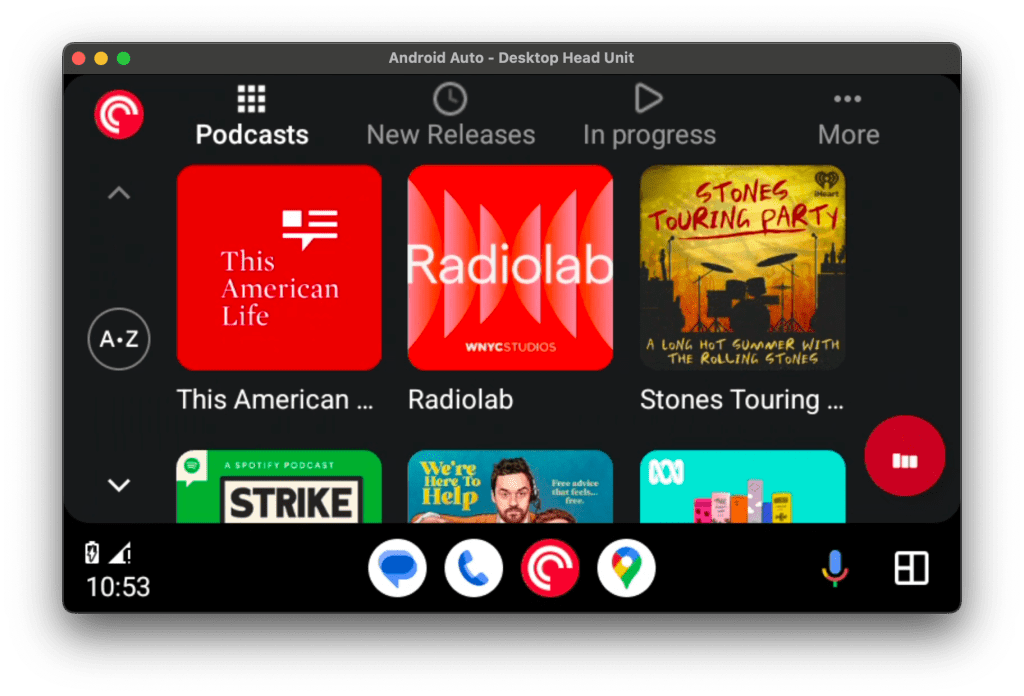
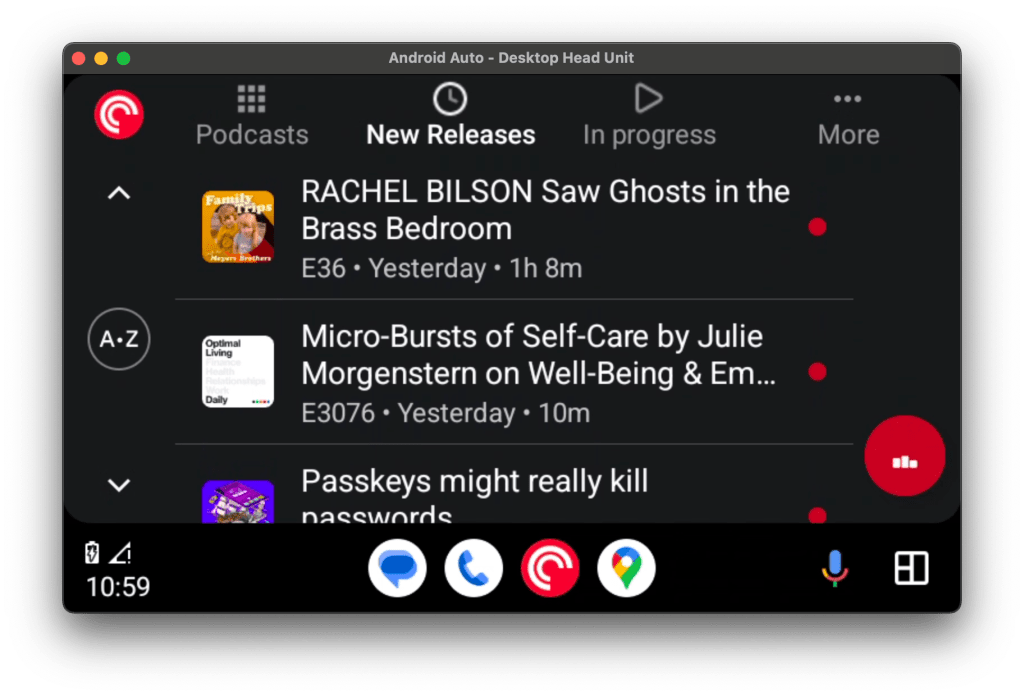
- Playlists: Convenient playlists like “New Releases” and “In Progress” help you quickly sort through episodes, showing only those that meet your specified criteria.
- More: Access all of your playlists via the More section.
- Browsing Podcasts: Tap on any podcast to see a list of episodes, including unplayed or in-progress ones, each with its title, publish date, and a visual indicator of its status (a red dot for unplayed episodes, half dot for those in progress).
- Playback Controls: Once an episode is playing, you have the option to adjust playback speed, skip back, play/pause, skip forward, and access more options with simple taps.
- If you are not seeing additional playback actions, please go to Profile > Settings (gear icon) > General in your Android app and make sure “Show custom media actions” is enabled.
- With “Show custom media actions” on, you can also reorder which of the following custom media actions show up by default:
- Playback speed
- Star
- Mark as played
- Play next
- Archive
- Playback Speed: Tap to cycle through speeds (1x, 1.2x, 1.4x, 1.6x, 1.8x, 2x), allowing you to listen at your preferred pace.

- More Options: Reveals additional actions such as marking an episode as played or starring it for easy access later.
When enjoying Pocket Casts via Android Auto, remember:
- Google-Designed UI: The user interface is designed by Google, ensuring a uniform experience across different apps. This means any limitations or visual elements are consistent with Android Auto’s design guidelines.
- Template-Based Design: Like other audio apps on Android Auto, Pocket Casts operates within the constraints of templates provided by Google, focusing on safety and simplicity.
- Additional Settings: If a setting is not shown on Android Auto, you can manage the setting in the mobile app. For example, to disable Autoplay go to the mobile app > Profile > Settings > General.
With Pocket Casts for Android Auto, you’re all set to explore a world of podcasts without compromising on safety or convenience. Whether you’re catching up on the latest episodes of your favorite show or discovering new content, Pocket Casts and Android Auto make your commute or road trip more enjoyable.
“Adjust Remaining Time” only changes the time shown inside the Pocket Casts app on your phone. Android Auto uses its own built‑in design, so it doesn’t let us change how the remaining time is displayed there.
