
Android Auto, Google’s innovative in-car infotainment solution, transforms your car’s infotainment system into an extension of your Android phone. This integration brings the power of your smartphone to the dashboard, offering a safer and more intuitive way to interact with your apps while on the road. With Pocket Casts on Android Auto, your favorite podcasts are just a tap away, allowing you to stay entertained and informed without taking your focus off driving.
Pocket Casts on Android Auto is designed to make finding and playing your podcasts incredibly straightforward, using Google’s standardized UI templates for consistency and ease of use. Here’s a quick guide on what you’ll find:
- Podcasts (Podcast Grid): Your portal to all of the podcasts you follow, displayed in a grid format for easy access. This is the first screen you’ll see, offering a bird’s eye view of your podcast collection.
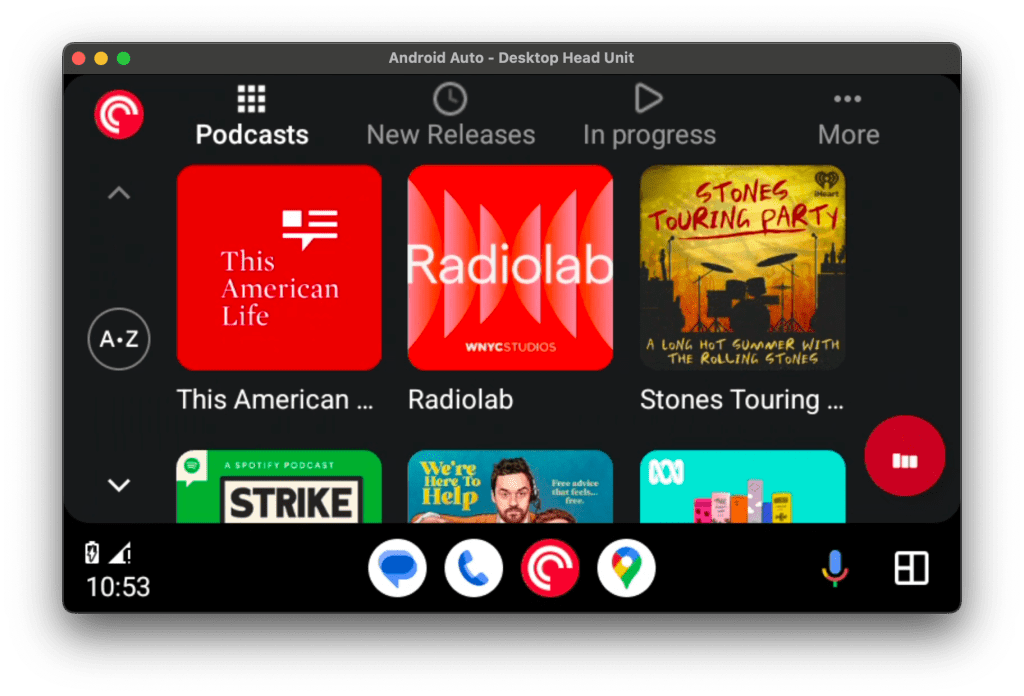
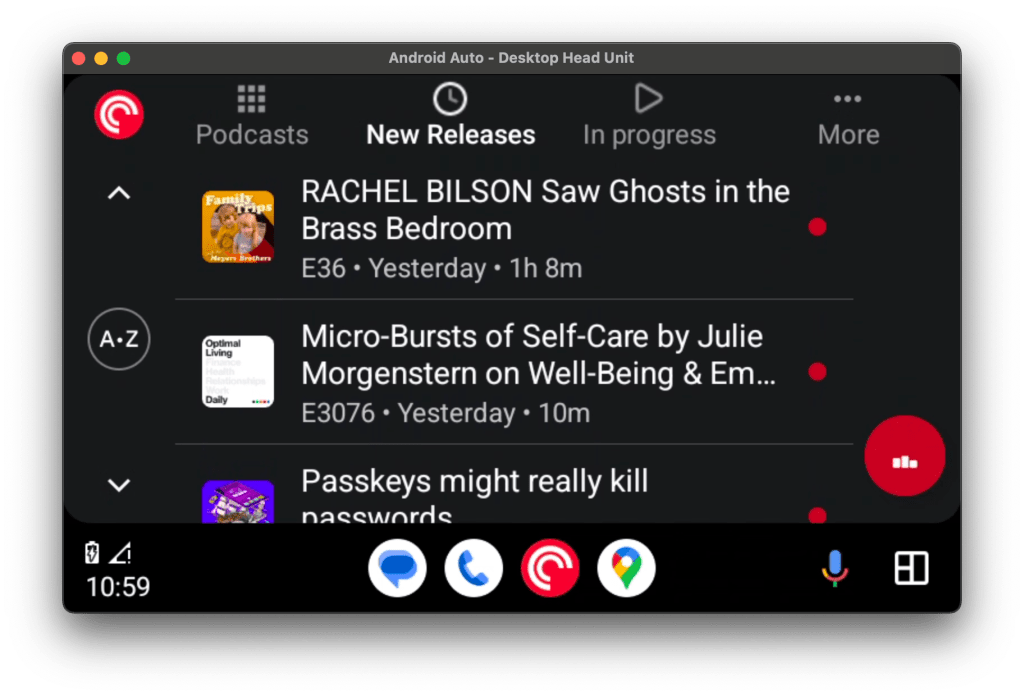
- Playlists: Convenient playlists like “New Releases” and “In Progress” help you quickly sort through episodes, showing only those that meet your specified criteria.
- More: Access all of your playlists via the More section.
- Browsing Podcasts: Tap on any podcast to see a list of episodes, including unplayed or in-progress ones, each with its title, publish date, and a visual indicator of its status (a red dot for unplayed episodes, half dot for those in progress).
- Playback Controls: Once an episode is playing, you have the option to adjust playback speed, skip back, play/pause, skip forward, and access more options with simple taps.
- If you are not seeing additional playback actions (extra buttons such as playback speed or star are missing in Android Auto), go to Profile > Settings (gear icon) > General > Media notification controls in your Android app and make sure “Show custom media actions” is enabled. The toggle is on the Media notification controls screen, not on the General screen itself. This setting only changes the buttons on the playback screen. It does not affect the browse screen (podcast grid, playlists, or tabs).
- With “Show custom media actions” on, you can also reorder, on the same Media notification controls screen, which of the following custom media actions show up by default:
- Playback speed
- Star
- Mark as played
- Play next
- Archive
- Playback Speed: Tap to cycle through speeds (1x, 1.2x, 1.4x, 1.6x, 1.8x, 2x), allowing you to listen at your preferred pace.

- More Options: Reveals additional actions such as marking an episode as played or starring it for easy access later.
When enjoying Pocket Casts via Android Auto, remember:
- Google-Designed UI: The user interface is designed by Google, ensuring a uniform experience across different apps. This means any limitations or visual elements are consistent with Android Auto’s design guidelines.
- Template-Based Design: Like other audio apps on Android Auto, Pocket Casts operates within the constraints of templates provided by Google, focusing on safety and simplicity.
- Additional Settings: If a setting is not shown on Android Auto, you can manage the setting in the mobile app. For example, to disable Autoplay go to the mobile app > Profile > Settings > General.
With Pocket Casts for Android Auto, you’re all set to explore a world of podcasts without compromising on safety or convenience. Whether you’re catching up on the latest episodes of your favorite show or discovering new content, Pocket Casts and Android Auto make your commute or road trip more enjoyable.
Android Auto shows the Pocket Casts app that is running on your phone, so it plays the same episode at the same position as your phone (Android Auto not syncing, car shows a different episode or position than my phone, car is behind my phone). If only the episode lists in the car look out of date, see the next question. If your phone and the web player match each other and only the car is different, your car is most likely running Android Automotive instead. Android Automotive is a separate Pocket Casts app installed on the car itself. It comes with cars that have Google built-in, such as Volvo, Polestar, and recent Chevrolet, GMC, and Cadillac models, and it works without your phone connected. That app does not sync progress automatically: tap the Settings cog in Pocket Casts on the car’s screen, then tap “Refresh now”. See Android Automotive for more.
The Podcasts grid and the playlist tabs in Android Auto (New Releases, In Progress, and your other playlists) are your phone’s own lists. The car asks your phone for a list when you open that tab and then keeps that copy, so if your phone picks up new episodes during the drive, the car can keep showing the older list until it asks again (new episodes missing in the car, New Releases in Android Auto not updating, car shows older episodes than my phone, new episodes tab out of date in the car). To refresh it, tap Podcasts on the car’s screen, then tap the New Releases tab again. If it still shows the older list, disconnect and reconnect your phone. Opening Pocket Casts on your phone before you connect it to the car gives the car the newest lists to start with. Our team is aware of this. It is unrelated to the podcast grid and filters missing in Android Auto, which was fixed in Pocket Casts 8.22.
“Adjust Remaining Time” only changes the time shown inside the Pocket Casts app on your phone. Android Auto uses its own built‑in design, so it doesn’t let us change how the remaining time is displayed there.
