
You can play podcast episodes from Pocket Casts on your headset, TV, or speakers using Bluetooth, Chromecast, Chromecast Audio, and any other Google Cast enabled devices. Additionally Pocket Casts also supports some smart speaker systems — currently Alexa and Sonos.
See this article for more information about how to set up the Amazon Alexa integration.
- Open the Settings app on your device
- Tap Bluetooth
- Pair with your chosen Bluetooth device
- Open Pocket Casts and tap Play on any episode
- Set up your casting device and join your local WiFi network
- Make sure your mobile device running Pocket Casts is on the same WiFi network
- Tap the Google Cast button in Pocket Casts to connect
- Tap Play on any episode in Pocket Casts
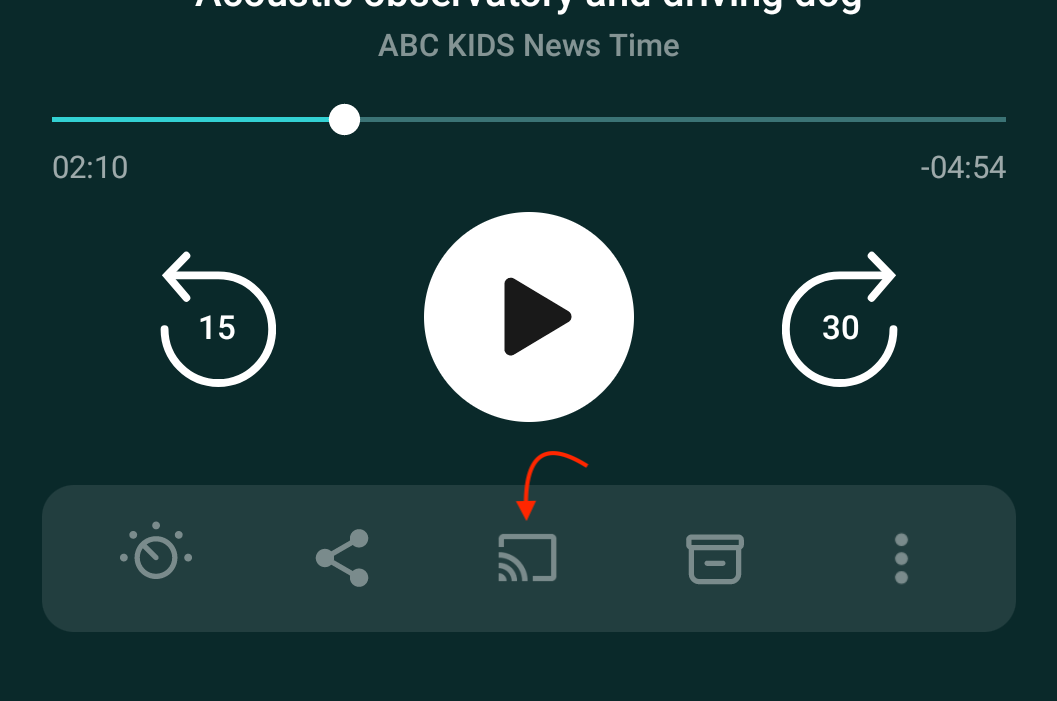
In the player, you can access the Cast button via the player toolbar’s 3 dot menu, or as this toolbar is customizable, you can move the Cast button into the player if you wish.
- Setup your AirPlay device and join your local WiFi network
- Make sure your iPhone or iPad is on the same WiFi network
- Open Pocket Casts player and tap the Output Device / Airplay button to connect
- Tap play in Pocket Casts
The AirPlay button can be found in the player, or as this toolbar is customisable, you can move the airplay button into the menu if you wish.
To play episodes on Sonos devices, please refer to the Sonos Integration guide.
