
Adding a star to an episode will prevent it from being automatically deleted according to your Auto Archive settings.
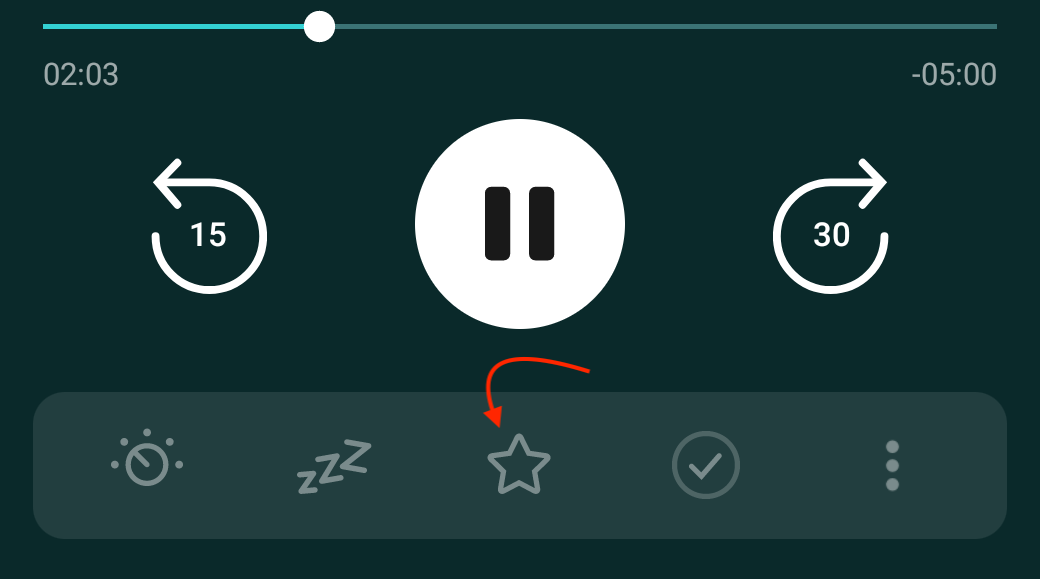
You can find this action in the player toolbar options which can be customized to include the four most used actions and the rest are only a tap away.
- Tap the mini player
- In the full player screen tap the star icon ☆ from the toolbar (which can be customized)
- Tap the episode row
- Tap the star icon ☆ in the top right
Long press on any episode row to enter multi-select mode and then:
- Select the episodes and tap Star Episodes in the multi-select action bar — you may need to tap on the three dot menu to access it.
- Or, long press the episode again and choose from Select all above or Select all below, then tap Star Episodes in the multi-select action bar — you may need to tap on the three dot menu to access it.
- Or, tap Select all at the top-left of the screen, then tap Star Episodes in the multi-select action bar — you may need to tap on the three dot menu to access it.
If you don’t see Star Episode in the multi-select toolbar, you can find it in the three dot menu. You can also customize the action bar so that it is one of your shortcuts.
You can also enter multi-select mode by tapping the three dot menu > Select Episodes.
- Group Episodes within a podcast
On a podcast’s page tap the three dot menu > Group Episodes > select Starred. - Create a Smart Playlist
Tap the Playlists tab and follow the steps to create and configure a new Smart Playlist. You can configure a rule for the Smart Playlist to only show starred episodes.
