
With podcasts made to be an on-the-go medium, it helps to have them downloaded and ready to go whenever and wherever you are — whether your device is offline or connected to a slow or inconsistent network. You can manually download the episodes you like individually, in bulk, or the app can be set to automatically download new episodes as they’re released.
- Tap on an episode row, then tap the downward arrow icon download button.
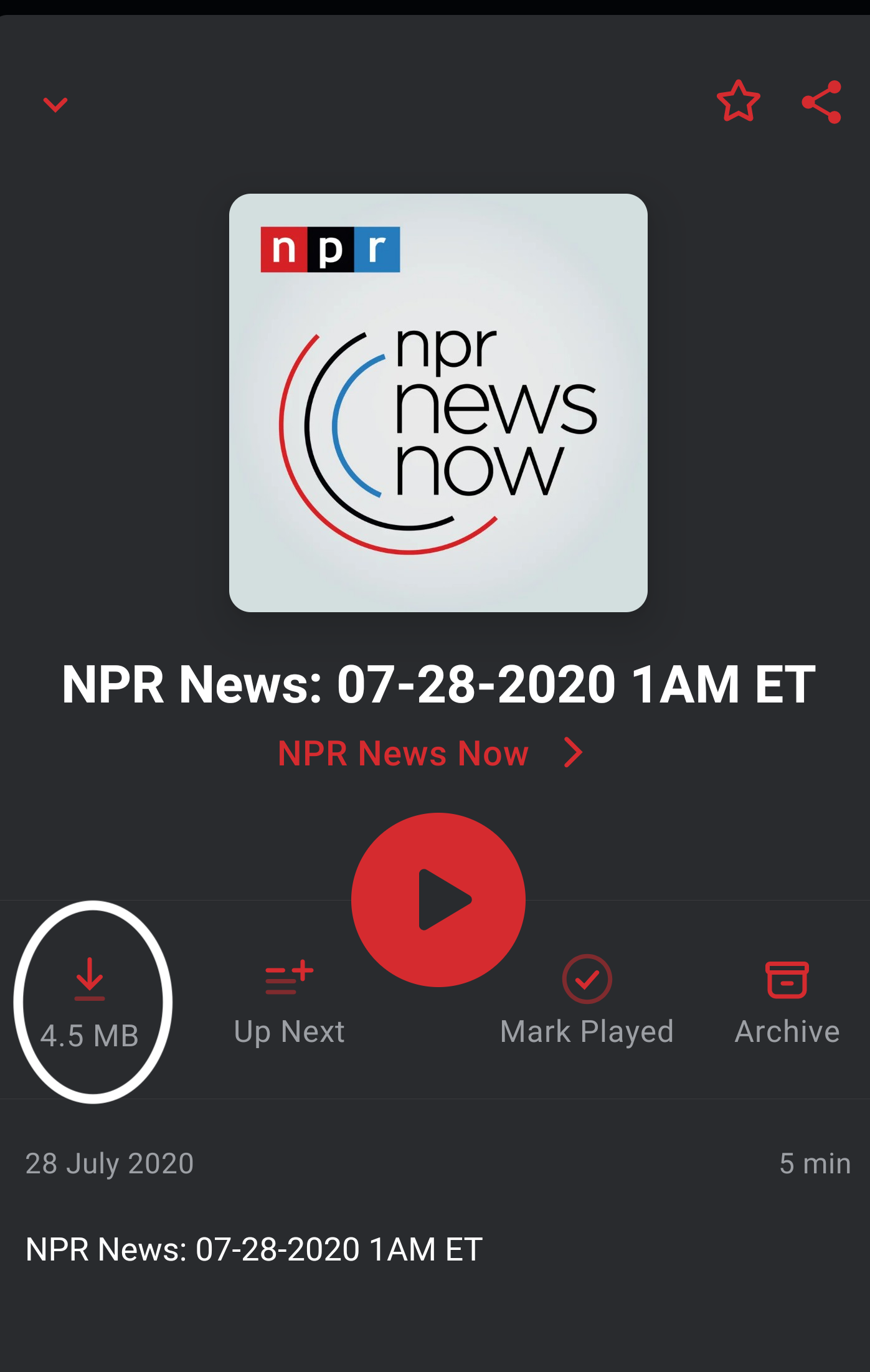
- In a list of episodes, the episode rows have a play button by default. You can customize this to be a download button instead so that you can download episodes with just one tap: Profile > settings cog > General > Row Action > Download.
- Long press on the play icon in the episode row to download the episodes without changing the row setting.
- On a podcast’s page, or in a playlist you can long press on any episode in a list and tap the download button– you can also tap other episodes in the list to select those
- Or long press on an episode in a list, then long press again, choose Select all above or Select all below, then tap the download button
- Or long press on an episode in a list, then tap the vertical ellipsis, tap Select all, tap any episodes you don’t wish to download to deselect them, then tap the download button. If you wish to deselect all to start again, tap the vertical ellipsis and tap Select none to clear your selections
On a podcast’s page or in a playlist, you can tap the vertical ellipsis and select Download All to download all the visible episodes. If archived episodes are visible then they will be downloaded by this action, if they are hidden they won’t be downloaded.
For full list of your downloaded episodes, regardless of podcast follow status, tap Profile > Downloads.
To manage your downloads:
- automatically delete the downloaded files once you are done via archiving,
- or manually clear and manage the storage
