
The Podcasts tab is the main display of your current podcast follows in the Android and iOS mobile apps.
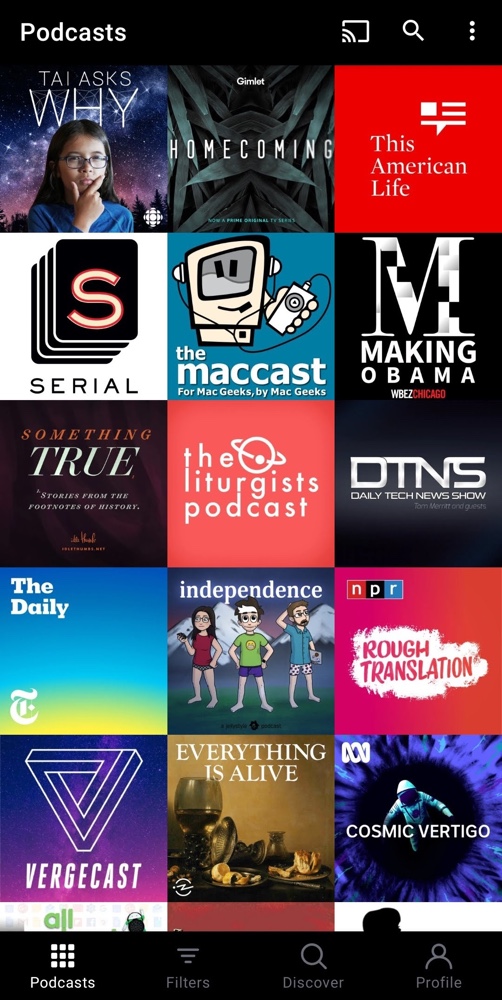
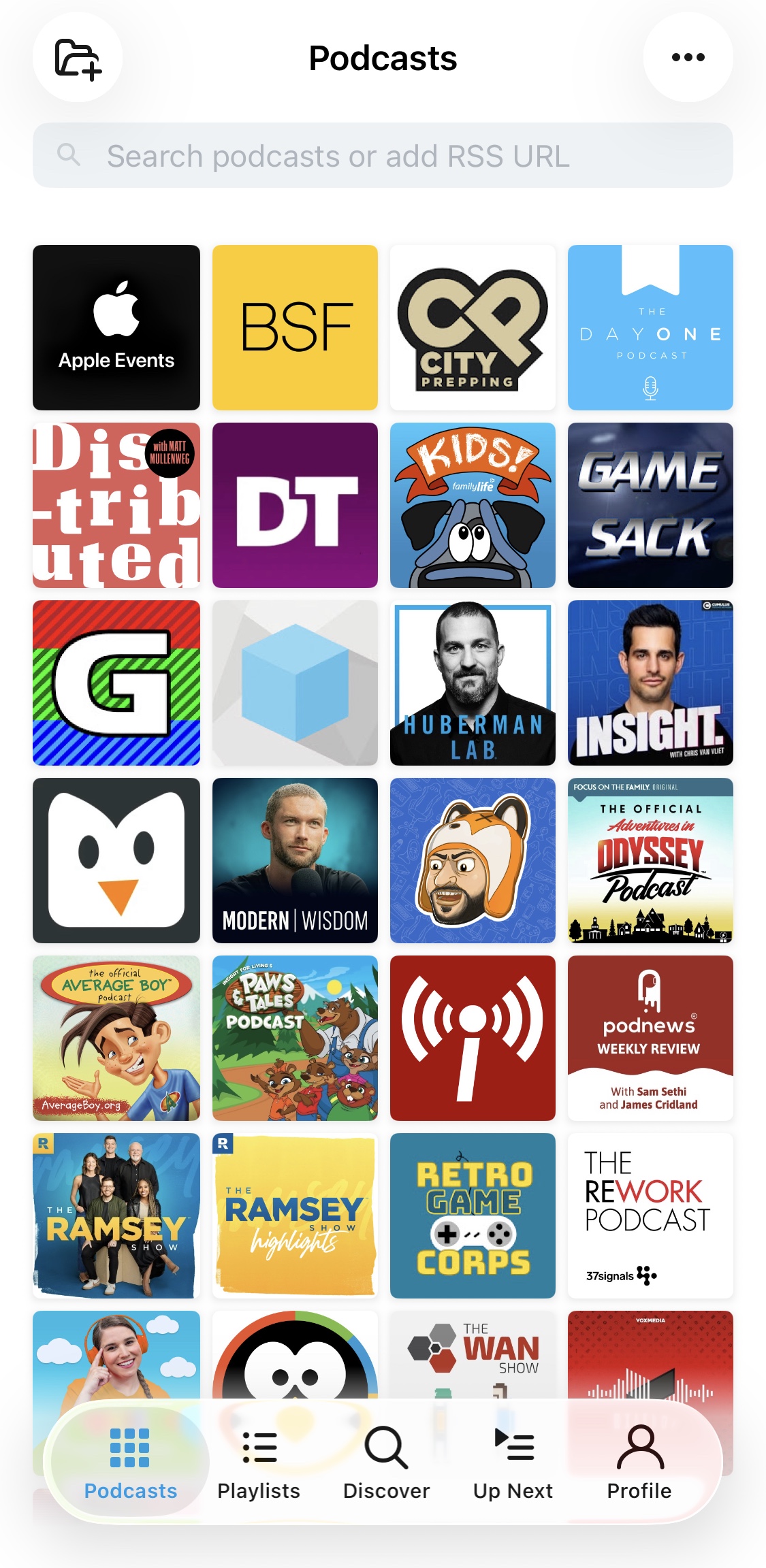
To access the Podcasts tab, tap “Podcasts” on the lower-left corner of the app’s screen:
To see episode titles, you’ll want to click on a particular podcast in the Podcasts Tab. This will take you to the podcast’s page in the app, which will list episode titles. Alternatively, if your goal is to see the titles of newly released episodes for podcasts you are following, you can go to Playlists > New Releases.
You can customize the Podcasts view according to these steps:
- If you are not yet on the Podcasts screen, tap “Podcasts” in the lower-left corner of the app.
- On the Podcasts screen, tap the three-dot icon on the upper-right corner.
- You can now customize the following settings for the Podcasts tab:
- Sort By
- Layout
- Badges
- Played Podcasts (iOS)
For the Podcasts tab’s “Sort By” settings, you can choose from the following:
- Date Added
- Episode Release Date
- Recently Played
- Name
- Drag & Drop – lets you arrange your podcasts manually (reorder / rearrange your podcast order). On Android, long-press a podcast and drag it to your desired position. On iOS (version 8.13 and later), long-pressing a podcast opens a menu instead of starting a drag — tap “Edit Podcasts” to switch into Drag and Drop mode, drag your podcasts into the order you want, then tap the checkmark icon in the upper-right when you’re done.
You can use one of the following layouts for the Podcasts tab:
- Large grid
- Small grid
- List

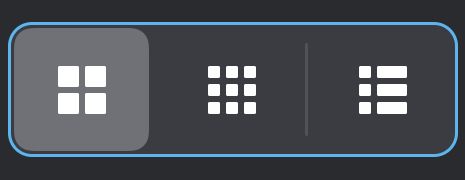
Choose from the large grid, small grid or list layouts
Within the Podcasts tab, you can choose to have badges displayed on podcast artwork tiles (in grid view) or the podcast’s title (if configured for list view) according to the following settings:
- Off – display no badges
- All unfinished (Android) or Unfinished Episodes (iOS) – show badges displaying a count of unfinished episodes; badges show up as numbers on the podcast tile/row
- Only Latest Episode – displays an indicator dot for just the latest episode; badges look like dots on the podcast tile/row
Badges in Pocket Casts are in‑app indicators that appear on each podcast’s artwork (in grid view) or title (in list view) within the Podcasts tab, and they help you quickly see which shows need your attention. On the other hand, notification app badges will show a dot or small number next to the app icon when a new episode notification is received. See the Notifications guide to learn about those settings.
On iOS, you can hide podcasts you’ve finished listening to from the Podcasts tab (hide played podcasts, hide finished shows, clean up the Podcasts grid). Tap the three-dot icon on the Podcasts screen, tap “Played Podcasts,” and choose “Hide.”
A podcast is hidden when it has nothing left to listen to and at least one of its episodes is marked as played. In other words, every episode is played or archived, and at least one is played. It reappears automatically when a new episode is released. Hidden podcasts are also left out of your folders. Hiding a podcast doesn’t unfollow it. To see all your podcasts again, set Played Podcasts back to “Show.”
Archiving an episode doesn’t mark it as played. If you archive all of a podcast’s episodes without finishing any of them (for example, with Archive All, or by archiving episodes partway through), the podcast keeps showing on the Podcasts tab (archived podcast not hiding, played podcasts still showing). To hide it, open the podcast, tap “Show Archived,” tap an episode, and tap “Mark Played.” The episode stays archived, and the podcast is hidden right away. Episodes are marked as played automatically when you listen to the end.
This setting applies only to the device you change it on. If podcasts are missing from the Podcasts tab on one device but not another, check the Played Podcasts setting on that device.
From the Podcasts tab, you can share your followed podcasts according to the following steps:
- If you are not yet on the Podcasts screen, tap “Podcasts” in the lower-left corner of the app.
- On the Podcasts screen, tap the three-dot icon on the upper-right corner.
- Tap “Share Podcasts.”
- Select the podcasts you wish to share in one of two ways:
- You can tap “Select All” if you wish to share all of your podcasts, or
- You can tap individual podcasts to share.
- Tap the right arrow on Android or “Next” on iOS.
- On the “Create List” screen, provide a title and an optional description.
- Tap the check icon on Android or “Share” on iOS to create the share list.
- A shareable URL will be generated for you to copy, send to your friends, or use with another app.
An example of a share list can be viewed here.
In the web player, you can right-click on a podcast in the Podcasts tab to reveal an option to copy a link to that podcast.
In the iOS app, introduced in version 8.13, you can long press on a podcast within the Podcasts tab to reveal the following options:
- Share
- Add to Folder
- Notifications
- Edit Podcasts — this will switch the Podcasts tab into Drag and Drop mode where you can reorder the podcasts to your liking. Tap the checkmark icon in the upper-right when you’re done making changes.
- Unfollow
