
The Podcasts tab is the main display of your current podcast follows in the Android and iOS mobile apps.
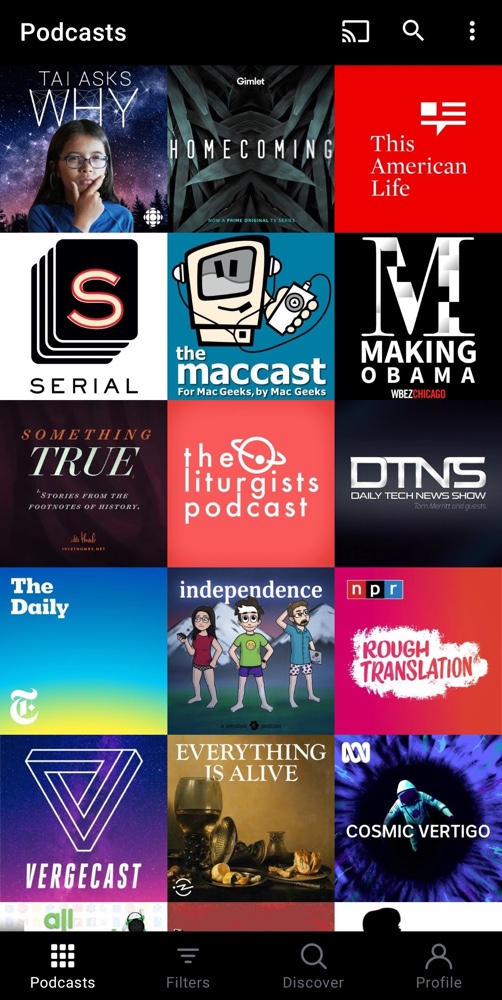
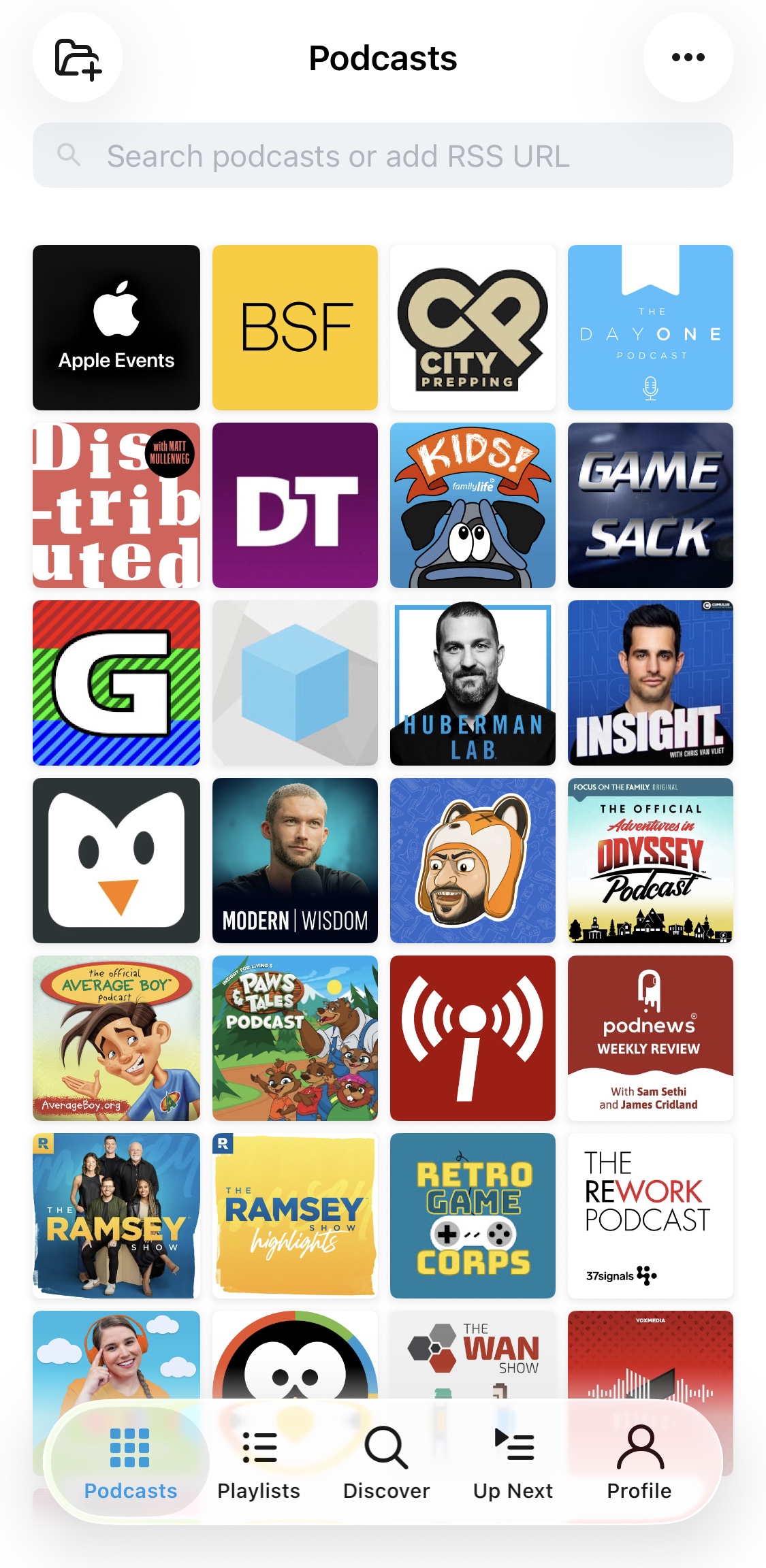
To access the Podcasts tab, tap “Podcasts” on the lower-left corner of the app’s screen:
To see episode titles, you’ll want to click on a particular podcast in the Podcasts Tab. This will take you to the podcast’s page in the app, which will list episode titles. Alternatively, if your goal is to see the titles of newly released episodes for podcasts you are following, you can go to Playlists > New Releases.
You can customize the Podcasts view according to these steps:
- If you are not yet on the Podcasts screen, tap “Podcasts” in the lower-left corner of the app.
- On the Podcasts screen, tap the three-dot icon on the upper-right corner.
- You can now customize the following settings for the Podcasts tab:
- Sort By
- Layout
- Badges
For the Podcasts tab’s “Sort By” settings, you can choose from the following:
- Date Added
- Episode Release Date
- Recently Played
- Name
- Drag & Drop – lets you arrange your podcasts manually (reorder / rearrange your podcast order). On Android, long-press a podcast and drag it to your desired position. On iOS (version 8.13 and later), long-pressing a podcast opens a menu instead of starting a drag — tap “Edit Podcasts” to switch into Drag and Drop mode, drag your podcasts into the order you want, then tap the checkmark icon in the upper-right when you’re done.
You can use one of the following layouts for the Podcasts tab:
- Large grid
- Small grid
- List

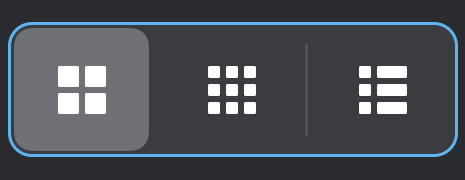
Choose from the large grid, small grid or list layouts
Within the Podcasts tab, you can choose to have badges displayed on podcast artwork tiles (in grid view) or the podcast’s title (if configured for list view) according to the following settings:
- Off – display no badges
- All unfinished (Android) or Unfinished Episodes (iOS) – show badges displaying a count of unfinished episodes; badges show up as numbers on the podcast tile/row
- Only Latest Episode – displays an indicator dot for just the latest episode; badges look like dots on the podcast tile/row
Badges in Pocket Casts are in‑app indicators that appear on each podcast’s artwork (in grid view) or title (in list view) within the Podcasts tab, and they help you quickly see which shows need your attention. On the other hand, notification app badges will show a dot or small number next to the app icon when a new episode notification is received. See the Notifications guide to learn about those settings.
From the Podcasts tab, you can share your followed podcasts according to the following steps:
- If you are not yet on the Podcasts screen, tap “Podcasts” in the lower-left corner of the app.
- On the Podcasts screen, tap the three-dot icon on the upper-right corner.
- Tap “Share Podcasts.”
- Select the podcasts you wish to share in one of two ways:
- You can tap “Select All” if you wish to share all of your podcasts, or
- You can tap individual podcasts to share.
- Tap the right arrow on Android or “Next” on iOS.
- On the “Create List” screen, provide a title and an optional description.
- Tap the check icon on Android or “Share” on iOS to create the share list.
- A shareable URL will be generated for you to copy, send to your friends, or use with another app.
An example of a share list can be viewed here.
In the web player, you can right-click on a podcast in the Podcasts tab to reveal an option to copy a link to that podcast.
In the iOS app, introduced in version 8.13, you can long press on a podcast within the Podcasts tab to reveal the following options:
- Share
- Add to Folder
- Notifications
- Edit Podcasts — this will switch the Podcasts tab into Drag and Drop mode where you can reorder the podcasts to your liking. Tap the checkmark icon in the upper-right when you’re done making changes.
- Unfollow
