
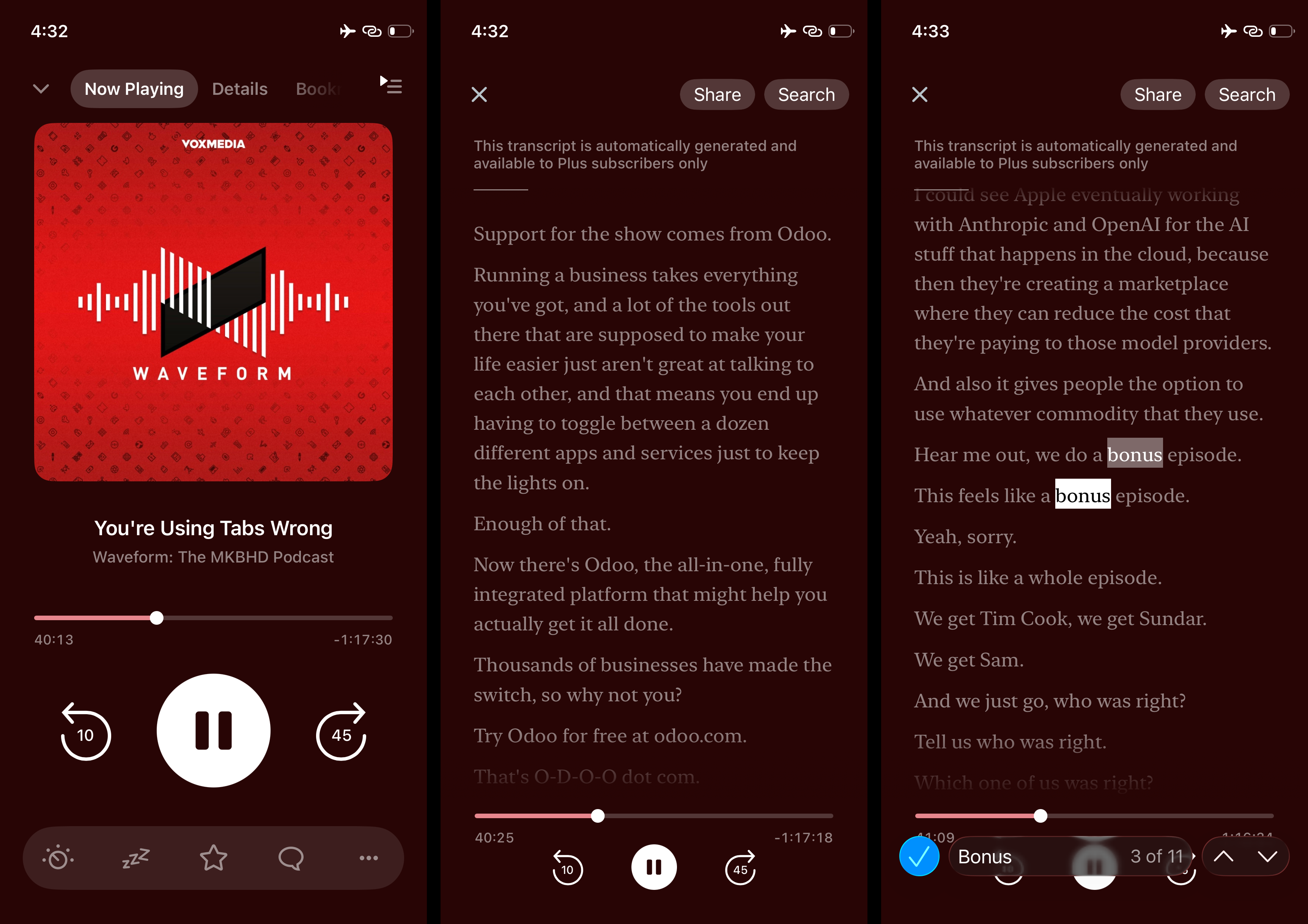
Pocket Casts is excited to support podcast transcripts through the Podcasting 2.0 Transcript tag! All Pocket Casts users on Android and iOS can access transcripts directly within the app for episodes where podcast creators have included this feature in their feed.
As of May 2025 Pocket Casts Plus and Patron subscribers can also see automatically generated transcripts for select podcasts. These transcripts are generated by Pocket Casts’ servers and are identified by the star icon.
Viewing an Episode Transcript
From Android and iOS:
From the Episode Details view: tap the View Transcript button located above the episode description. When viewing the transcript you can tap Share to share the transcript text. Tap Play or Pause to listen to the episode while viewing the transcript. Or, tap Search to look for specific text in the transcript.
From the Now Playing screen: tap the Transcript button  in the Player Toolbar to view the current episode’s transcript. If the Transcript button isn’t visible in the Player Toolbar, it might be hidden in the More Actions menu. You can customize your Player Toolbar according to these steps:
- Tap the three dot menu at the very right of the toolbar.
- Tap Edit or the pencil icon on the upper-right corner of “More Actions.”
- Use the drag handles to move “Transcript” inside the “Shortcut on Player” section.
- Tap “Done” in iOS or the back arrow in Android.
- You should now see “Transcript” in your Player Toolbar.
When a transcript is available the button becomes active and can be tapped. If no transcript is available, the button is disabled or not shown.
While viewing a transcript, tap the Search button to find specific text within the transcript. Tap the Share button to share the transcript text. Playback controls including play/pause, skip forward and skip backwards are located at the bottom of the screen.
From the Web / Desktop Player:
While listening to a podcast episode that includes a transcript, you’ll see a Transcript button appear within the Now Playing bar, to the right of the episode playback scrubber. You can click on the Transcript button to reveal the transcript and click on the Transcript button again or the “X” to dismiss it.
You can also view an episode’s transcript from the episode’s details view. Click on the episode’s title in the Now Playing bar or on an episode within a list to view its details. The transcript preview for that episode, if one is available, will be displayed above the episode’s description. You can click on the transcript to view it in full.
Following Along with Synced Transcripts
On supported episodes, Pocket Casts can highlight the transcript in time with playback so you can read along as you listen (sometimes called a synced, highlighted, or follow-along transcript). As the episode plays, the line currently being spoken is highlighted and the transcript scrolls automatically to keep it in view. You can also tap any line in the transcript to jump straight to that point in the episode.
Synced transcripts are a Pocket Casts Plus and Patron feature, available on iPhone, iPad, and Android. On the web and desktop players, transcripts can still be read and searched, but they do not highlight in sync with playback.
Synced highlighting works only with transcripts that Pocket Casts generates itself, which are denoted with a star icon on the “View Transcript” button. It is not available for transcripts supplied by the podcast creator in their feed, or for your own uploaded files. An internet connection is required, so synced highlighting does not work offline.
To follow along with a synced transcript:
- Start playing an episode that has a Pocket Casts-generated (star icon) transcript.
- Open the transcript — tap the Transcript button in the Player Toolbar on the Now Playing screen, or tap View Transcript from the Episode Details view.
- As the episode plays, the current line is highlighted and the transcript scrolls on its own so you can read along.
- Tap any line in the transcript to jump playback to that point.
Frequently Asked Questions
Why can’t I view transcripts of episodes from my favorite podcast?
The transcript feature is available for episodes that the podcast author has included a transcript, and for podcasts where the transcript has been automatically generated on Pocket Casts’ servers. Automatically generated transcripts are available exclusively to Pocket Casts Plus and Patron subscribers, only for select podcasts, and only for episodes that are less than 2 hours in length — episodes longer than 2 hours will not have an automatically generated transcript.
If you’d like to see transcripts for episodes of your favorite podcast and they are not currently being automatically generated, you can do one of the following:
- Reach out to the podcast author directly and request that they include transcripts using the required tag in the RSS feed.
- Contact us to request a generated transcript. While it’s not guaranteed we can provide a transcript, our team can check if generating a transcript for a specific episode is possible.
How can I tell if a transcript is automatically generated?
The View Transcript button for automatically generated transcripts includes a star icon. The Pocket Casts app will also display a notice above the transcript to indicate how it was created.
This notice is not displayed if the transcript is included in the podcast’s feed by the podcast creator.
What criteria is used to determine what podcasts have automatically generated transcripts?
Automatically generated transcripts are, currently, only available for select podcasts. We are choosing to create transcripts for some of the most popular podcasts at launch and plan to include more shows in the future.
Why isn’t a transcript generated for a long episode (over 2 hours)?
Pocket Casts only creates automatically generated transcripts for episodes that are less than 2 hours long. If an episode runs longer than 2 hours, Pocket Casts will not generate a transcript for it, even for a supported podcast on a Plus or Patron subscription. That episode can still show a transcript if the podcast creator includes one in their own feed.
I’m a podcast author, how can I add transcripts to my show?
In order for Pocket Casts to discover transcripts for an episode and offer them within the app, the podcast feed must include the podcast:transcript tag and the transcript must be in one of the following formats: VTT, SRT, JSON — either the PodcastIndex format or the Flightcast format — or HTML. More information about the tag is available here.
Does Pocket Casts support Flightcast transcripts?
Yes. Pocket Casts reads transcripts in the Flightcast JSON format on iOS, Android, and the web player, alongside the VTT, SRT, PodcastIndex JSON, and HTML formats. There’s nothing for you to turn on — if a show publishes its transcripts through Flightcast, the transcript opens the same way as any other, from the View Transcript button in Episode Details or the Transcript button in the Player Toolbar. Support for the Flightcast format was added in Pocket Casts 8.17 on iOS and Android, so make sure you’re on the latest version of the app.
The transcript screen is blank or won’t load
If a transcript opens but the screen is empty, or the transcript never loads, first make sure you’re running the latest version of Pocket Casts. Some shows publish their transcripts in formats that older versions of the app couldn’t read — Flightcast JSON transcripts, for example, wouldn’t load on iOS or Android before Pocket Casts 8.17 — and updating the app resolves those cases. If the transcript is still blank on the latest version, contact our support team with the podcast name, the episode title, your platform, and your app version.
Why isn’t my transcript highlighting as the episode plays?
A few things to check. Synced (highlighted) transcripts are available on iPhone, iPad, and Android, but not on the web or desktop players. They are a Pocket Casts Plus and Patron feature, so make sure you’re signed in to your subscription and using the latest version of Pocket Casts. Most importantly, highlighting works only with transcripts that Pocket Casts generates (denoted with a star icon on the “View Transcript” button) — transcripts supplied by the podcast creator in their own feed are shown in full, but do not highlight or support tapping a line to jump. Synced highlighting also requires an internet connection and does not work offline.
The highlight paused during an ad — is something wrong?
No, that’s expected. Some episodes include ads that are inserted dynamically and aren’t part of the transcript. When one of these ads plays, transcript highlighting pauses, then resumes on the correct line once the episode content continues.
