
With podcasts made to be an on-the-go medium, it helps to have them downloaded and ready to go whenever and wherever you are — whether your device is offline or connected to a slow or inconsistent network. You can manually download the episodes you like individually, in bulk, or the app can be set to automatically download new episodes as they’re released.
- Tap on an episode row, then tap the downward arrow icon download button.
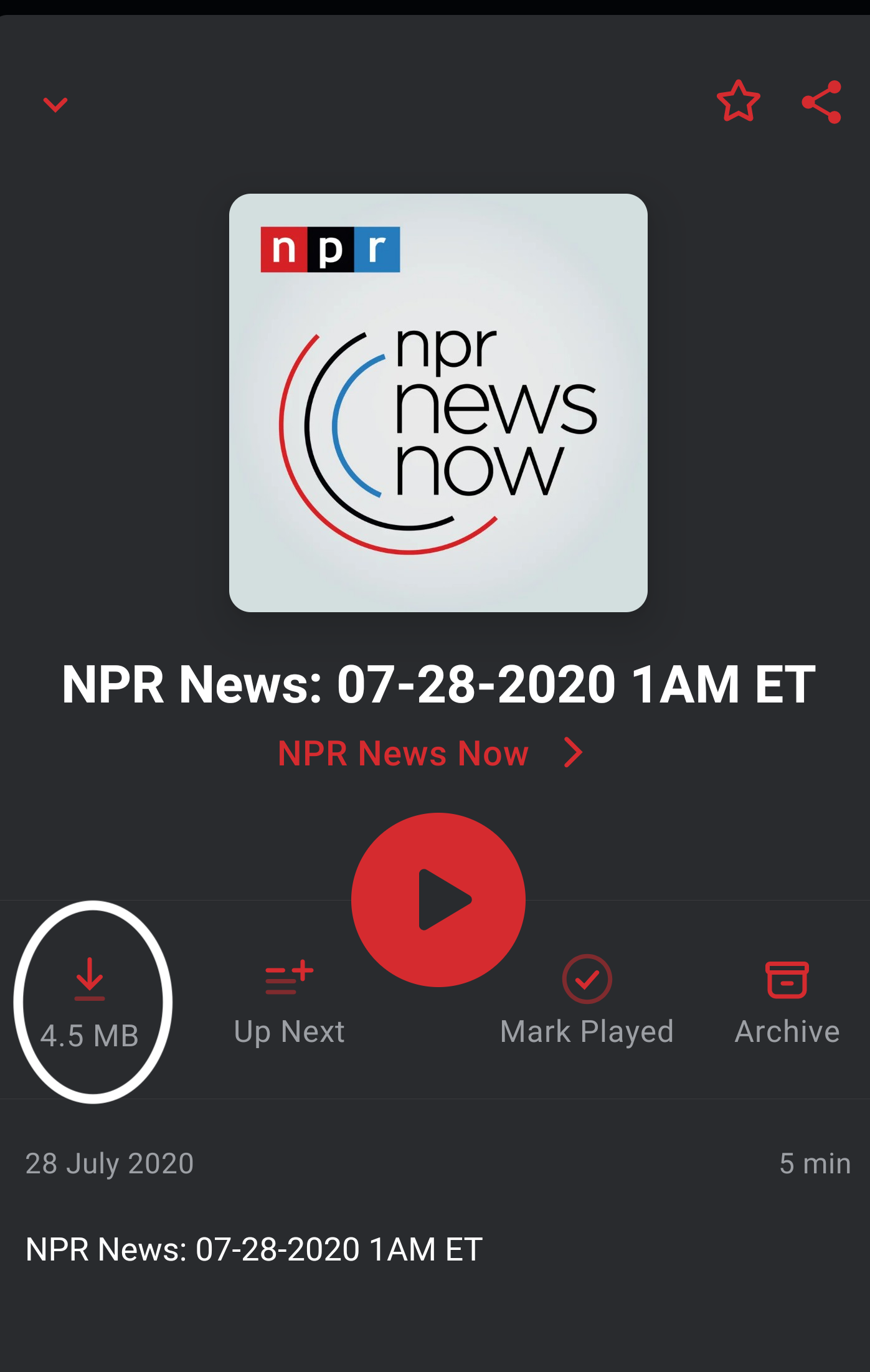
- In a list of episodes, the episode rows have a play button by default. You can customize this to be a download button instead so that you can download episodes with just one tap: Profile > settings cog > General > Row Action > Download.
On a podcast’s page, or in a playlist you can long press on any episode row to enter multi-select mode and then:
- Select the episodes and tap Download in the multi-select action bar.
- Or, long press the episode again and choose from Select all above or Select all below, then tap Download in the multi-select action bar.
- Or, tap Select all at the top-left of the screen on iOS or from the three dot menu in the upper-right on Android, then tap Download in the multi-select action bar.
By default, Download is in the action bar’s  three dot menu, but you can customise the action bar so that it is one of your shortcuts.
On a podcast’s page or in a playlist, you can tap the three dot menu and select Download All to download all the visible episodes. If archived episodes are visible then they will be downloaded by this action, if they are hidden they won’t be downloaded.
For full list of your downloaded episodes, regardless of podcast follow status, tap Profile > Downloads.
To manage your downloads:
- automatically delete the downloaded files once you are done via archiving,
- or manually clear and manage the storage
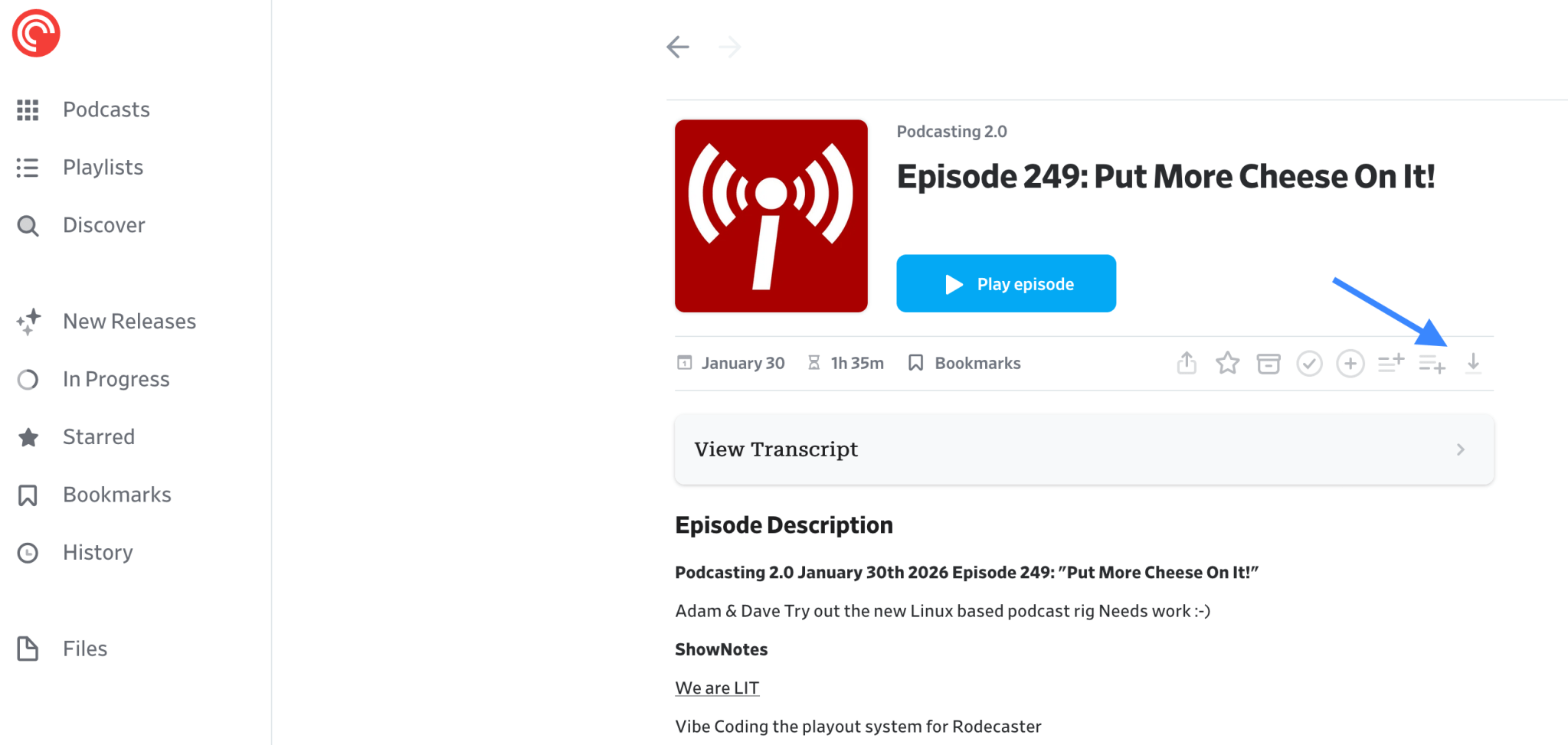
You can download episode files from the web and desktop player for offline playback using a separate media player application.
To download episode files, click on the episode within a list and click on the Download File button.
It’s worth noting, if you download episode files from the web/desktop app for playback in another media player, the playback status of that file will not sync back to your Pocket Casts account — since it’s played in a separate player. You’ll want to manually mark the episode as played and/or archived in the Pocket Casts app.
