
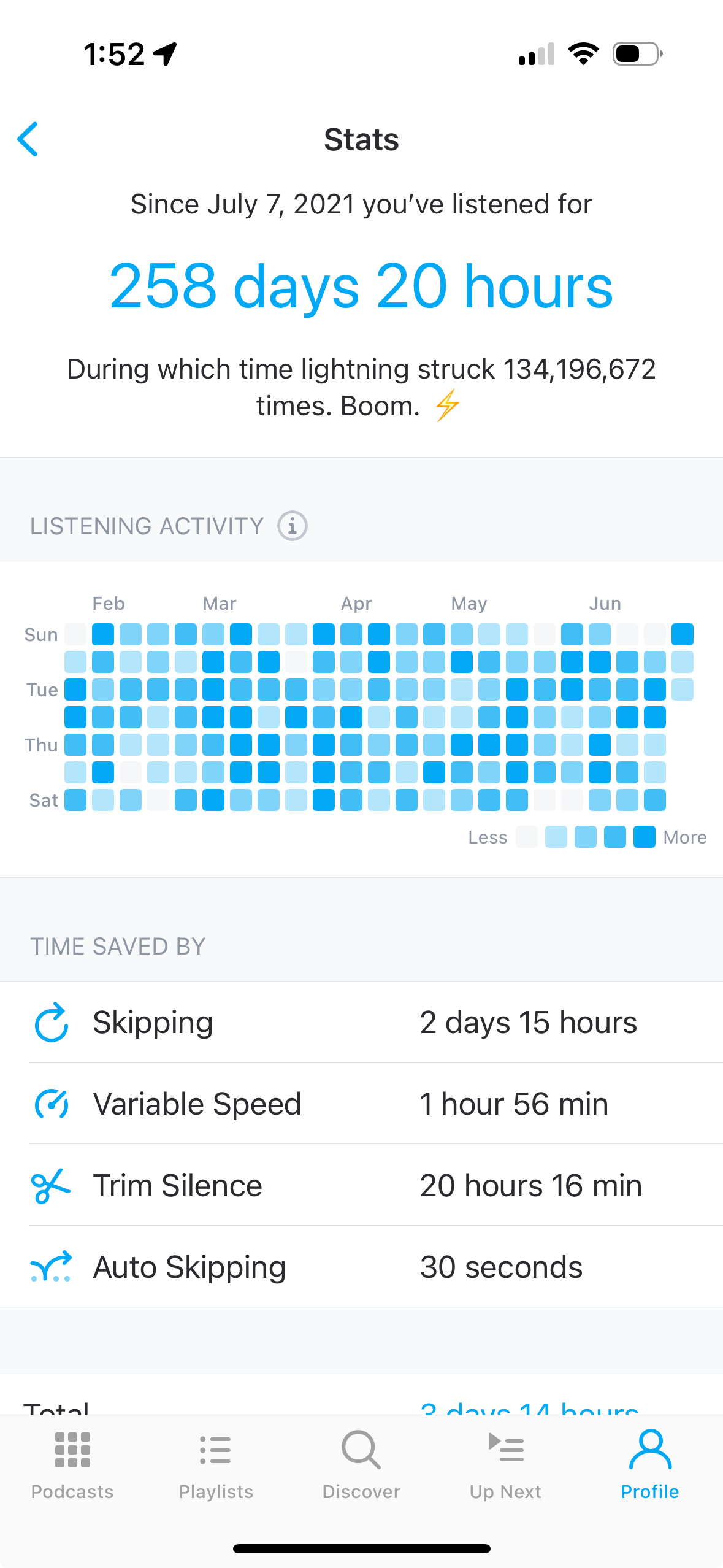
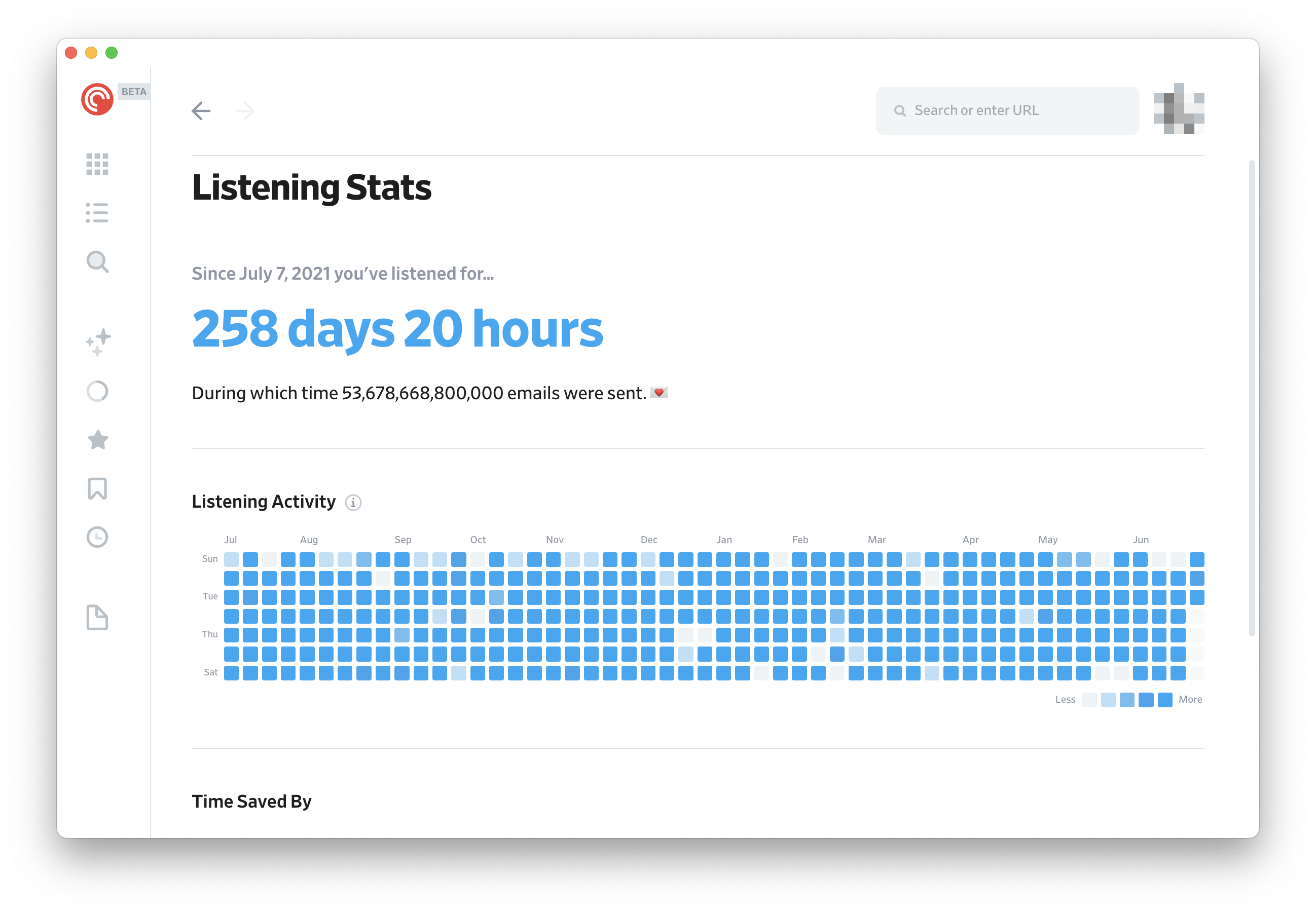
The Listening Stats screen shows how much time you have spent listening to podcasts and how much time Pocket Casts has saved you. It is available in the Pocket Casts mobile apps (iOS and Android) and in the web player.
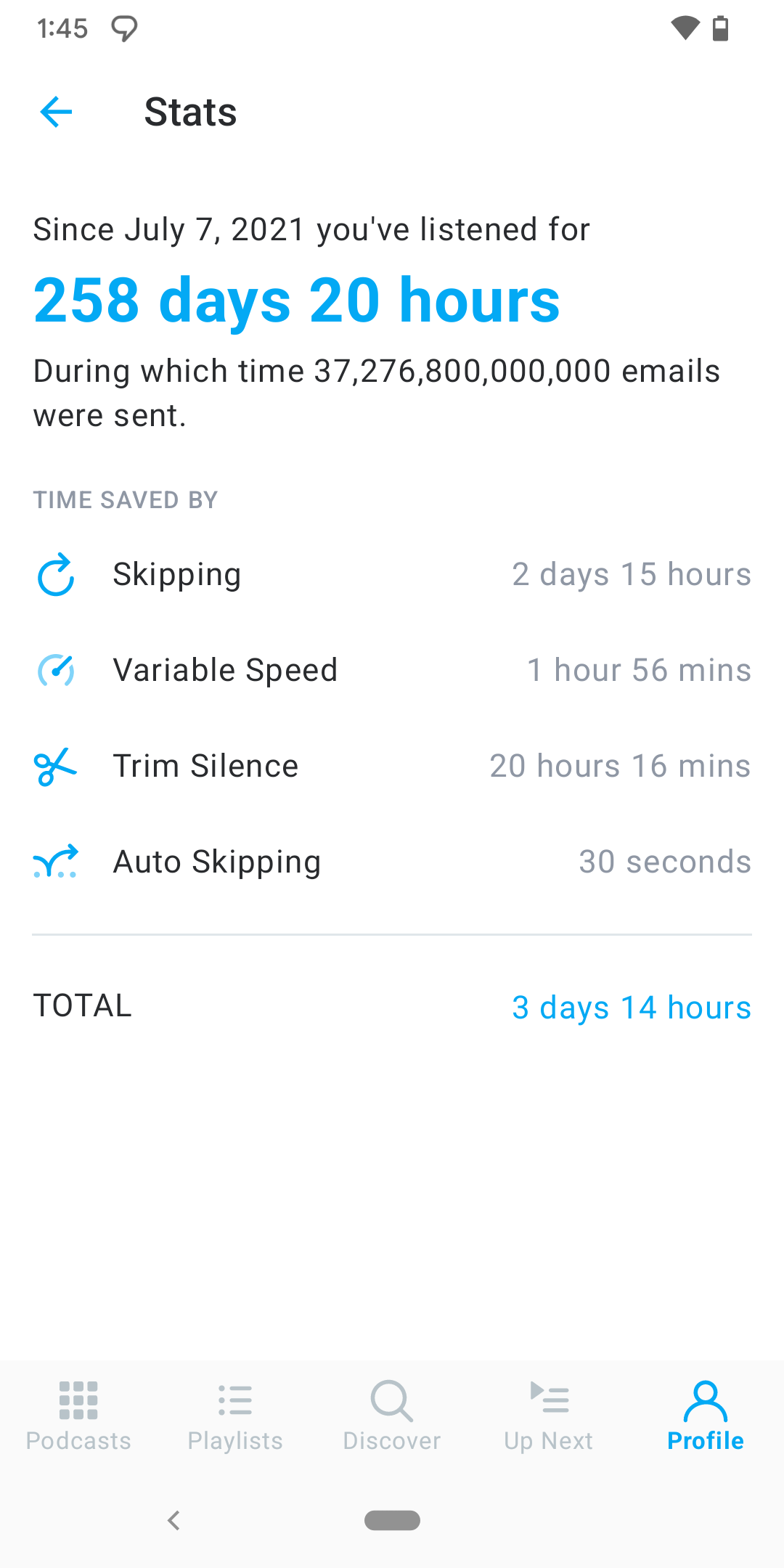
Opening Listening Stats
To open your stats:
- Go to the Profile tab.
- Select Stats.
Your stats are tied to your Pocket Casts account and sync across every device where you are signed in. This includes listening on Apple TV, Android TV, and Google TV — those TV apps don’t have a Stats screen, but time you listen there is still added to your account totals. If you are not signed in, the screen shows only the stats recorded on the device you are using.
Total Listening Time
At the top of the screen, Pocket Casts shows your total listening time — the cumulative amount of time you have spent listening since you started using the app. A line above it shows the date your stats began, for example “Since [date] you’ve listened for…”.
This is a lifetime total. It keeps increasing as you listen and cannot be reset from within the app.
Time Saved
Below your total listening time, the Time Saved section breaks down how much time Pocket Casts has saved you across four categories, followed by a combined total:
- Skipping — time saved by manually skipping forward with the skip button.
- Variable Speed — time saved by playing podcasts faster than 1× speed.
- Trim Silence — time saved by removing silent gaps from episodes.
- Auto Skipping — time saved by automatically skipping the start and end of episodes (the per-podcast “skip first” and “skip last” settings).
- Total — the sum of all four categories above.
These figures come from the Playback Effects you use. The more you use variable speed, trim silence, and skipping, the higher your time saved will be.
Listening Activity
Some versions of the app also show a Listening Activity heatmap on the Stats screen. This is an estimate of when you have been listening, based on your playback history. If you finish an episode over a few days, it is shown on the last day.
Why Are My Stats Empty or Not Updating?
If your stats are blank or do not seem to update, check the following:
- Sign in to your Pocket Casts account so your stats can sync across devices. Stats recorded only on a signed-out device will not appear elsewhere.
- Check your internet connection. The screen needs to reach the server to load your synced totals, and will show a “check your internet connection” message if it cannot.
If your stats still do not appear after checking the above, please contact our support team.
