
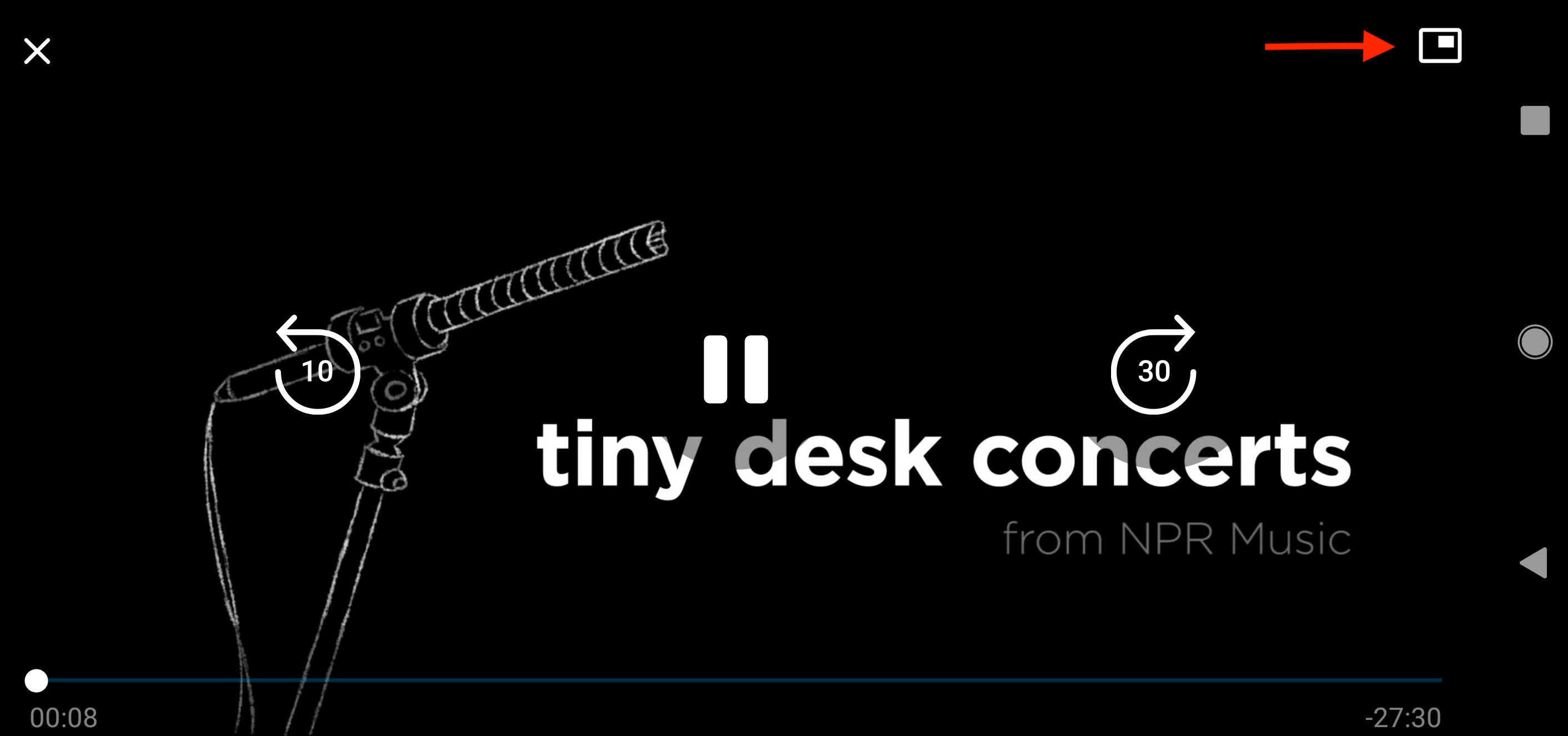
If you have Android 8.0 or above, or iOS 14 or higher, you can watch video podcasts in Picture-in-Picture mode. While playing, enter full screen mode (portrait or landscape) and tap the Picture-in-Picture icon.  (Style of the icon can vary based on the type of device.)
Pocket Casts supports both portrait and landscape mode for video episodes. To watch a video full screen on iPhone, tap the Full Screen button in the bottom-right corner of the video in the player (or tap the video itself). A landscape video rotates to landscape automatically, even when Portrait Orientation Lock is on. To return to the player, tap the Exit Full Screen button. See Video Podcasts for details.
On iPhone, the rest of Pocket Casts is shown in portrait only (the app doesn’t rotate to landscape mode), including the Now Playing screen for audio episodes, even when Portrait Orientation Lock is off. Full-screen video is the only exception.
On Android and iPad, the screen rotation settings on your device control the app’s orientation. To rotate the Pocket Casts app from portrait to landscape, use your device’s built-in orientation settings. For example, you can find the steps for Apple devices here. And, steps for Samsung (Android) devices here.
