
Pocket Casts supports Siri voice commands to control playback via Siri.
Trigger the Assistant by long pressing the home button / the side button, or saying ‘Hey Siri’.
- ‘Play [podcast name] on Pocket Casts‘ – To play the top unplayed episode from a podcast
- ‘Pause Pocket Casts‘ – To pause currently playing
- ‘Play Pocket Casts‘ – To resume currently playing
- ‘Skip Forward’ or ‘Skip Back’
- By default the skip command will skip 15 seconds forward or backward
- You can also specify your own times e.g: Skip forward 2 minutes
Siri Shortcuts let you run a Pocket Casts action with a phrase of your own, for example “Hey Siri, next podcast” to jump to the next episode in your Up Next queue. A shortcut does nothing until you add it in the app and record a phrase for it. If you say an action to Siri without adding the shortcut first, Siri handles the request itself and Pocket Casts never receives it.
- Profile > Settings > Siri Shortcuts
- Under Available shortcuts, tap the + next to the shortcut you want.
- On the Add to Siri screen, record or type the phrase you will say, then tap Done. The shortcut moves to Enabled shortcuts.
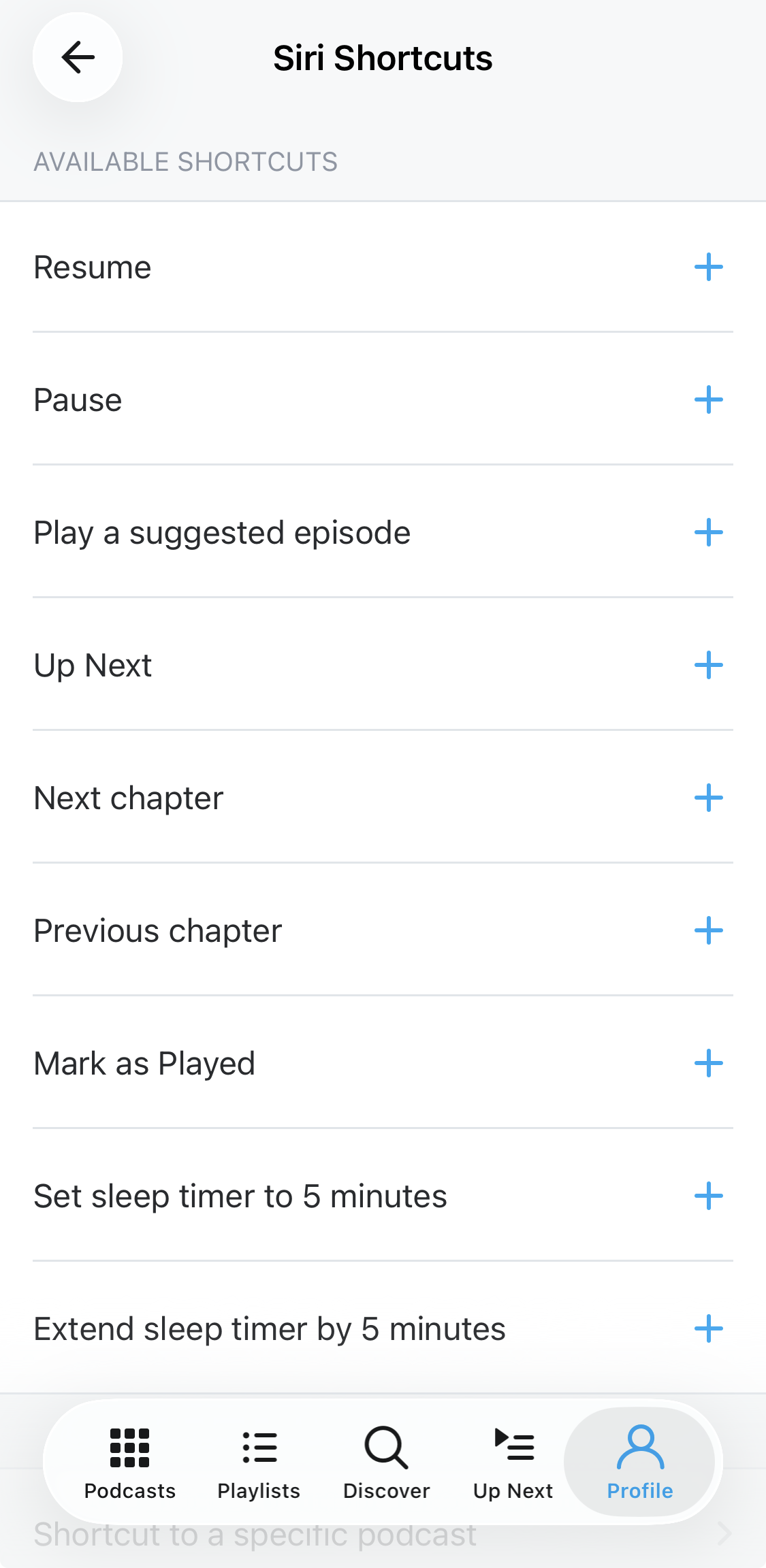
These are the shortcuts you can add on the Siri Shortcuts screen and what each one does:
- Up Next – Skips the episode you are listening to and starts the next episode in your Up Next queue. This is the hands-free way to move to the next episode, for example while running or driving. It only works while Up Next has at least one episode queued.
- Mark as Played – Marks the current episode as played and moves on to the next episode in Up Next.
- Resume – Resumes the episode in the player.
- Pause – Pauses playback.
- Next chapter and Previous chapter – Jump between chapters in episodes that have them.
- Play a suggested episode – Plays an episode Pocket Casts picks for you. You need to be signed in to your account to see this one.
- Set sleep timer and Extend sleep timer by 5 minutes – Start the sleep timer, or add five minutes to one that is running. “Hey Siri, start sleep timer in Pocket Casts” also works without adding a shortcut.
- Shortcut to a specific podcast and Shortcut to a specific playlist – Play a podcast or playlist of your choice. You can also add these from the podcast’s or playlist’s own settings.
If you say your phrase and nothing happens, open Profile > Settings > Siri Shortcuts and check that the shortcut is listed under Enabled shortcuts.
If you want to move to the next episode in your queue without touching your phone (while running, cycling, or driving), add the Up Next Siri shortcut above and say its phrase. This is the only hands-free way to jump to the next episode on iOS. The next-track button on AirPods and other headphones or earbuds cannot do it: it performs the action you chose in Headphone Controls, which skips forward by your skip interval, so pressing it repeatedly only moves through the current episode.
