
Sometimes you want to binge an entire series. Sometimes you want to mix it up and listen to all of your podcasts regardless of release. Up Next, the app’s playlist, allows you to create a queue that plays the podcasts you want to hear in the order you want to hear them, with continuous playback.
Continuous playback from the Up Next queue should not be confused with the newer Autoplay feature.
- On the Podcasts tab, click on a podcast to open its page
- Open the podcast’s settings page by clicking the settings icon, which looks like a gear or cog
- Toggle on Add to Up Next
- Choose the position in the queue:
- Android: Play last or Play next
- iOS: Bottom or Top
You can go to Profile > Settings (gear icon) > Auto Add to Up Next to view your global Auto Add to Up Next settings, including:
- Auto Add Limit – you can set a limit of 10, 20, 50, 100, 200, 500, or 1000 episodes
- If Limit Reached – specify what should happen if your “Auto Add Limit” is reached; you can choose from the following:
- Stop adding (Android) or Stop Adding New Episodes (iOS) – no new episodes will be added when your Up Next queue reaches the “Auto Add Limit” you’ve set
- Only Add To Top – when your Up Next queue reaches the “Auto Add Limit” you’ve set, new episodes will be added to the top of the queue while the last episode in the queue is removed; no new episodes will be added to the bottom of the queue
- Podcasts you’ve set “Add to Up Next” settings for
Please note that the app will stop automatically adding episodes to Up Next if the list exceeds the “Auto Add Limit” you have set under Profile > Settings (gear icon) > Auto Add to Up Next.
You can check your “Auto Add to Up Next” setting
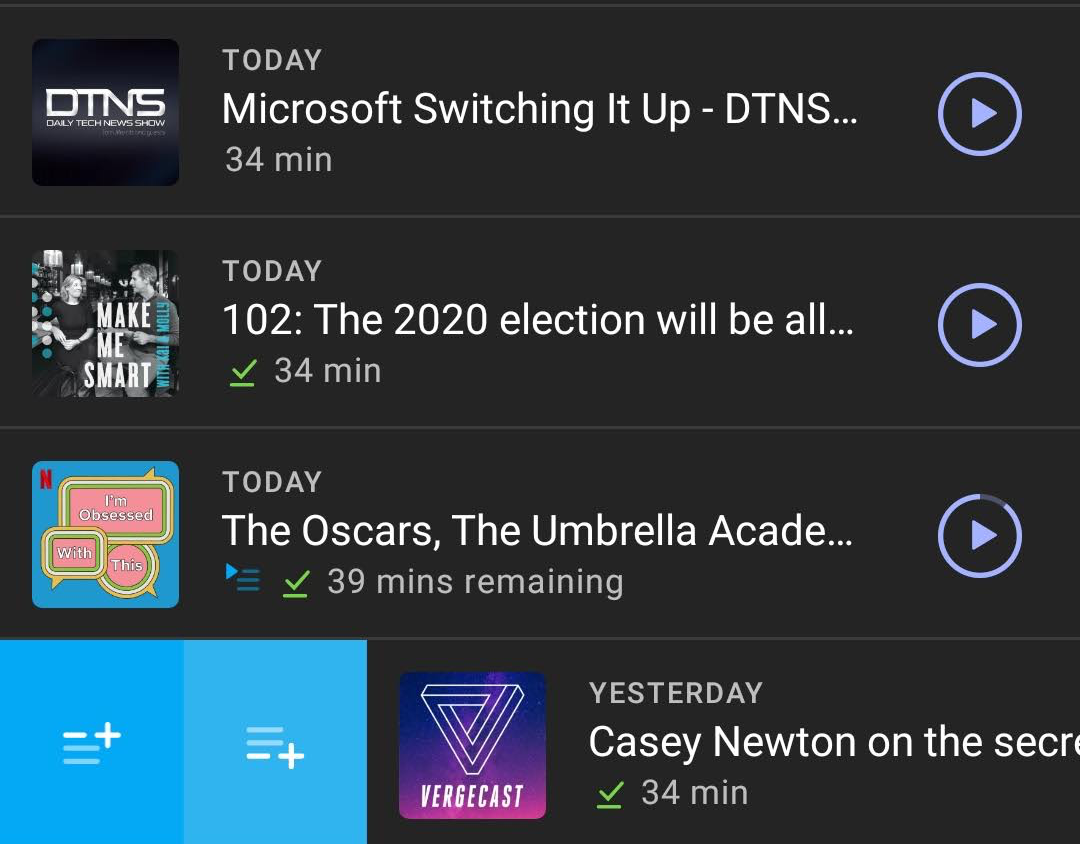

- A long swipe from left to right on an episode row will add the episode to play next by default. This setting can be changed to play last via Profile > Settings (gear icon) > General > Up Next swipe.
- You can also add an episode by viewing the episode’s details and tapping the Up Next button on the episode card:
- Tap the episode row
- Select Play Next or Play Last
- Swipe an episode from left to right.
- Swipe an episode from right to left.
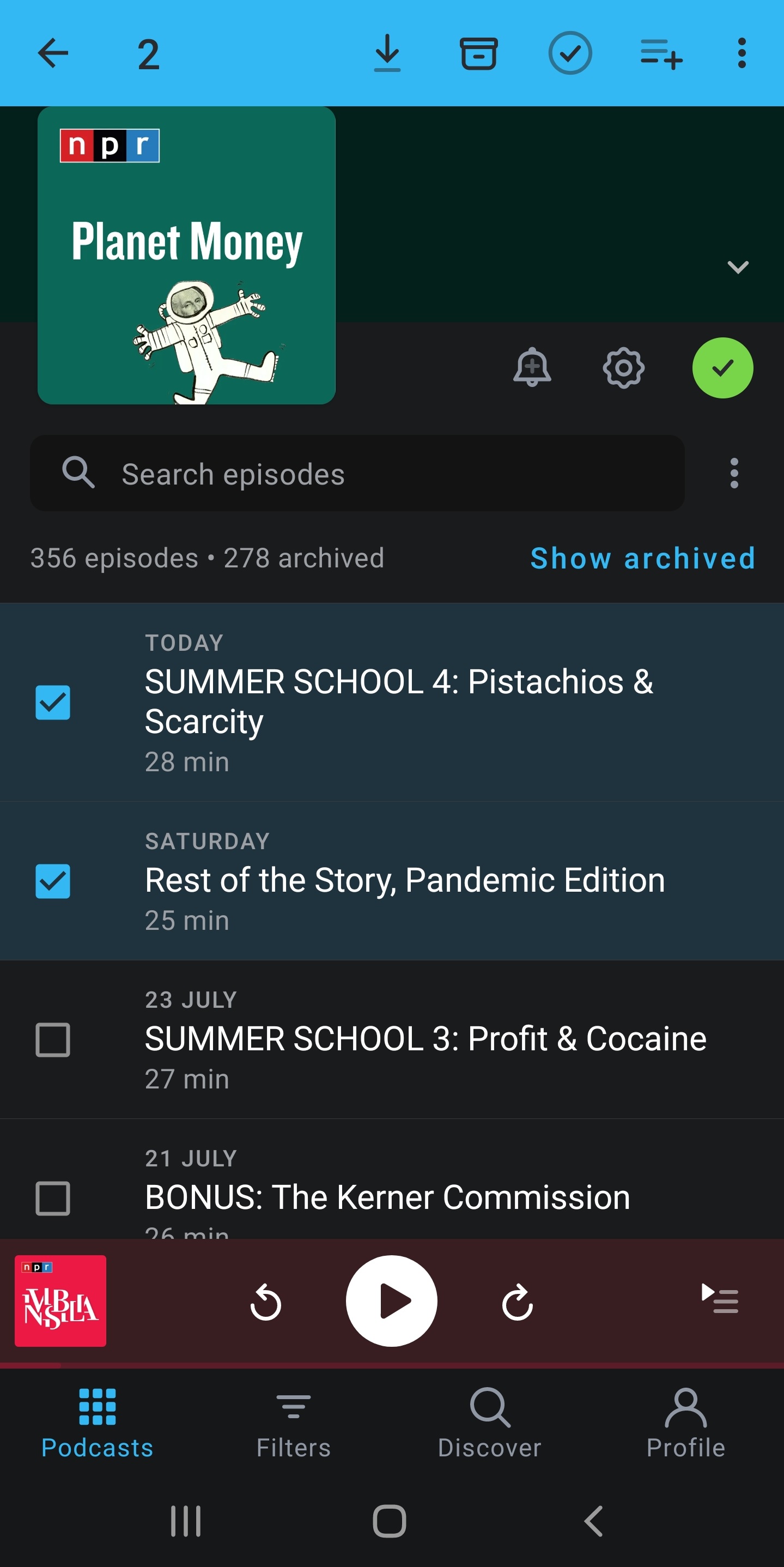
- In multi-select mode, select episodes you wish to remove > tap the remove button in the actions toolbar. To access multi-select:
- iOS: tap “Select” on the upper-right corner of the Up Next list
- Tap CLEAR QUEUE to remove all queued episodes. Please note that you will be asked to confirm this action if you have more than 2 episodes queued.
You can find more info about managing your Up Next queue, as well as info on how to use the app’s player here:
If the Up Next queue is empty, you may be able to restore the list of episodes by loading an entry from Up Next History. Go to Up Next History then tap on the entry to preview it. Tap Restore to confirm the changes.
- Android: Profile > Settings > Restore from local history > Up Next History
- iOS: Profile > Settings > Up Next History
This section covers frequently asked questions about the Up Next queue.
How can I prevent the next episode from automatically starting after I finish playing one episode in Pocket Casts?
There are two ways you can prevent subsequent episodes from automatically starting after you finish playing one episode in Pocket Casts:
- If you have episodes in your Up Next queue – you can use the “Sleep Timer” feature. This will allow you to set the sleep timer to “End of Episode.”
- If your Up Next list is empty – you can disable the “Autoplay” feature. If you start an episode while Up Next is empty, Autoplay will continue playing episodes from that podcast or list. To disable Autoplay see the following:
- In the mobile apps: Profile > Settings (gear icon) > General > toggle-off Autoplay
- In the web and desktop apps: Profile (your profile photo) > Settings > Playback > toggle-off Autoplay
When your “Auto Add to Up Next” settings no longer work as expected, first verify your settings under Profile > Settings (gear icon) > Auto Add to Up Next.
Pay close attention to the “Auto Add Limit” and reference that against the number of episodes you already have added to your Up Next queue. For instance, if you have a limit of 100, new episodes will not be added to the queue if your “If Limit Reached” setting is set to “Stop adding” (Android) or “Stop Adding New Episodes” (iOS).
You can either increase your “Auto Add Limit” limit or change the “If Limit Reached” setting to “Only Add To Top,” which would make it so episodes at the bottom of your Up Next queue are removed to make room for new episodes.
There can be instances where sync conflicts cause episodes to be cleared from the Up Next queue. If a sync results in episodes being unexpectedly removed from your Up Next queue your Up Next History can be used to restore those episodes.
Android:
- Select Up Next History
- Tap Profile
- Tap Settings
- Select Restore from local history
- Select Up Next History
- Select an entry and Tap Restore
iOS:
- Tap Profile
- Tap Settings
- Select Up Next History
- Select an entry and Tap Restore
When loading an entry from Up Next History you will see a list of changes to Up Next that were a result of sync. Tap on any entry in the list to view the episodes and have the option to restore them to the Up Next queue.
When using an iOS device, you can add a new entry to Up Next History manually. Go to Profile > Settings > Up Next History, then tap the plus sign at the top right to create a new entry.
I was listening to an episode, then played a different episode. Why did the previously playing episode not get added to the Up Next queue? The Up Next queue remains empty.
The described behavior is expected. Specifically, this is what should happen in our app when you press “Play” on an episode:
- If your Up Next queue is empty, the previously playing episode will be removed from the player and replaced by the new one. It won’t be added to the Up Next queue, because there is technically no Up Next queue yet.
- If you have any number of episodes in your Up Next queue, the previously playing episode will be pushed down to the top of your Up Next queue, and the new episode will be put into the player.
If you want the second scenario above to always happen, please just make sure that you have at least one episode in your Up Next queue at all times.
You don’t even need to change any of your Auto add to Up Next settings under Profile > Settings (gear icon). However, changing that up a bit could assist in you never having to worry about whether there’s an episode in your queue.
I started playing a new episode from the podcast’s page, but my Up Next queue was erased. What happened?
This is a known behavior that can happen in specific circumstances. When you play an episode while your Up Next queue is empty, the app replaces the currently playing episode without adding it to Up Next. The previous episode effectively disappears from your queue, and only the new selection plays. However, if you already have episodes in your Up Next queue when you play a new episode, the previously playing episode should be pushed to the top of your queue.
You can add an individual episode listed in the Up Next queue to a manual Playlist. It is not possible to add episodes in bulk to a Playlist. Adding an episode to a Playlist will not remove it from Up Next.
To add an episode to a Playlist: When viewing the list of episodes in Up Next, swipe left on an episode and tap the plus button  (green background) , you can then select which Playlist you’d like to add the episode to or create a new Playlist. Tap Done to confirm the change. Tap View to see the episode listed in the Playlist. It is not possible to add an episode to a Smart Playlist.
To remove an episode from Up Next: In the Up Next queue, swipe left on an episode and tap the delete icon  (red background). Or long-swipe left to delete the episode. This will remove it from Up Next, but not the Playlist.
