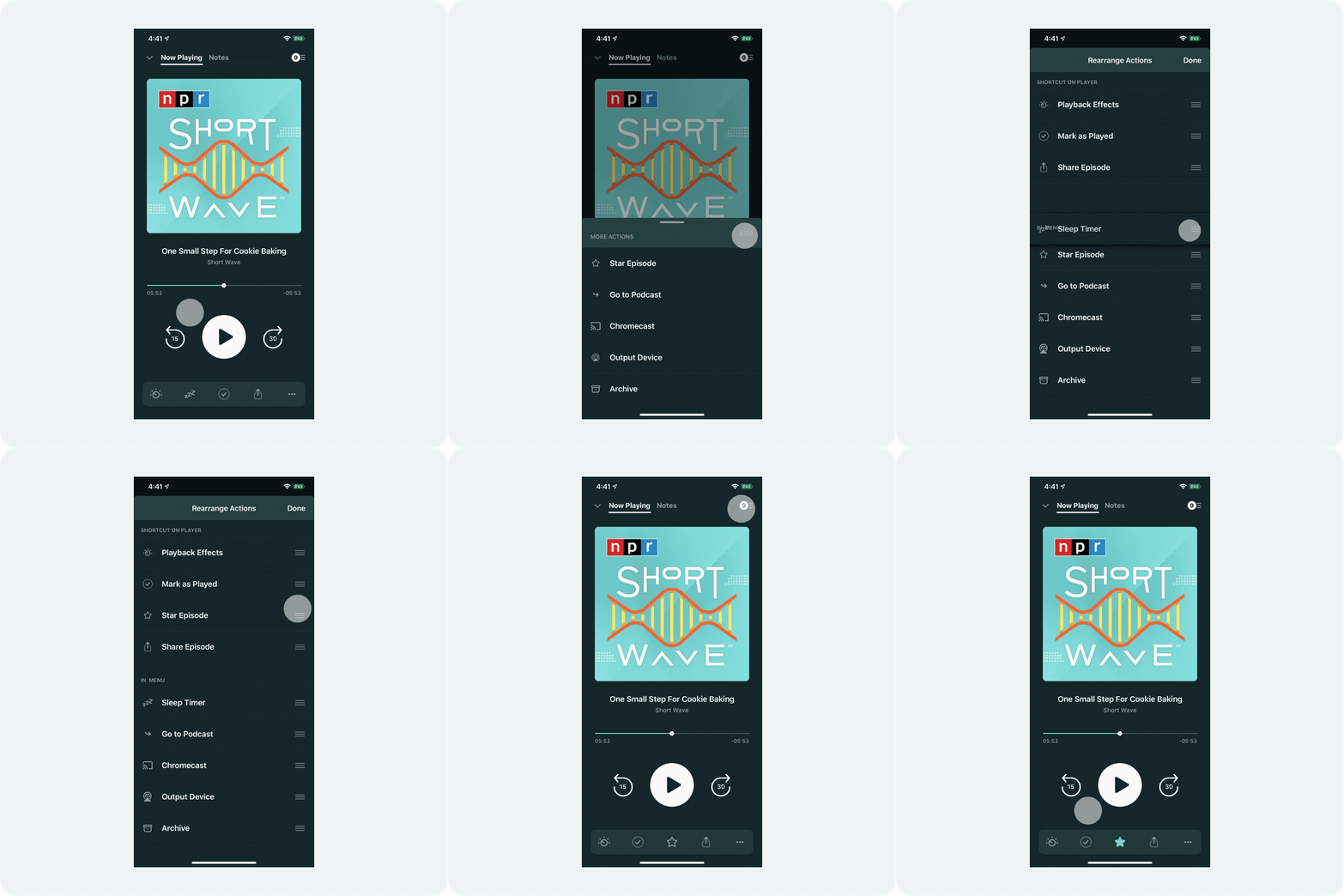
The Player Toolbar is the toolbar at the bottom of the full-screen player. This displays four actions and a three-dot menu to access additional action items. It should not be confused with the Tab Bar.
You can customize the player toolbar so it displays the actions in the order you prefer. Four actions can be shown in the Now Playing page if they are in the section called “Shortcut on Player”. Additional actions appear in the three-dot menu if they are in the section called “In Menu”.
The actions include:
- Playback Effects
- Sleep Timer
- Transcript
- Mark as Played
- Archive Episode
- Share Episode
- Star Episode
- Chromecast
- Output Device / Airplay
- Go To Podcast
- Tap the three dot menu at the very right of the toolbar.
- Tap “Edit” or the pencil icon on the upper-right corner of “More Actions.”
- Use the drag handles to rearrange the actions in your “Player Toolbar.”
- Tap “Done” in iOS or the back arrow in Android.
- Your Player Toolbar’s actions should now be rearranged according to your preference.