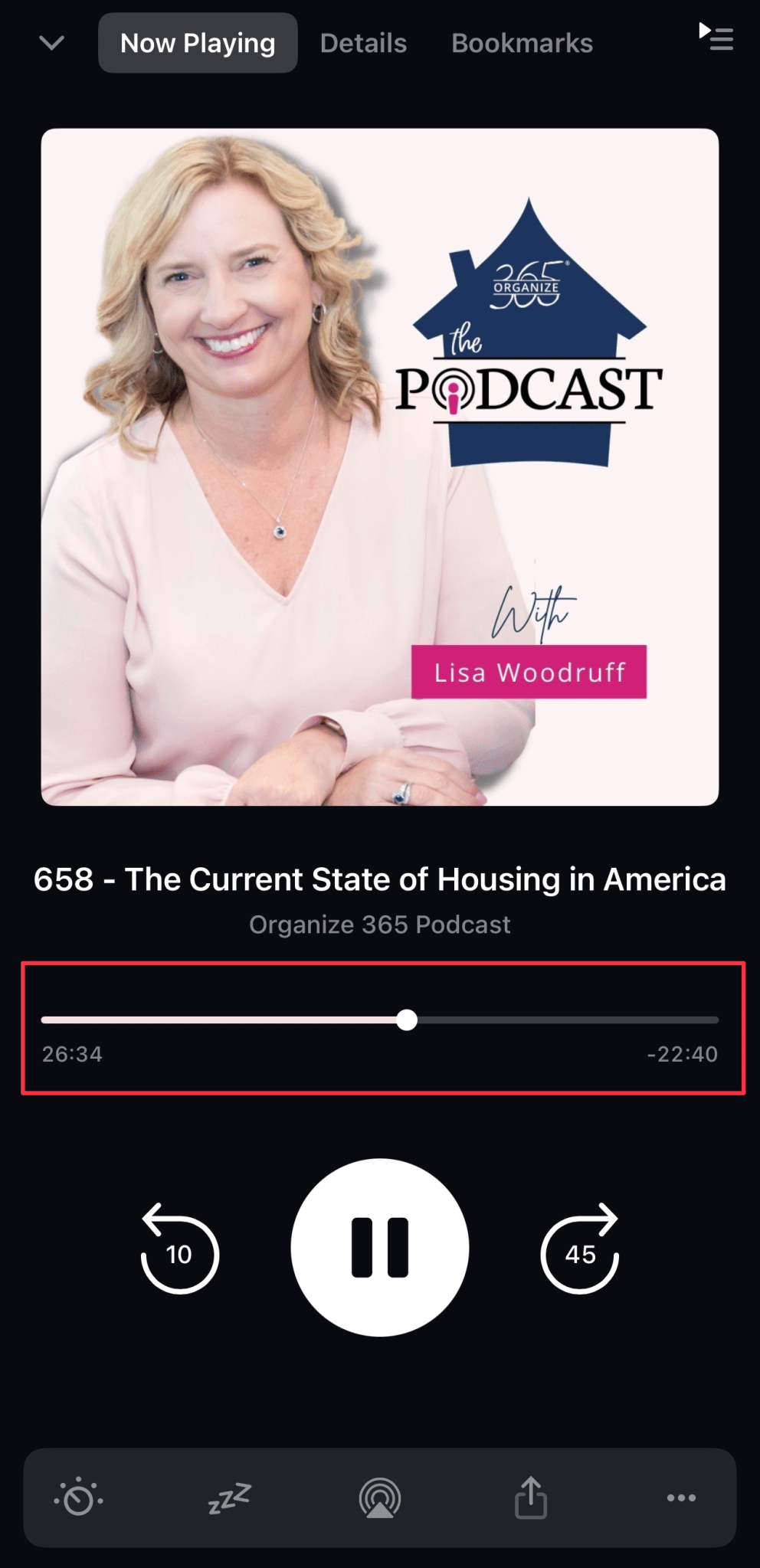
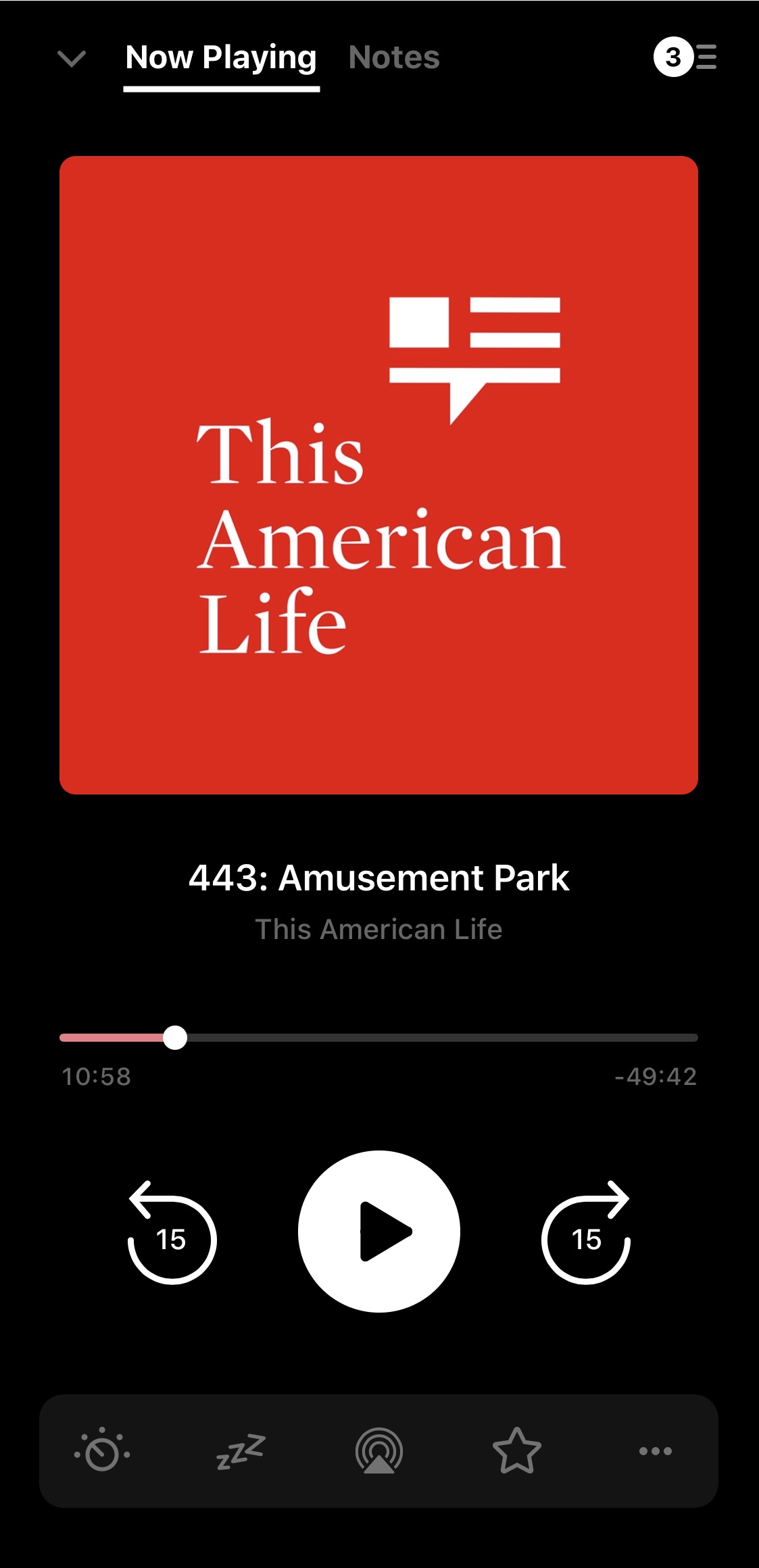
The Now Playing screen is where you can view the episode or file that is currently in the app’s player. From here you can interact with the episode, quickly view its Notes, access Chapters if the episode has any available, and access your Up Next queue if you have one.
To open the Now Playing screen, tap the mini player at the bottom of any screen within the app (if the mini player isn’t showing then there is no episode in the player and no Up Next queue available).
As well as play/pause, the Now Playing page has skip buttons with customizable durations and a customizable toolbar providing a variety of actions you can take:


 Output Device (iOS only)


 Go to Podcast

 Mark as Played

Some podcasts have per episode, and even per chapter, artwork embedded in their MP3s. You can view this in the full screen player by turning on the following setting: Profile > Settings > Appearance > Use embedded podcast artwork.
To access the Now Playing episode’s notes tap the Notes heading, or swipe the screen from right to left.
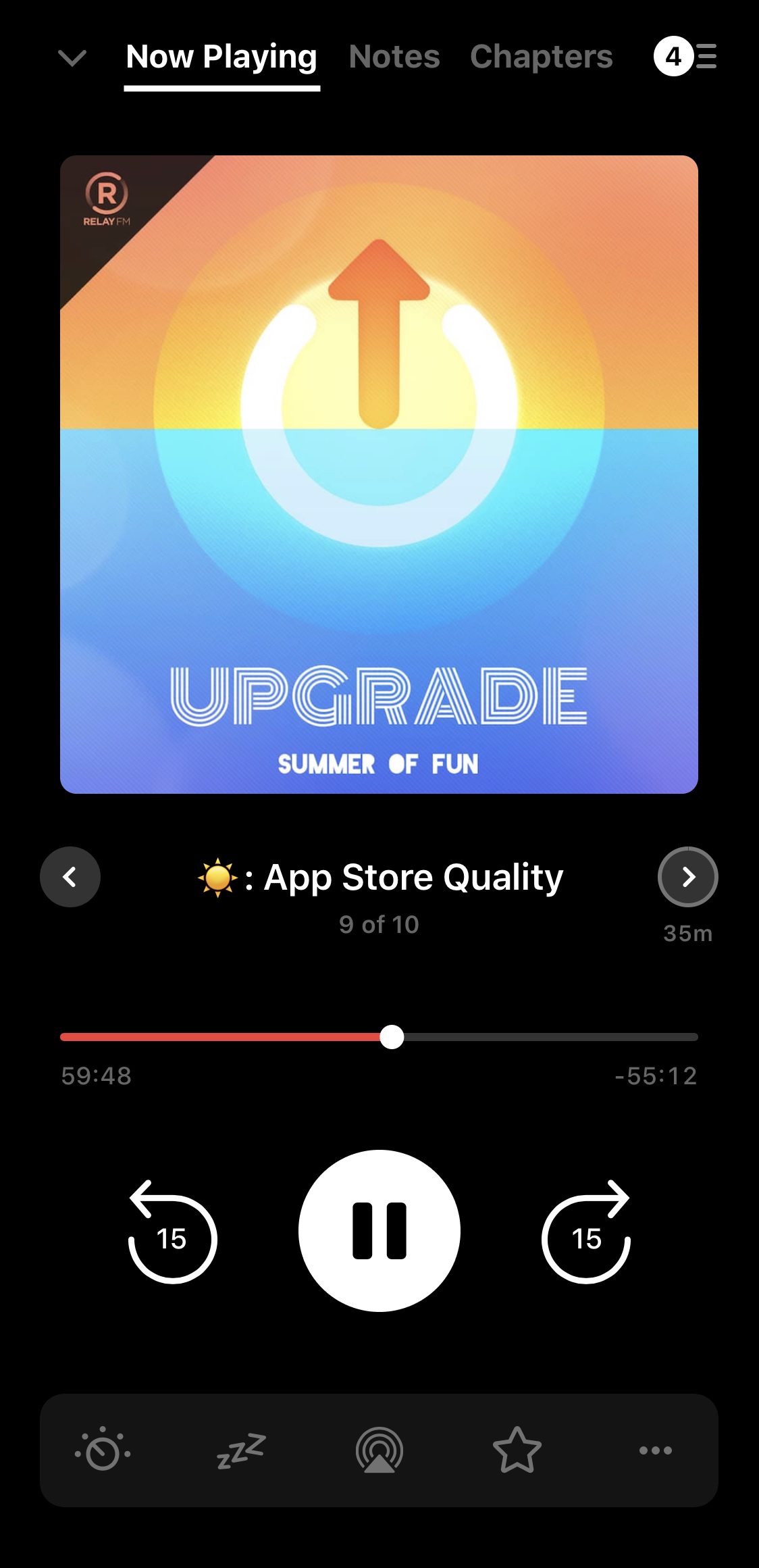
If the episode has chapters, there will also be a Chapters page available to tap or swipe to. To skip through chapters, tap the arrows directly below the artwork, or tap the chapter you wish to skip to on the Chapters page.
Check out how to add episodes to the app’s playlist, Up Next, here. To view your Up Next queue tap the Up Next button on the mini player or in the full screen player, or swipe up in the full screen player. When you play an episode, or a file, it will automatically be added to the Up Next list. Once you finish listening to the episode or file, it will disappear from the Up Next list.
- Long press the drag handle on an episode row to drag & drop the episode to a different spot in the queue.
- Swipe an episode row from left to right. A short swipe will bring up buttons to send the episode to the top or bottom of the queue. A long swipe will send the episode to the top of the queue by default. You can change the default long swipe action via Profile > Settings > General > Up Next swipe.
- Tap Select / the Multi-select button, select the episodes you wish to move, tap the three dot menu
 /
/  and choose Move to Top or Move to Bottom.
- Tap an episode row > tap the
 remove from Up Next button on the episode card.
 - Swipe an episode in the queue from right to left.
- Tap the Select (on iOS) or the Multi-select button (on Android) and then:
- select the episodes you wish to remove > tap Remove button in the toolbar.
- tap the vertical ellipsis > Select all or Select none > tap Remove button in the toolbar.
- long press an episode > Select all above or Select all below > tap Remove button in the toolbar.
- select the episodes you wish to remove > tap
- Tap CLEAR QUEUE to remove all queued episodes. Please note that you will be asked to confirm this action if you have more than 3 episodes queued.
- Go to your Up Next queue.
- Enable Shuffle by tapping the Shuffle icon at the top right.
- The next episode that plays will be randomly selected. The existing order of the Up Next queue will not change. A random episode from the queue will be selected.
By default, a long press on an episode in your Up Next queue will automatically play that episode. You can change this to playing from only a tap on the episode row via Profile > Settings > General > Play Up Next On Tap.
While in multi-select mode in the Up Next screen, you can also download or archive episodes, or mark them as played.
To view the duration of an episode in the Pocket Casts podcast player, start by tapping the mini player at the bottom of the app to open the Now Playing screen. Here, you will see the episode that is currently playing, and its total duration is displayed alongside the playback controls. The time display on this screen also shows how much time is left in the episode as you listen, making it easy to track both the total length and your progress through the episode.
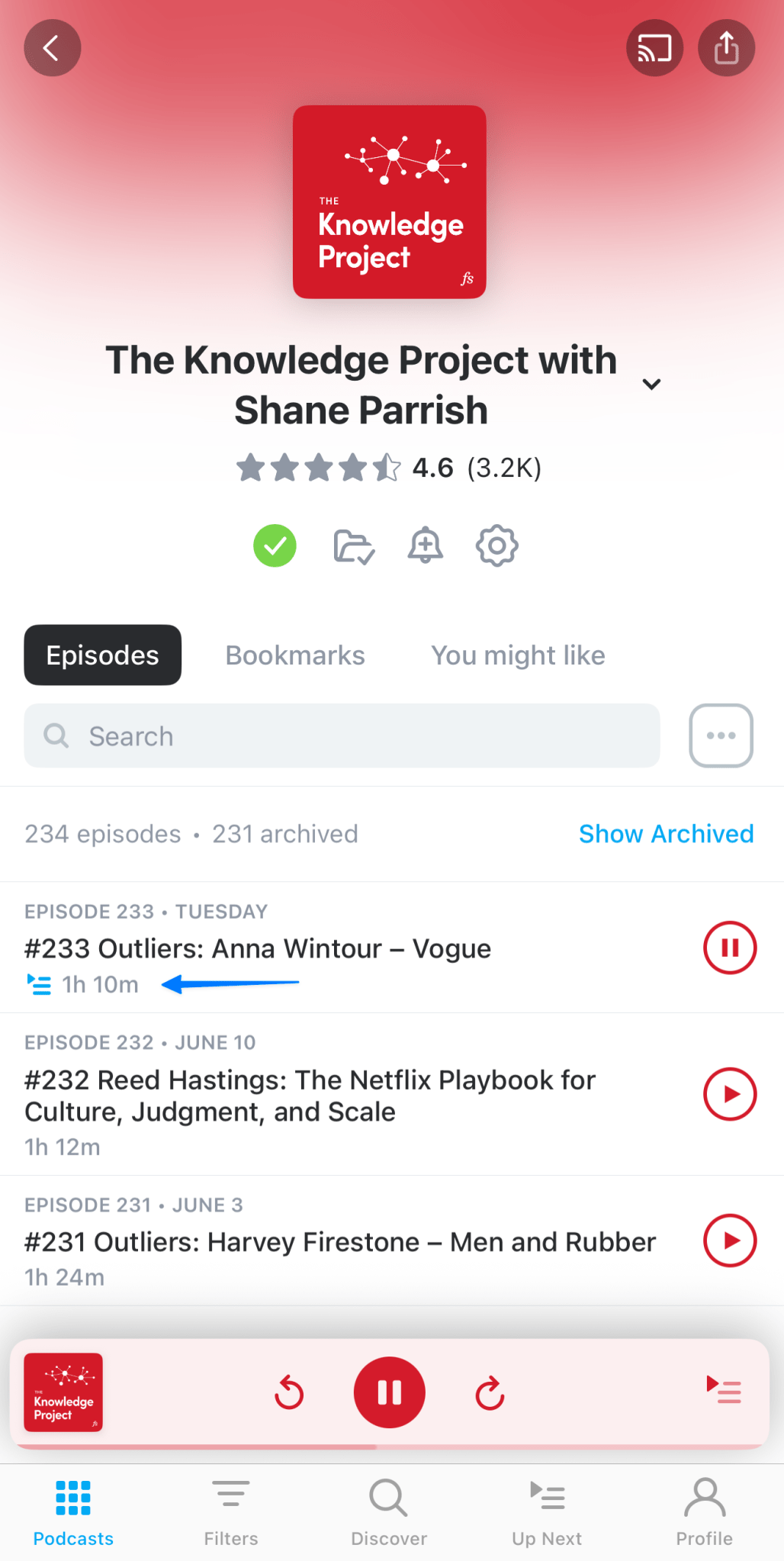
When browsing Episode Lists for a podcast, Pocket Casts typically shows the duration of each episode below the title, allowing you to see episode lengths before you start playing them.