
Managing your episode downloads can help you keep your downloads organized, free up your device’s local storage, and ensure a smoother listening experience — downloaded episodes can be played while your device is offline and can offer smoother playback compared to streaming when connected to a slower or inconsistent network.
Note that this support article applies to the Android and iOS mobile apps, and deleting downloads is a permanent and irreversible process.
How to Download Episodes
You can find information about downloading podcast episodes in the following support articles:
- How to Download Episodes on iOS
- How to Download Episodes on Android
- How to Download Episodes on Web/Desktop
- Auto Downloading Episodes
How To Delete a Download
To remove an individual downloaded file:
- Tap on an episode’s row in any episode list in the app to bring up the episode’s details.
- In the episode card, tap the green tick ✓, which symbolizes that the episode has been downloaded.
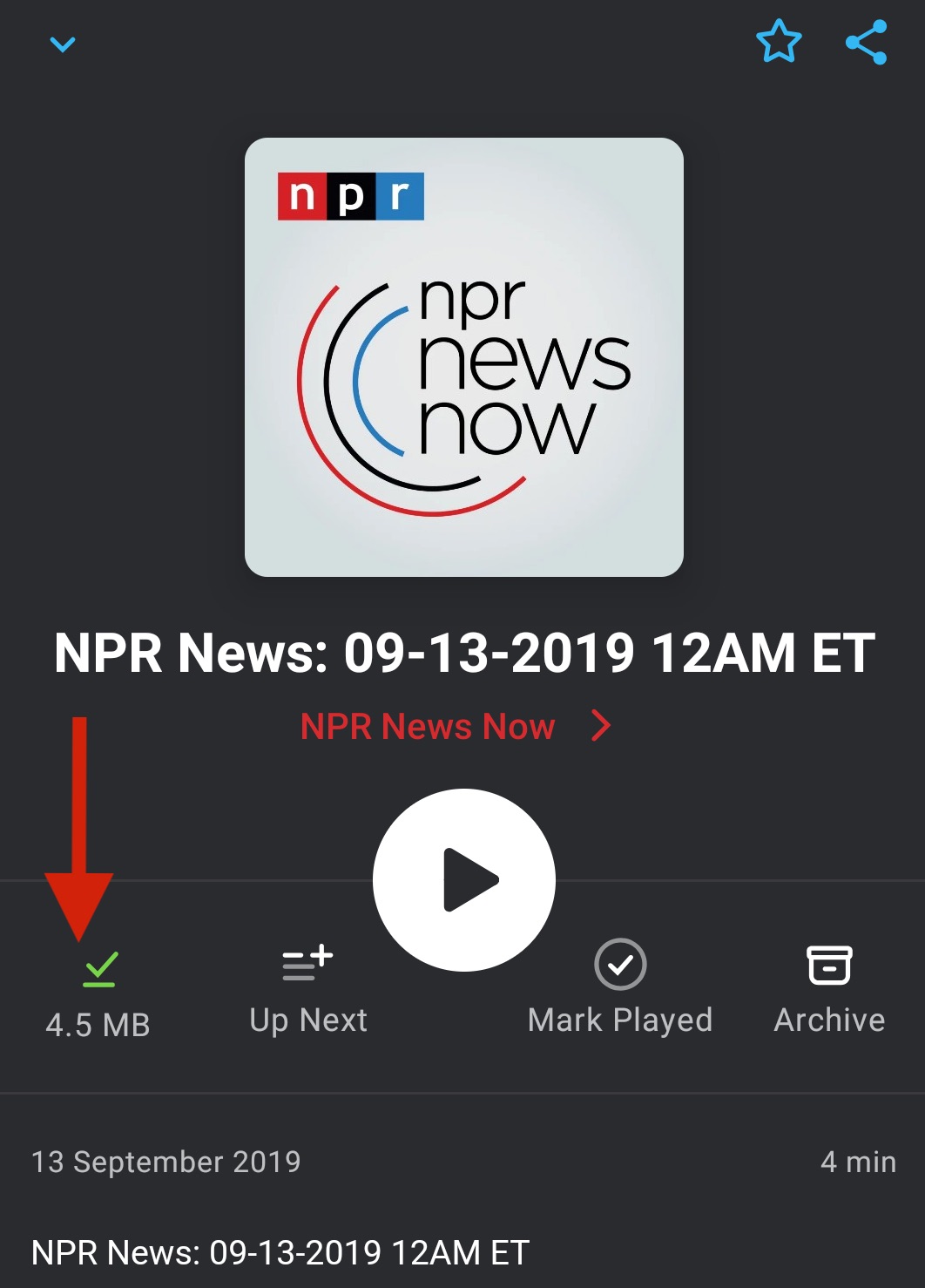
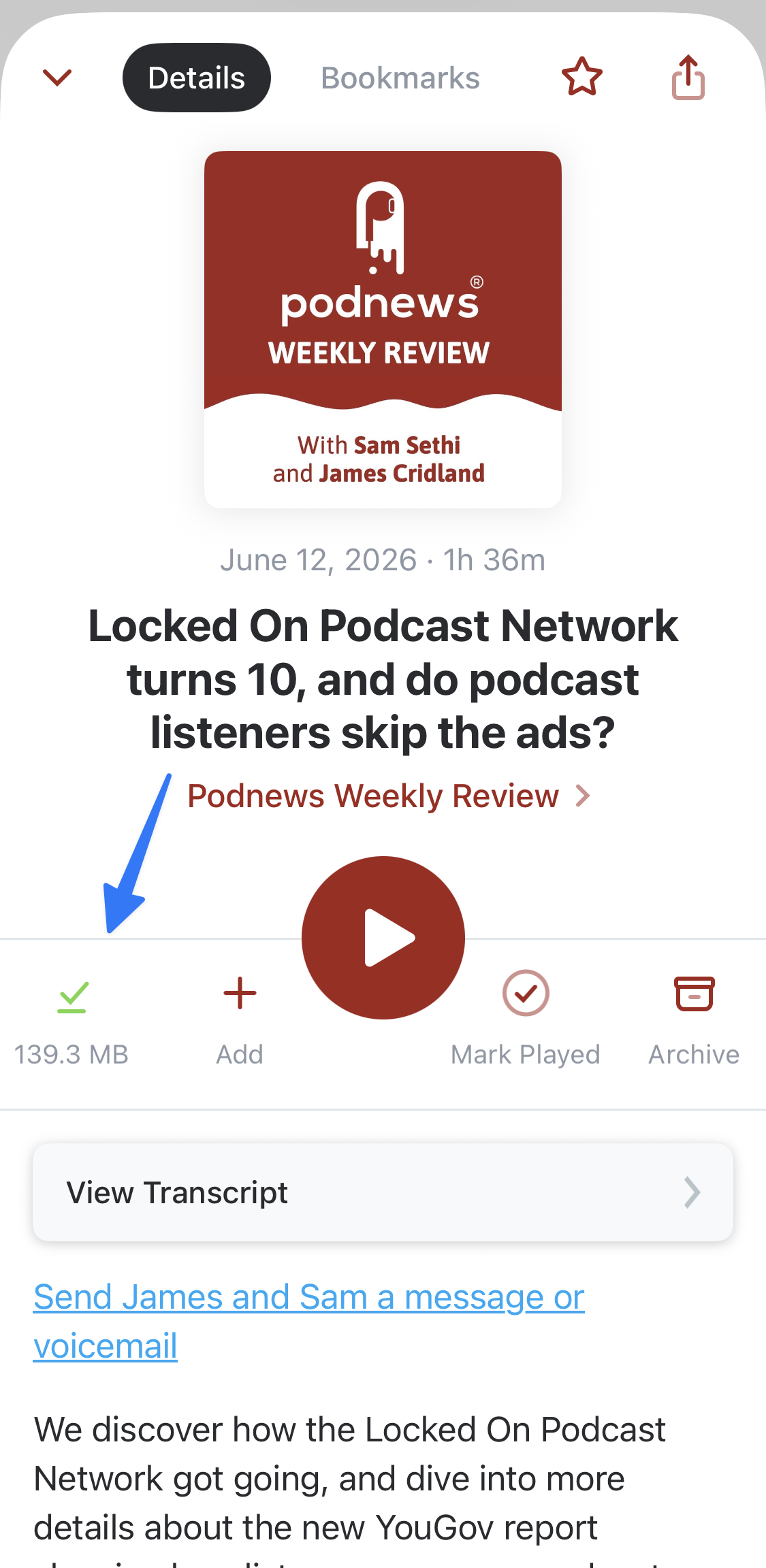
- A dialog will pop up from the bottom of the screen asking you to confirm if you want to “REMOVE DOWNLOADED FILE?”
- Tap “Remove.”
Archiving an episode will also automatically remove its downloaded file.
How To Delete Downloads in Bulk
There are two different ways you can delete download files in bulk: using Multi-Select mode and the “Clean Up” tool.
Use Multi-Select Mode to Delete Downloads in Bulk
To delete multiple episode downloads at once using Multi-Select, you can refer to the following support article: Using Multi-Select.
Use “Clean Up” To Delete Downloads in Bulk According to Episode Statuses
To bulk delete downloads with the “Clean Up” tool, you can follow these steps:
- Go to Profile > Downloads
- On the “Downloads” screen, tap the three-dot “…” icon in the upper-right corner to access more options.
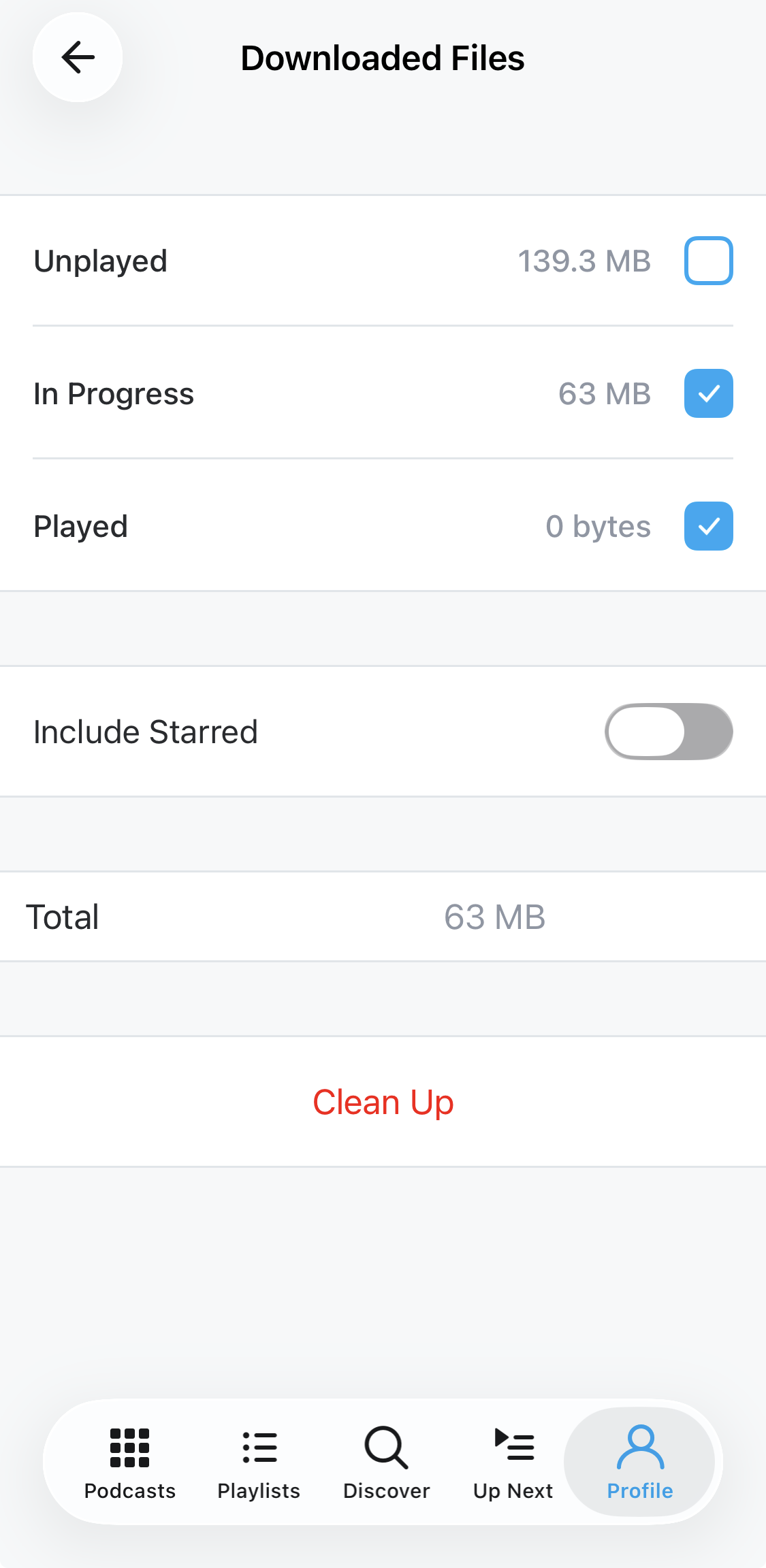
- Tap “Clean Up,” which will take you to a “Downloaded Files” screen.
- On the “Downloaded Files” screen, you will see different episode statuses you can select. You’ll also be able to see how much storage space is being occupied by downloads based on their status.
- Select the episode status(es) you want to clean up.
- Tap “Clean Up.”
- A confirmation dialog will pop up from the bottom of the screen asking you to confirm whether you’re sure you want to delete the downloaded files.
- Tap “Delete.”

How To Automatically Delete Downloads
Archiving an episode automatically removes its downloaded file. So, you can set Auto Archive settings according to the following guide: How To Automatically Archive Episodes.
With Auto Archive, episodes will be automatically archived according to your settings. Any downloaded files associated with the episodes will also be deleted in the process.
Other Actions for Managing Downloads
Apart from “Clean Up,” here are the other actions you can take to help manage your downloads:
- Retry Failed Downloads
- Stop All Downloads
You can access these additional actions according to these steps:
- Go to Profile > Downloads
- On the “Downloads” screen, tap the three-dot “…” icon in the upper-right corner to access more options.
Syncing Downloads Across Devices
Episode downloads are not included in Pocket Casts Sync. So, if you want an episode to be downloaded on multiple devices, you will need to initiate and complete the download on each device.
TV apps are the exception: Pocket Casts for Android TV and Google TV and for Apple TV stream episodes only and cannot download them at all, so there is no way to download on those devices. A playlist that filters by downloaded episodes will show no episodes on a TV, even when the same playlist is full on your phone.
Transferring Downloads to a New Phone
Currently, there is no supported way of transferring downloads from one phone to another.
Troubleshooting Download Issues
Episode downloads are stuck in “Queued for download” status
Here are some things you can check when your episode download are stuck in “Queued for download” status:
- Internet connection – ensure that your device is connected to a stable internet connection; you can test switching to a different internet connection, and switching from WiFi to mobile data (or vice versa)
- Connection blockers – if you have a firewall, VPN, filter, ad-blocker, or similar active on your device or primary network connection (like Pi-hole), test disabling it temporarily
- Storage space – verify that you have enough storage space on your device for storing downloads
- Battery optimization – remove any battery use restrictions set for Pocket Casts; you can refer to How to give Pocket Casts unrestricted battery access?
- Retry the download – you can remove an episode from the download queue or clear the entire download queue, then re-add the episode(s) you wish to download
Only some new episodes auto-download (only the latest 1–2 episodes get downloaded)
If a podcast publishes multiple new episodes per day or in quick succession — for example, a 3-hour daily show split into three hourly episodes — and only the most recent one or two get auto-downloaded, the cause is usually the global Limit Downloads setting in your Auto Download options.
This setting caps how many of the latest episodes per podcast get auto-downloaded each time new episodes arrive, and it applies regardless of any per-podcast Episode Limit you have set. If it is set to “Latest Episode” or “Two Latest Episodes,” any third (or later) new episode from a single batch will be skipped and will not download automatically, even though it appears in the episode list.
To check and adjust it:
- Go to Profile > Settings > Auto Download.
- Tap Limit Downloads.
- Choose a higher value (for example, “Three Latest Episodes” or higher) or select “No Limit.”
For more details on Auto Download settings, see Auto Downloading Episodes.
FAQs
How can I view episode downloads for a podcast I am not following?
If you are not following a podcast, it will not appear in your Podcasts tab/screen. Its episodes will also not appear in any Smart Playlists you create.
So, to view episode downloads for a podcast without following it, you can go to Profile > Downloads. Profile > Downloads will show all episode downloads you have, regardless of whether you are following a podcast.
