
Tapping on a podcast you’ve searched for, or one that’s caught your eye in the Discover tab, will take you to that podcast’s page. There you can view information about the podcast including its list of available episodes.
If the podcast belongs to a network, its author name is a link — both in the header and in the details below it. Select it to open the network and see the publisher’s other shows.
You can stream and download episodes from a podcast’s page without following it, but following the podcast will give you access to extra settings to customize your app experience. You can find a list of your follows in the Podcasts tab.
Tap the Follow button to add the podcast to your follows. Tap the green followed tick  to unfollow the podcast.
Tap the ∨ or the podcast’s artwork to see the podcast’s description and details. Tap the ∧ or the podcast’s artwork again to hide this info.
You can connect to a  Chromecast device and
  /
/  Share a link to the podcast from this page.
The search bar lets you search the episode titles and show notes within this podcast.
When followed, tap the bell icon to turn new episode notifications ON  /OFF
/OFF 
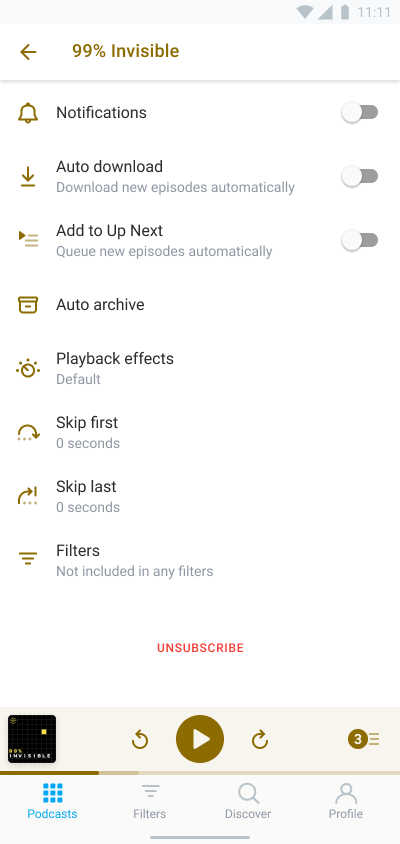
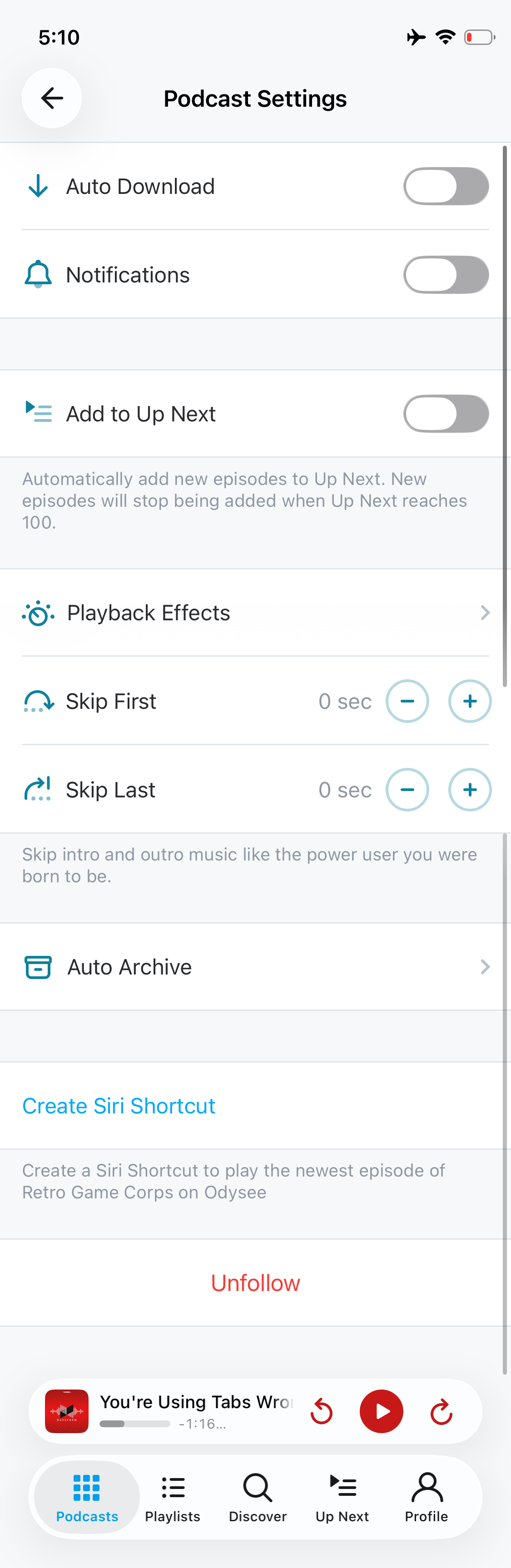
When followed, tap the settings cog to access per podcast settings:
Android
iOS
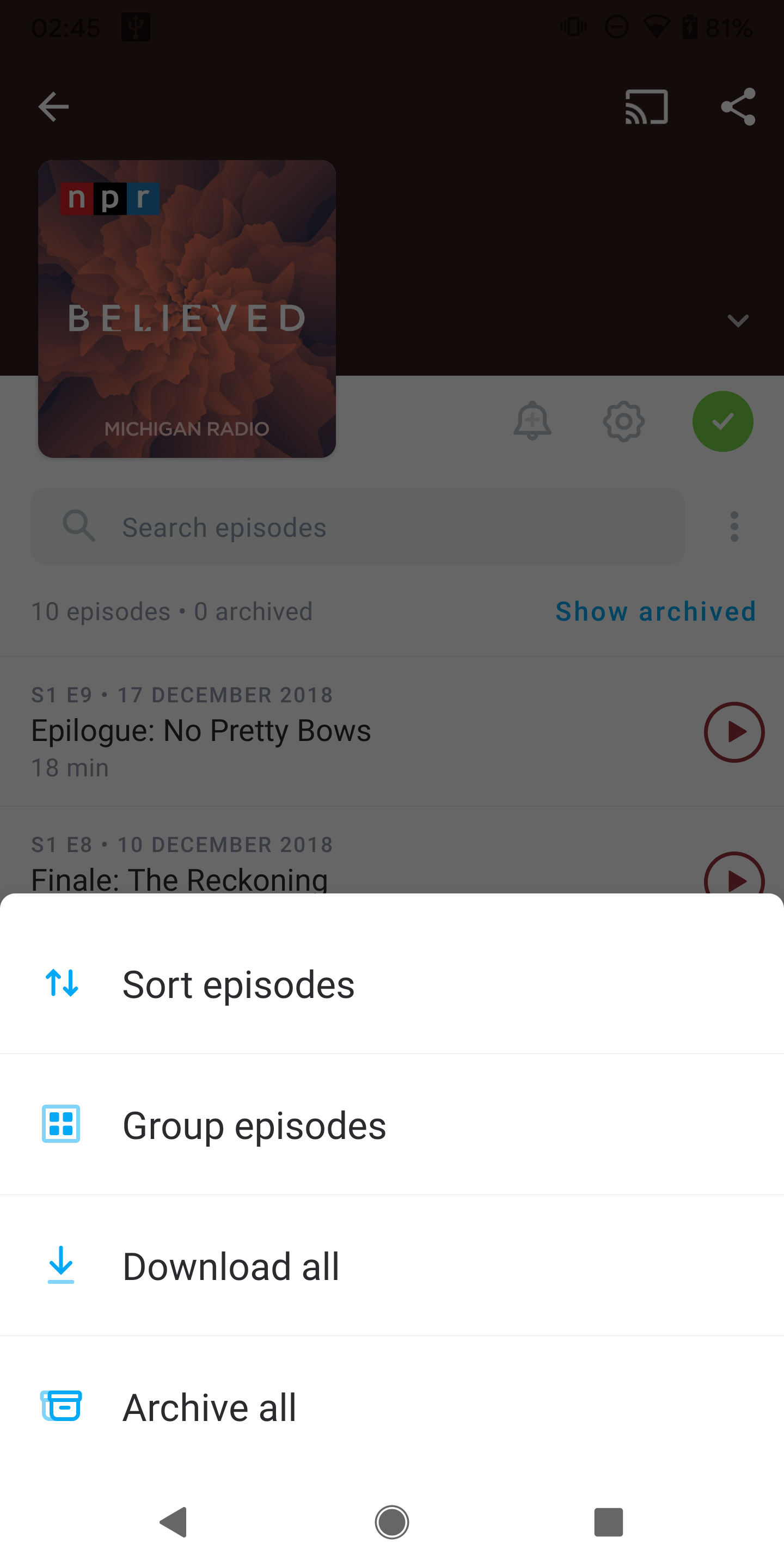
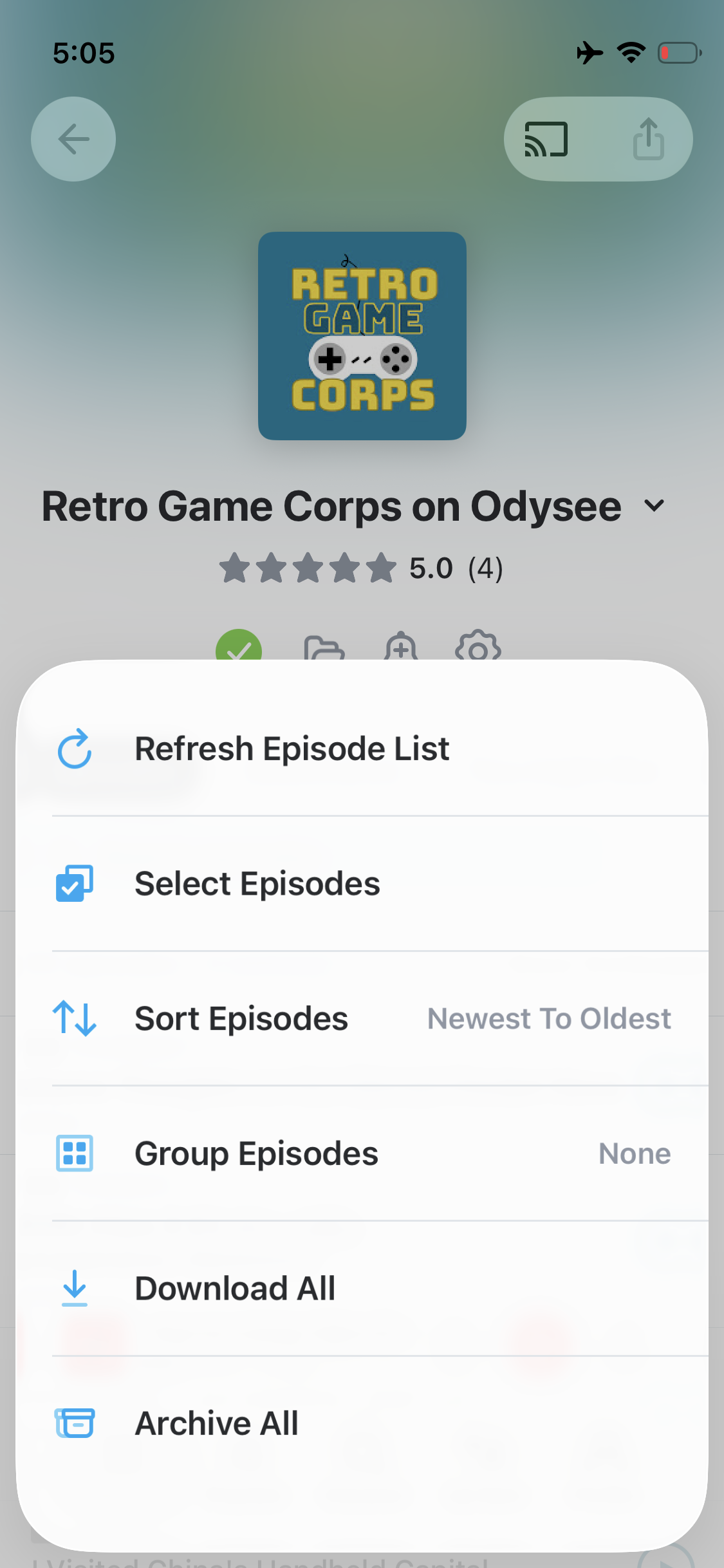
The three dot menu  /
/  gives options for arranging episodes and other actions you can take, whether you’re following the podcast or not: Select Episodes (available on iOS), Sort Episodes, Group Episodes, Download All, Archive All
Android
iOS
Show Archived / Hide Archived lets you quickly see and hide archived episodes for this podcast. This option is also available as a global setting: Profile > General > Archived Episodes.
Some podcasts show a small explicit indicator — a circled letter E (sometimes called the explicit badge or explicit content icon) — on the podcast’s page, next to the row that shows the podcast’s category and author. This badge marks a show whose creator has flagged it as containing explicit content, such as strong language or adult themes. It’s an informational label only and doesn’t change how the podcast plays.
The circled E means the podcast’s creator has marked the whole show as explicit in the podcast’s feed (the standard itunes:explicit setting). Pocket Casts reads this directly from the information the podcast publisher provides, and does not decide or assign it. The indicator applies to the entire podcast, not to individual episodes, and helps you recognize shows that may not be suitable for every listener (for example, around children or at work).
The explicit indicator is available on Pocket Casts for Android (version 8.11 and later). A few things to know:
- It’s a label only. It does not block, hide, restrict, or filter any podcast or episode, and it doesn’t affect playback.
- It applies to the entire podcast, not to specific episodes.
- It comes from the podcast creator’s own feed. Pocket Casts shows the creator’s setting and can’t add or remove it for an individual show.
- No badge doesn’t guarantee a show is “clean.” It only means the show hasn’t been marked explicit in its feed (or the feed doesn’t specify).
Episode Lists
An episode row has episode’s title, the podcast’s artwork, and a quick way to stream or download the episode.
Tap on the episode row to open its episode card for further actions you can take, and to view its show notes.
☆ Star
 Share
Share
 Download /
  Delete download /
  Stop downloading
 Add to Up Next /
  Remove from Up Next
 Play
Play
 Mark Played /
  Mark Unplayed
 Archive /
  Unarchive
Multi-select mode
You can find more information about multi-select, it’s options, and customization in our Using Multi-Select guide.
Podcast descriptions and episode show notes often contain links — a website, a social account, a discount code. You can copy a link’s address instead of opening it.
On Android, long press the link. The address is copied straight to your clipboard, and your device will confirm the copy. This requires Pocket Casts 8.18 or later, and works in three places:
- the podcast’s description on a podcast’s page (tap the ∨ or the artwork to expand it)
- Details in the player
- Details on an episode card
On Android this works for text links and for images that link somewhere. Email links are copied as a plain address, with the mailto: prefix removed.
On iOS, long press the link and choose Copy Link from the menu that appears. The same menu also lets you open or share the link.
On both platforms, a normal tap still opens the link as usual.
